
Qt for macOS - Alternative ways of installing Qt
Overview
You can install the Qt Framework, design, and development tools on macOS from these sources:
- Using the Qt Online Installer (Recommended).
- Gives you access to latest versions of Qt, on the day of their release.
- Allows you to install older versions of Qt, in parallel to newer ones.
- Features all Qt modules, including commercial-only ones.
- Preconfigures Qt versions in Qt Creator and Qt Design Studio.
- Allows you to browse the Qt documentation and examples locally.
Qt Online Installer is full-featured, flexible, and fully supports commercial use cases. It is also the one supported best by The Qt Company and The Qt Project. We recommend it if you plan to develop with Qt, or bundle Qt as part of application.
- Using the Homebrew package manager.
- Does not require a Qt Account.
- Installs a recent version of Qt 6 (though not always the latest one).
- Allows you to install most (but not all) Qt modules.
- Does not provide a local version of the Qt documentation or examples.
- Allows you to share third-party modules with other libraries and applications.
Homebrew is lightweight and good for automation. Homebrew works great if you need to install Qt as a dependency for a macOS application, but do not plan to do development work with Qt yourself, nor need special or commercial-only Qt modules.
Installing Qt Using the Qt Online Installer
See Get and Install Qt with Qt Online Installer for information about how to use Qt Online Installer.
Installing Qt using Homebrew
To install Qt, Qt Creator, and Qt Design Studio with Homebrew, install Homebrew first using the installation command. Then run the following commands in a terminal:
brew install qt
brew install --cask qt-creator
brew install --cask qt-design-studio
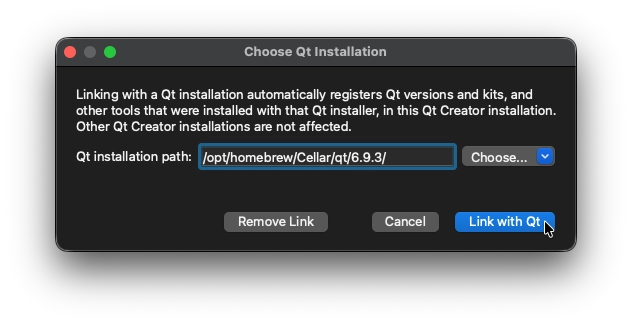
When you start Qt Creator, Qt Extension for Visual Studio Code, or Qt Design Studio, you need to set the path to the Qt version installed by Homebrew. By default, Homebrew installs Qt in /opt/homebrew/Cellar/qt/<version>/.
For more information on setting up a Qt Kit:
- For Qt Creator, see Qt Creator: Add Qt versions.
- For Qt Extension for Visual Studio Code, see Qt Extension for Visual Studio Code: Register Qt installations.
© 2026 The Qt Company Ltd. Documentation contributions included herein are the copyrights of their respective owners. The documentation provided herein is licensed under the terms of the GNU Free Documentation License version 1.3 as published by the Free Software Foundation. Qt and respective logos are trademarks of The Qt Company Ltd. in Finland and/or other countries worldwide. All other trademarks are property of their respective owners.
