
User Guide
This document explains how to interact with the virtual keyboard.
Opening the Keyboard
Once properly installed, the virtual keyboard can be opened by clicking on a text input field.
Language
The language can be changed by pressing the language key, which is illustrated with a "globe" icon:

The current language is displayed on the space bar key.
Handwriting
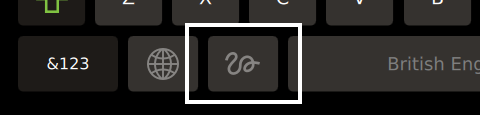
The handwriting mode can be activated by pressing the handwriting key:
Gestures
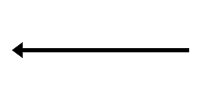
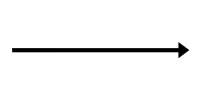
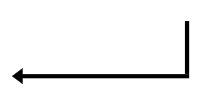
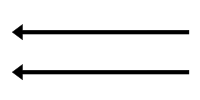
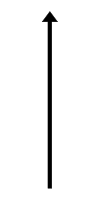
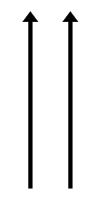
| Gesture | T9 Write | MyScript Text SDK | |
|---|---|---|---|
| Backspace |
|
|
|
| Space |
|
|
|
| Enter | Gesture not available |
|
|
| Reset word |
| Gesture not available | Gesture not available |
| Toggle input mode |
| Gesture not available | Gesture not available |
| Toggle text case |
| Gesture not available | Gesture not available |
© 2026 The Qt Company Ltd. Documentation contributions included herein are the copyrights of their respective owners. The documentation provided herein is licensed under the terms of the GNU Free Documentation License version 1.3 as published by the Free Software Foundation. Qt and respective logos are trademarks of The Qt Company Ltd. in Finland and/or other countries worldwide. All other trademarks are property of their respective owners.
