
C
App Lister
Demonstrates usage of the AndroidAppsUtils QML component from the QtAndroidAutomotive.Base module.
Building and deploying the example
See specific steps relating to building and deploying Qt for Android Automotive examples.
Overview
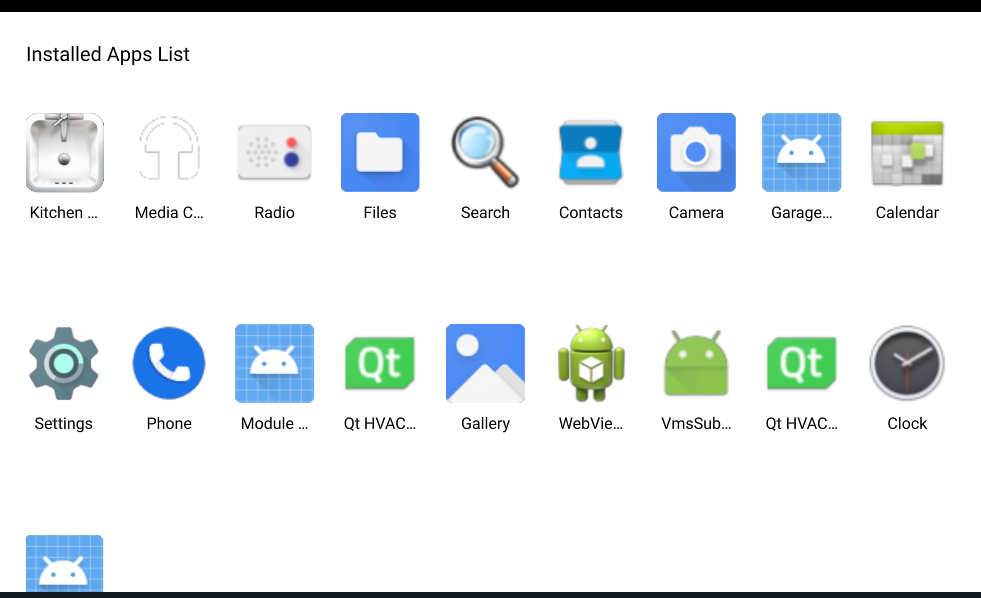
This example demonstrates how to use the AndroidAppsUtils QML component by showing a list of installed apps in an Android or Android Automotive device and how to handle relevant events. The application UI is created by using Qt Quick.
When starting the app, a list of all installed apps, excluding system apps, is shown as GridView. Pressing the icon starts the app. Each icon also responds to a long press by showing additional Menu. Menu contains two clickable items to show the app info page, or uninstall the app. App Lister also keeps track of installed or uninstalled apps and adds them to the list, as well as showing a text notification on those events.
Using the Model
The installed apps model is based on a QAbstractListModel from C++ and it is extended to QML. The model can be used with ListView or GridView as needed.
In this example, a GridView is used. The model is attached to the grid as follows:
    GridView {
        id: gridView

        anchors {
            left: parent.left
            right: parent.right
            bottom: parent.bottom
            top: updatesText.bottom
            margins: window.marginSize
        }
        clip: true

        cellWidth: (window.isLandscape ? window.height : window.width) / 5.5
        cellHeight: cellWidth * 2

        model: AndroidAppsUtils.installedAppsModel
Then, we set the grid's delegate to use an Image that contains the app's icon and handles a long press for additional Menu and Text for app's name.
        delegate: Rectangle {
            id: appDelegate

            width: gridView.cellWidth - window.marginSize
            height: gridView.cellHeight - window.marginSize
            readonly property int iconSize: height / 2.25
            required property var model

            Image {
                id: appIcon

                height: appDelegate.iconSize
                width: appDelegate.iconSize
                source: appDelegate.model.AppIconString
                anchors.horizontalCenter: parent.horizontalCenter

                MouseArea {
                    id: startrightBtn

                    anchors.fill: parent
                    onClicked: AndroidAppsUtils.startApp(appDelegate.model.packageName)
                    onPressAndHold: contextMenu.popup(mouseX, mouseY)
                }

                Menu {
                    id: contextMenu

                    MenuItem {
                        enabled: !appDelegate.model.isSystemApp
                        text: "Uninstall"
                        icon.source: "icons/delete.png"
                        onClicked: AndroidAppsUtils.uninstallApp(appDelegate.model.packageName)
                    }
                    MenuItem {
                        text: "Info"
                        icon.source: "icons/info.png"
                        onClicked: AndroidAppsUtils.showAppInfo(appDelegate.model.packageName)
                    }
                }
            }

            Text {
                id: appName

                text: appDelegate.model.appName
                width: appDelegate.width
                anchors {
                    top: appIcon.bottom
                    topMargin: window.marginSize / 3
                }
                horizontalAlignment: Text.AlignHCenter
                elide: Text.ElideRight
                wrapMode: Text.Wrap
                font.pointSize: 14
                maximumLineCount: 2
            }
        }
    }
Using the API Calls
Inside the GridView delegate, we can trigger some calls to the Java API to execute the common operations like starting, uninstalling, and showing the app's info. To start an app for example:
onClicked: AndroidAppsUtils.startApp(appDelegate.model.packageName)The AndroidAppsUtils component reports any event of app installation or un-installation. To receive those signals and execute an operation in response to that, we need to implement Connections, as follows:
        Connections {
            target: AndroidAppsUtils
            function onAppUninstalled(message) {
                updatesText.text = qsTr("Uninstalled: %1").arg(message);
            }

            function onAppInstalled(app) {
                updatesText.text = qsTr("Installed: %1").arg(app.packageName);
            }
        }
    }
See also Qt for Android Automotive.
Available under certain Qt licenses.
Find out more.
