
Local analysis with Axivion
You can perform local analysis for projects you are connected to on a dashboard. In the issue table, select the respective dashboard and project. You need to have the Axivion Suite set up locally and a valid licence.
To set up a local build for the active project inside the Axivion view:
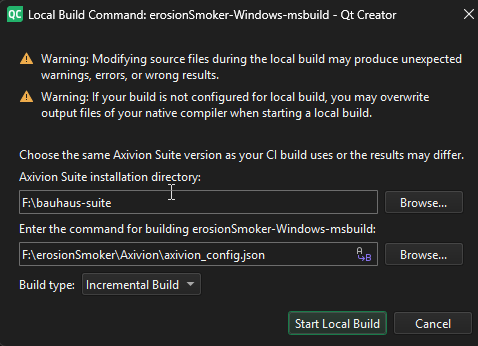
- Select
 in the issue table.
 - Select the Axivion Suite base directory in Axivion Suite Installation Directory.
- Enter the command or choose a script or the respective JSON file holding the Axivion configuration.
- Select the build type from Build Type. You may choose either a clean build or an incremental build.
- Select Start Local Build to perform the build with the given parameters.
View running and finished local builds in Local Build Progress.
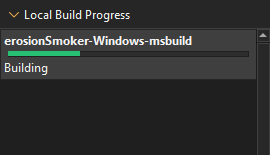
Right-click a local build to cancel a running build from the context menu. You can inspect the Axivion or build log of local builds after they finished. Select Remove All Finished to remove the local builds which have finished already from the local build progress.
Local dashboard
If the current selected project has a local build present, you may see its result by switching to the local dashboard view.
Select  to do so. This starts the local dashboard and switches the issue table to display the latest results.
Select Local Dashboard again to switch back to the global dashboard.
Information about using the global dashboard applies to the local dashboard as well (issue type selection, filtering), but you have only a limited version selection.
In Version, you can switch between the reference version of the global dashboard and the local dashboard results. Depending on the local build result you may limit the issue table to local issues or changed issues.
Single file analysis
To check whether your changes fix style issues or cause new ones, analyze a single file.
To start a single file analysis, go to Analyze > Single File Analysis or use the respective item inside the context menu of the file's editor.
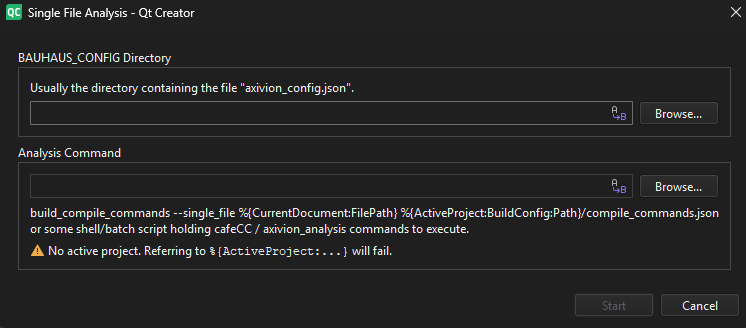
In BAUHAUS_CONFIG Directory, specify the directory containing the Axivion configuration for this project. In Analysis Command, specify a command performing the build and the analysis.
Note: The analysis command usually is a call to build_compile_commands provided by the Axivion suite in use, but may also be a script file consisting of commands to build the respective file using cafeCC and analyze it. build_compile_commands can make use of a generated compile_commands.json file representing the build instructions of the project. For more information, see Use compilation databases. Put more complex commands into a script file to set up a special environment, for example.
Note: For more information about the commands and creating the script file, see IDE Integration and Local Analyses in the official Axivion documentation.
You can see the progress of a running single file analysis in Local Build Progress. It will have the prefix SFA:.
When the single file analysis finishes, additional color-coded line markers might be added to the opened file. Color-coded line markers originate from a single file analysis while others where fetched from the global dashboard. In case of a failed analysis, you can inspect the Axivion log or the build log, similar to local builds in general.
See also Connect to Axivion dashboard servers, View Axivion static code analysis results, Enable and disable plugins, How To: Analyze, Analyzers, and Analyzing code.
Copyright © The Qt Company Ltd. and other contributors. Documentation contributions included herein are the copyrights of their respective owners. The documentation provided herein is licensed under the terms of the GNU Free Documentation License version 1.3 as published by the Free Software Foundation. Qt and respective logos are trademarks of The Qt Company Ltd in Finland and/or other countries worldwide. All other trademarks are property of their respective owners.
