
git commit
To submit your changes to Git:
- Go to Tools > Git > Local Repository and select Commit.
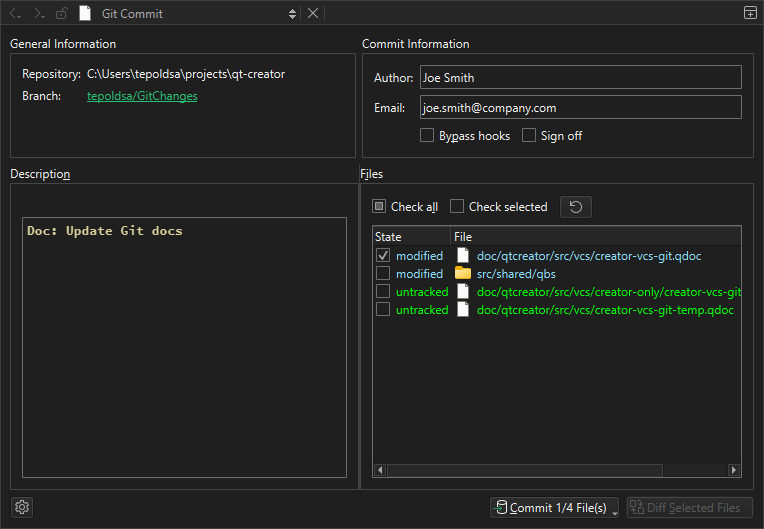
General Information shows the names of the repository and branch for the commit.
- In Commit Information, check and edit information about the author of the changes.
- To bypass pre-commit and commit message hooks, select Bypass hooks.
- If your project uses signoffs, select Sign off to add a signed-off-by trailer by the author at the end of the commit log message.
- In Description, enter a commit message.
- In Files, select the files to include in the commit.
- Select Diff Selected Files to open the Git Diff Files view, where you can view the changes and stage them chunk-by-chunk or line-by-line.
- Select Commit to start committing.
To view the log of the current branch, select the branch name in Branch.
Apply actions to files
Open the context menu in Files to apply actions to files. Actions like Open in Editor and Show in File System are provided for all files. The availability of other actions depends on the state of the selected file.
| Menu Item | Description |
|---|---|
| Add | Add untracked files to version control. |
| Stage | Stage a modified file for commit. |
| Unstage | Unstage a modified file. |
| Remove | Delete untracked files. |
| Add to .gitignore | Add untracked files to the ignore list. |
| Mark Untracked | Mark added files as untracked. |
| Revert Unstaged Changes to <file> | Revert unstaged changes in modified files to the previous state. |
| Revert All Changes to <file> | Revert all changes in modified files to the previous state. |
| Recover <file> | Restore files deleted from version control. |
| Run Merge Tool | Launch the merge tool to resolve conflicts in the file. |
| Revert Renaming | Revert renamed files to their previous names. |
Resolve conflicts
To resolve conflicts, select Run Merge Tool in the context menu of a conflicted file and then select one of the following options:
| Menu Item | Description |
|---|---|
| Resolve by Recovering | Restore deleted files from version control. |
| Resolve by Removing | Delete files from version control. |
| Resolve Conflicts with Ours | Choose our version of the file to resolve merge conflicts. |
| Resolve Conflicts with Theirs | Choose their version of the file to resolve merge conflicts. |
| Mark Conflicts Resolved | Mark the file as resolved after manually resolving the conflicts. |
See also How to: Use Git and Using Git.
Copyright © The Qt Company Ltd. and other contributors. Documentation contributions included herein are the copyrights of their respective owners. The documentation provided herein is licensed under the terms of the GNU Free Documentation License version 1.3 as published by the Free Software Foundation. Qt and respective logos are trademarks of The Qt Company Ltd in Finland and/or other countries worldwide. All other trademarks are property of their respective owners.
