
Use MCP client
Qt Creator supports the model context protocol (MCP) to let AI assistants control it for debugging, building, and managing projects.
To use an MCP client, install one and activate the Qt Creator MCP server extension to start the MCP server.
View MCP server status
Qt Creator starts the MCP server when you activate the Qt Creator MCP server extension. The server runs at 127.0.0.1 and accepts connections on port 3001. For security reasons, you cannot run it on a remote computer.
To view the MCP server status, go to Tools > MCP Server > About MCP Server.
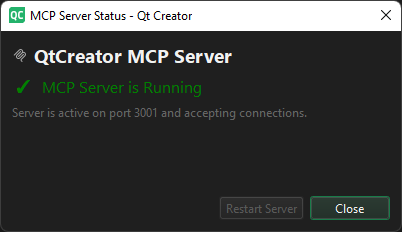
If the server does not start, see whether General Messages shows a warning about the port being in use.
Make sure that no other process is bound to the port. For example, on Linux, enter lsof -i :3001 in Terminal.
To use another port than 3001, set the MCP_SERVER_PORT environment variable to configure the port before Qt Creator starts.
Set up a simple MCP client
You can use any HTTP client that can send POST requests and read SSE responses. This section describes how to use pip to install a simple MCP client and how to configure it.
To install and configure a simple MCP client:
- Go to Terminal, and enter:
pip install simple-mcp-client
- Change the
simple_mcp_client\config.jsonconfiguration file to point to theqtcreatorMCP server:"mcpServers": { "qtcreator": { "enable": false, "type": "sse", "url": "http://127.0.0.1:3001/sse", "command": null, "args": [], "env": {} } }
You can find the config.json file in the following locations:
- On Linux:
~/.config/simple_mcp_client/ - On Windows:
C:\Users\<username>\AppData\Roaming\simple_mcp_client
Run Qt Creator tools
To run Qt Creator tools from the MCP client, start the client and connect to the Qt Creator MCP server.
To start the MCP client and view the list of Qt Creator tools:
- Go to Terminal, and enter:
python -m simple_mcp_client.main
- In Mini MCP Client Network Hub, enter:
connect qtcreator
- To view a list of tools, enter:
tools qtcreator
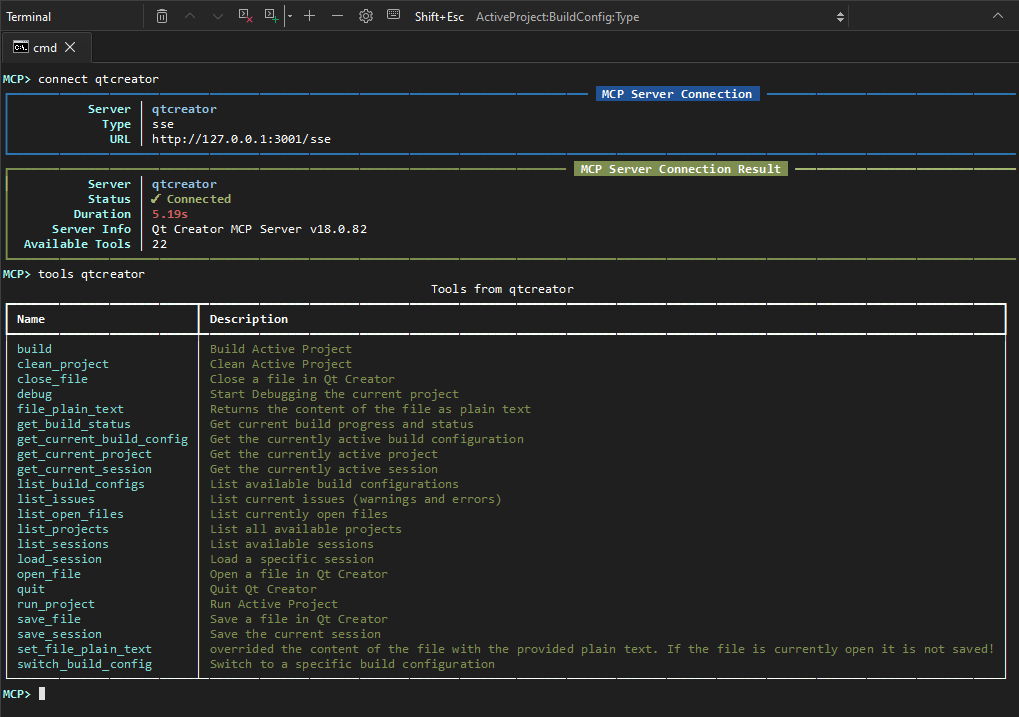
- To run a tool, enter
execute qtcreator <tool-name>
For example:
execute qtcreator list_sessions
If the SSE connection fails, make sure that the MCP client supports cross-origin resource sharing (CORS). It is an HTTP-header based mechanism that lets servers permit loading resources for other domains, schemes, or ports.
On Windows, the firewall might block inbound connections to localhost. Make sure that the Qt Creator executable can accept local traffic.
If a debug session does not stop when Qt Creator exits, you can manually stop debugging in the Debug mode or increase the timeout by setting the MCP_QUIT_TIMEOUT environment variable to 60 seconds.
Summary of tools
The following table summarizes the Qt Creator tools that the server registers. Each tool is a JSON-RPC method that has a name, human-readable title, description, input and output JSON schema, and a flag indicating whether the tool is read-only.
| Name | Title | Description | Parameters | Result | Read-only |
|---|---|---|---|---|---|
get_build_status | Get current build status | Returns a short textual description of the current build activity. | Empty object: {} | "result": "string" | Yes |
open_file | Open a file in Qt Creator | Opens the given file (URI) in the editor. The file is not saved automatically. | path: URI string or absolute file path | "success": true|false | No |
file_plain_text | Read file as plain text | Returns the raw text content of a file. | path: URI | "success": "text": "<plain_text>" | Yes |
set_file_plain_text | Write plain text to a file | Overwrites a file with the supplied text. If the file is open in the editor, the change is not saved automatically. | path: URI
| "success": true|false | No |
save_file | Save a file | Saves the editor document if it is modified. | path: URI | "success": true|false | No |
close_file | Close a file | Closes the document if it is open. | path: URI | "success": true|false | No |
list_projects | List all available projects | Returns an array of project display names. | Empty | "projects": ["MyApp", "LibA", ...] | Yes |
list_build_configs | List available build configurations | Returns an array of build-configuration names for the active project. | Empty | "buildConfigs": ["Debug", "Release"] | Yes |
switch_build_config | Switch to a specific build configuration | Activates the named build configuration for the current project. | name: configuration name as a string | "success": true|false | No |
list_open_files | List currently open files | Returns an array of absolute file paths. | Empty | "openFiles": ["/path/to/file1.cpp", ...] | Yes |
list_sessions | List available Qt Creator sessions | Returns an array of session names. | Empty | "sessions": ["default", "work", "debug"] | Yes |
load_session | Load a specific session | Switches to the named session asynchronously. | sessionName: session name as a string | "success": true|false | No |
save_session | Save the current session | Saves the current session to disk. | Empty | "success": true|false | No |
list_issues | List current issues (warnings and errors) | Returns an array of issue strings from Issues. | Empty | "issues": ["error: <string>", "warning: <string>"] | Yes |
quit | Quit Qt Creator | Performs a graceful shutdown (stops debugging, saves sessions, and calls QApplication::quit()). | Empty | "success": true|false | No |
get_current_project | Get the currently active project | Returns the display name of the startup project. | Empty | "project": "MyApp" | Yes |
get_current_build_config | Get the active build configuration | Returns the name of the currently selected build configuration. | Empty | "buildConfig": "Debug" | Yes |
get_current_session | Get the active session name | Returns the name of the currently loaded session. | Empty | "session": "default" | Yes |
In addition to the static tools, the plugin registers dynamic tools for triggering the most common Qt Creator actions:
run_projecttriggers the Run action.buildtriggers the Build action.clean_projecttriggers the Clean action.debugtriggers the Debug action.
Dynamic tools take an empty params object and return { "success": true|false }.
Add tools
The MCP Server extension uses Core::ActionManager to create tools with the names shown in the table. The implementation calls QAction::trigger() on the UI thread via McpServer::runOnGuiThread().
Therefore, you can turn any other command that is exposed through ActionManager into an MCP tool by adding a small wrapper in McpServer::initializeToolsForCommands().
See also Activate extensions.
Copyright © The Qt Company Ltd. and other contributors. Documentation contributions included herein are the copyrights of their respective owners. The documentation provided herein is licensed under the terms of the GNU Free Documentation License version 1.3 as published by the Free Software Foundation. Qt and respective logos are trademarks of The Qt Company Ltd in Finland and/or other countries worldwide. All other trademarks are property of their respective owners.
