
Set when conditions
Set when conditions to evaluate the truthfulness of several components' properties and move the UI to the state in which these conditions apply. You can evaluate whether something is true or false, greater than or equal to something else, and so on. You can also use operators, such as AND or OR, to evaluate the truthfulness of several components.
To determine when a state is applied:
- Go to View > Views > States.
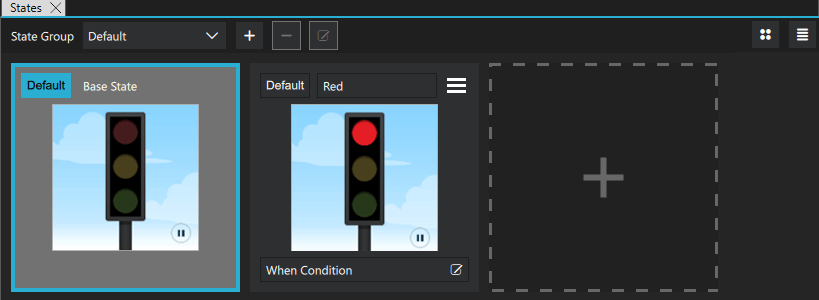
- In When Condition, select
 .
. - In Binding Editor, specify a when property for the state.
- Set the value of the property to a boolean expression that evaluates to
truewhen you want to apply the state.
The when conditions are evaluated from left to right and in order of appearance in the code. Therefore, if you have two conditions for two different states that both evaluate to true, the first state is applied.
Create conditional bindings
In Binding Editor, select the component and property to create the expression. For example, to change the state when a button is pressed, you could select a button component and its pressed property.
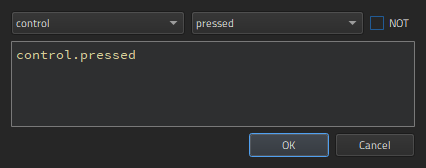
When you compose the expressions in Binding Editor, the code completion feature lists the components and their properties you can use in the expressions.
Summary of logical operators
You can use the following logical operators in the expressions to combine several conditions in one expression:
| Operator | Meaning | Evaluates to true if |
|---|---|---|
| ! | NOT | The condition is not met. |
| && | AND | Both conditions are met. |
| || | OR | Either of the conditions is met. |
| < | Less than | The left operand is less than the right operand. |
| > | Greater than | The left operand is greater than the right operand. |
| >= | Greater than or equal | The left operand is greater than or equal to the right operand. |
| <= | Less than or equal | The left operand is less than or equal to the right operand. |
| == | Equal | The operands are equal. |
| === | Strict equal | The operands are equal and of the same type. |
| != | Not equal | The operands are not equal. |
| !== | Strict not equal | The operands are of the same type but not equal, or are of different type. |
In addition, you can use arithmetic operators to compare numbers before checks. However, we recommend that you create separate properties for this purpose whenever possible.
Examples of when conditions
To apply a state to a button when the button is pressed, write:
when: control.pressed
To apply a state when the button is not pressed, select NOT.
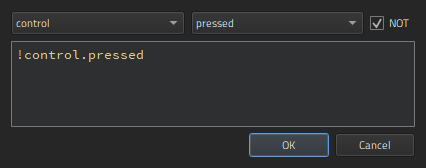
To apply a state when the button is not pressed, selected, nor hovered on, combine conditions, as follows:
when: !control.pressed && !control.checked && !control.hovered
To apply a state when the button is pressed or selected, but not hovered on, write:
when: control.pressed || control.checked && !control.hovered
See also How to: Work with states, Qt Quick UI design, and Designing Qt Quick UIs.
Copyright © The Qt Company Ltd. and other contributors. Documentation contributions included herein are the copyrights of their respective owners. The documentation provided herein is licensed under the terms of the GNU Free Documentation License version 1.3 as published by the Free Software Foundation. Qt and respective logos are trademarks of The Qt Company Ltd in Finland and/or other countries worldwide. All other trademarks are property of their respective owners.
