
Use Zen Mode
By default, the Edit mode shows a mode selector (1), as well as left and right sidebars (2 and 3).
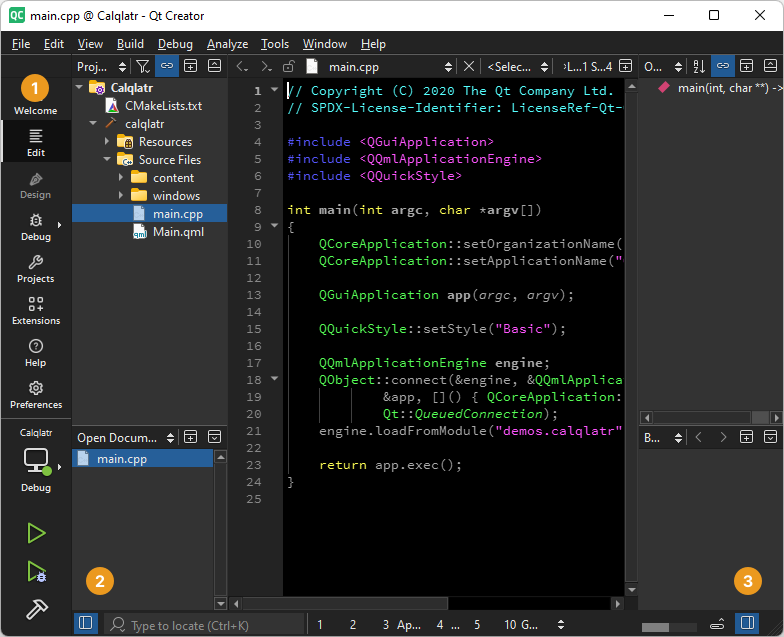
Edit mode with mode selector and sidebars visible.
The Zen Mode extension provides modes that hide UI elements so you can focus on editing code.
Activate the Zen Mode extension in the Extensions mode. For more information about extensions, see Activate extensions.
Toggle distraction free mode
The distraction free mode closes the mode selector (1), left and right sidebar (2 and 3), and other views.
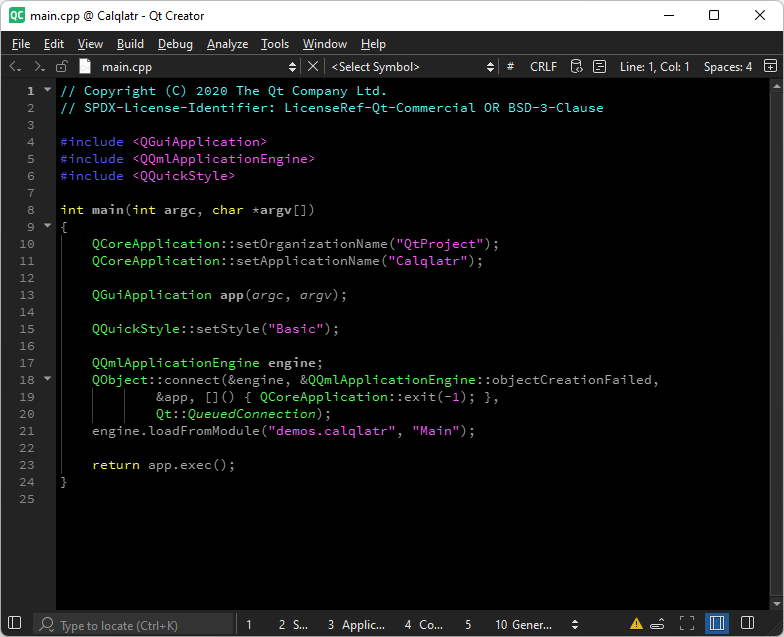
Distraction free mode on.
To toggle the distraction free mode:
- Select
 .
. - Go to Tools > Zen Mode, and select Toggle Distraction Free Mode.
- Select Shift+Esc.
Toggle zen mode
The zen mode closes the mode selector (1), left and right sidebar (2 and 3) and other views, switches Qt Creator to full screen, and hides the main menu bar.
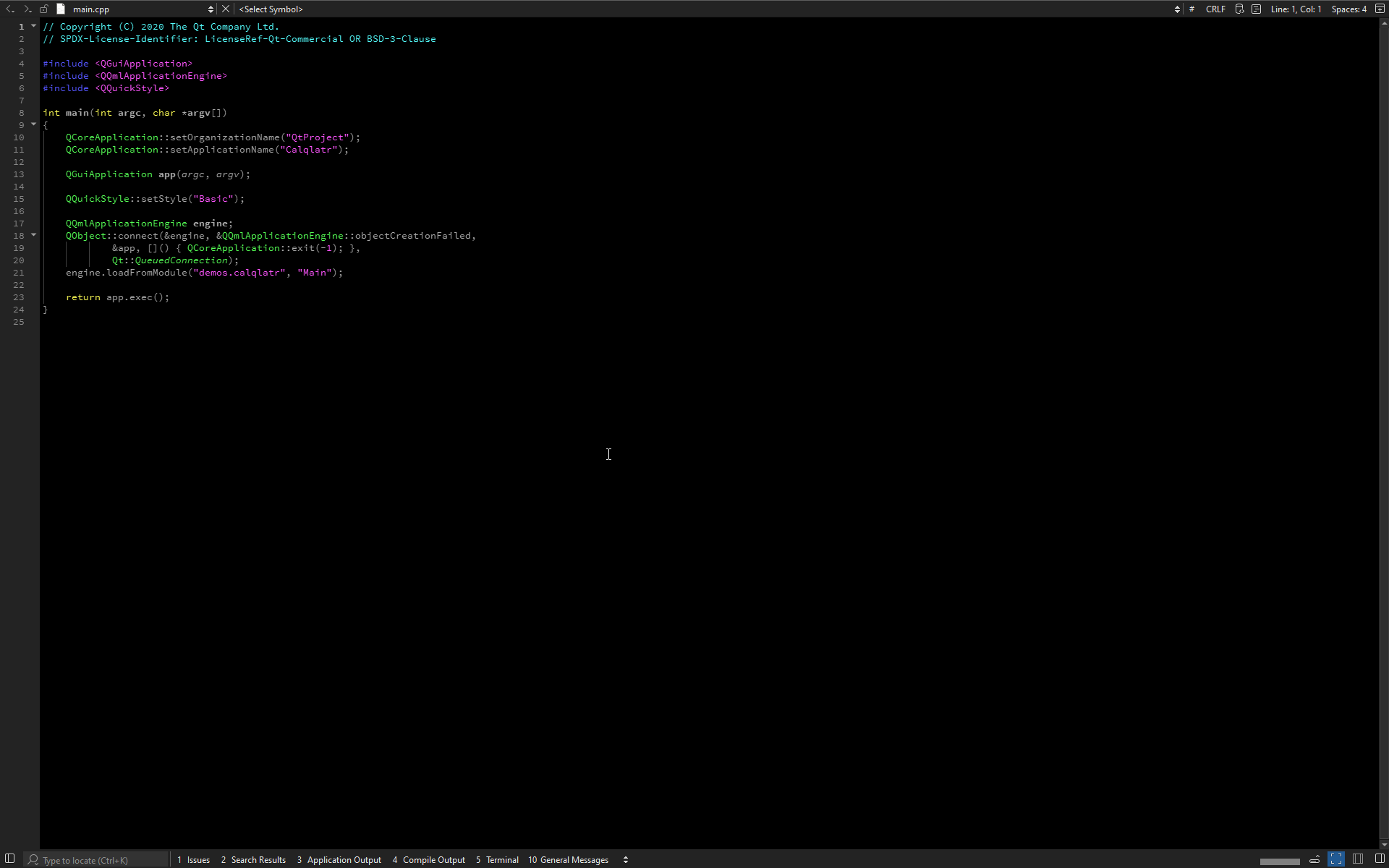
Zen mode on.
To toggle the zen mode:
- Select
 .
. - Go to Tools > Zen Mode, and select Toggle Zen Mode.
- Press Alt+Shift+Z.
Set Zen Mode preferences
To set preferences for the Zen Mode extension, go to Preferences > Zen Mode.
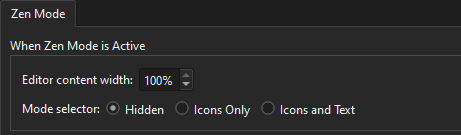
You can set the width of the editor content area and configure the appearance of the mode selector while the modes are active.
See also How to: Adapt the UI.
Copyright © The Qt Company Ltd. and other contributors. Documentation contributions included herein are the copyrights of their respective owners. The documentation provided herein is licensed under the terms of the GNU Free Documentation License version 1.3 as published by the Free Software Foundation. Qt and respective logos are trademarks of The Qt Company Ltd in Finland and/or other countries worldwide. All other trademarks are property of their respective owners.
