
C
Vehicle Dashboard
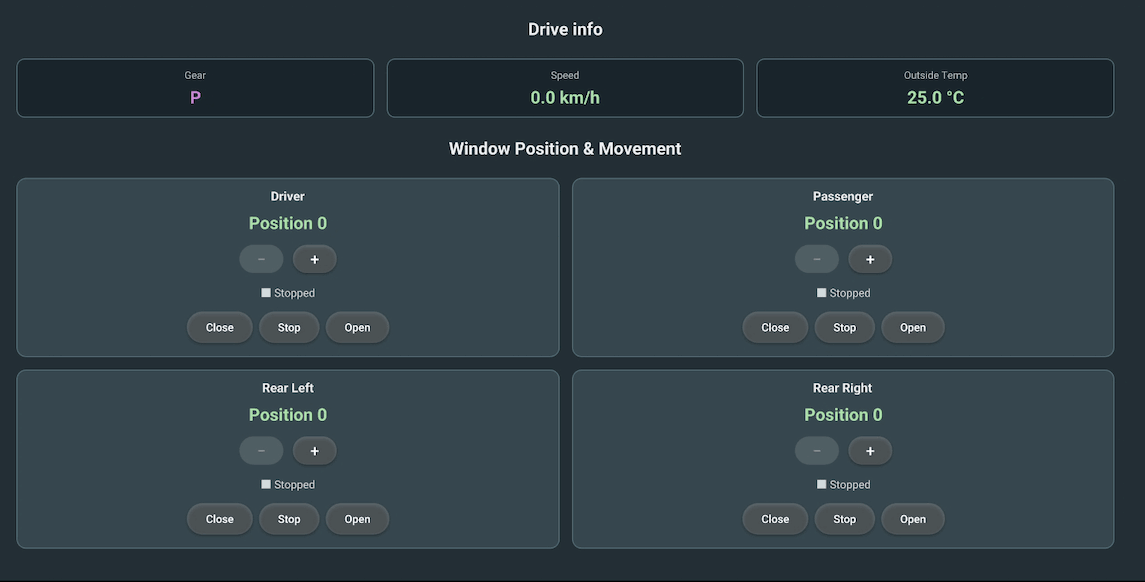
Demonstrates the Qt IF Generator Extensions for Android Automotive by reading drive information and controlling the vehicle's windows.
Building and deploying the example
See specific steps relating to building and deploying Qt for Android Automotive examples.
Overview
The Vehicle Dashboard presents a single screen that combines read-only drive information (gear, speed, outside temperature, engine RPM, coolant and oil temperatures) with two-way control of the four vehicle windows.
The example uses Qt Interface Framework and Qt for Android Automotive to access the Android Automotive Vehicle Hardware Abstraction Layer (VHAL), through the Qt IF Generator Extensions for Android Automotive. It is designed to behave consistently across both older and newer Android versions by relying only on a small, self-contained set of VHAL properties.
The application is built from generated front end and back end components. The interface is described in an Interface Definition Language (IDL) using QFace, with YAML files for the Android Automotive specific annotations. The generated back end talks directly to the Android Automotive Vehicle Properties Java API from native code through the Java Native Interface (JNI), so no separate Android service process is required.
Defining the Interface
The interface is defined in ifvehicledashboard.qface. Two interfaces are declared.
The WindowControl interface is zoned: its windowPos and windowMove properties are addressed per individual window, and it is writable. The required Android permission is declared inline in the @config annotation.
@config: { zoned: true, id: "io.qt.qtif.android.vehicleDashboardExample.WindowControl/1.0", required_permissions: "android.car.permission.CONTROL_CAR_WINDOWS", qml_type: "WindowControl" }
interface QIfWindowControl {
    /**
     * Window position. Runs from "closed" (min) to "fully open" (max).
     */
    int windowPos;

    /**
     * Window motion. Negative = closing direction, 0 = stopped,
     * positive = opening direction. Magnitude indicates speed.
     */
    int windowMove;
}
The DriveInfo interface is global (no zones) and read-only. It groups the drive and powertrain properties together and declares the permissions needed to read them.
@config: { id: "io.qt.qtif.android.vehicleDashboardExample.DriveInfo/1.0", required_permissions: ["android.car.permission.CAR_SPEED", "android.car.permission.CAR_ENGINE_DETAILED", "android.car.permission.CAR_EXTERIOR_ENVIRONMENT", "android.car.permission.CAR_POWERTRAIN"], qml_type: "DriveInfo" }
interface QIfDriveInfo {
    /**
     * Vehicle speed in metres per second.
     */
    readonly real vehicleSpeed;

    /**
     * Engine speed in revolutions per minute.
     */
    readonly real engineRpm;

    /**
     * Outside ambient temperature in degrees Celsius.
     */
    readonly real envOutsideTemperature;

    /**
     * Currently engaged gear. Uses the VehicleGear bitmask values reported
     * by the VHAL (e.g. 0x0001 = neutral, 0x0002 = reverse, 0x0004 = park,
     * 0x0008 = drive, 0x0010..0x2000 = gears 1..10).
     */
    readonly int currentGear;

    /**
     * Engine coolant temperature in degrees Celsius.
     */
    readonly real engineCoolantTemp;

    /**
     * Engine oil temperature in degrees Celsius.
     */
    readonly real engineOilTemp;
}
The Android Automotive specific mapping between the abstract interface and the concrete VHAL properties lives in ifvehicledashboard.yaml. For the zoned WindowControl interface, the QML-facing zone names are mapped to the platform's VehicleAreaWindow area identifiers:
QtIfAndroidVehicleDashboard.QIfWindowControl:
    config_android_automotive:
        imports:
            - android.car.VehicleAreaWindow
        zoneAliases:
            - WINDOW_DRIVER = VehicleAreaWindow.WINDOW_ROW_1_LEFT
            - WINDOW_PASSENGER = VehicleAreaWindow.WINDOW_ROW_1_RIGHT
            - WINDOW_REAR_LEFT = VehicleAreaWindow.WINDOW_ROW_2_LEFT
            - WINDOW_REAR_RIGHT = VehicleAreaWindow.WINDOW_ROW_2_RIGHT
        zoneMappings:
            DriverWindow: WINDOW_DRIVER
            PassengerWindow: WINDOW_PASSENGER
            RearLeftWindow: WINDOW_REAR_LEFT
            RearRightWindow: WINDOW_REAR_RIGHT
For the global DriveInfo properties, each property is mapped to its VHAL property identifier in the global area:
QtIfAndroidVehicleDashboard.QIfDriveInfo#vehicleSpeed:
    config_android_automotive:
        vhalId: PERF_VEHICLE_SPEED
        zone: QtCarProperties.GLOBAL_AREA_ID
Both the front end and the JNI back end are generated from these same files by the Qt Interface Framework Generator, as configured in the frontend, backend_jni and imports sub-projects.
Using the Back End API
The generated front end is exported to the QtIf.Android.VehicleDashboard QML module. Importing the module makes the WindowControl and DriveInfo types available to QML:
import QtQuick
import QtIf.Android.VehicleDashboard
In this example the back end access is collected in a dedicated VehicleFunctions.qml file, which keeps the communication with the VHAL separate from the UI. The two features are instantiated as properties:
readonly property WindowControl windowControl: WindowControl {}
readonly property DriveInfo driveInfo: DriveInfo {}
A zoned feature exposes its individual zones through the zoneAt map. A small helper resolves a named zone, falling back to the unzoned feature when the requested zone is not available:
function zone(feature, zoneName) {
    const zoned = feature.zoneAt[zoneName]
    if (!zoned) {
        console.warn('VehicleFunctions.zone(): zone', zoneName,
                     'not available; falling back to unzoned feature')
        return feature
    }
    return zoned
}
Reading Properties
Bind to a property to read it. As the values change in the VHAL, the bindings update automatically. For example, the global DriveInfo speed is read and converted from metres per second to kilometres per hour:
readonly property real vehicleSpeedKmh: root.toKmh(vehicle.driveInfo.vehicleSpeed)The converted value is then displayed by binding it to a read-only ReadOut component:
ReadOut {
    label: qsTr('Speed')
    value: qsTr('%1 km/h').arg(root.vehicleSpeedKmh.toFixed(1))
    accentColor: root.speedColor(root.vehicleSpeedKmh)
    Layout.fillWidth: true
    Layout.minimumWidth: driveInfoRow.childMinWidth
}
Controlling the Windows
The four windows are laid out by repeating a WindowPanel delegate over the window zones. Each delegate resolves its zone with the helper described above and binds the zoned windowPos and windowMove properties. Writing back to these properties commits the change to the VHAL:
delegate: WindowPanel {
    required property var modelData
    readonly property var zone: vehicle.zone(vehicle.windowControl, modelData.zoneName)
    title: modelData.title
    position: zone.windowPos
    moveValue: zone.windowMove
    Layout.fillWidth: true
    Layout.minimumWidth: panelRow.childMinWidth
    onPositionChangeRequested: function(newValue) {
        zone.windowPos = newValue
    }
    onMoveRequested: function(direction) {
        zone.windowMove = direction
    }
}
Important: As the QML bindings are unidirectional, the writes happen in response to the panel's signals. Assigning the new value inside a signal handler instead of inside the property binding keeps the read binding to the VHAL intact, so the panel keeps reflecting the actual window state.
Interacting with the Vehicle Dashboard app
- Open the app in the emulator.
- From the emulator's Extended controls > Car data select the VHal Properties tab.
- Change one of the drive properties the app displays, for example
PERF_VEHICLE_SPEEDorCURRENT_GEAR, and observe the matching read-out update in the app. - In the app, use a window panel's + / − buttons to set the window position, or the Open, Stop and Close buttons to control window motion, and observe the state of
WINDOW_POS/WINDOW_MOVEin the Car data window.
Note: A property's state can also be observed in the logs of the app, either using the relevant Qt IDE log tab or directly with the ADB logcat tool.
See also Qt for Android Automotive, Qt Interface Framework, and Qt IF Generator Extensions.
Available under certain Qt licenses.
Find out more.
