
Edit Android manifest files
You can use the configuration options in Projects > Build Settings > Build Android APK to specify all the settings you need for the androiddeployqt tool during application development.
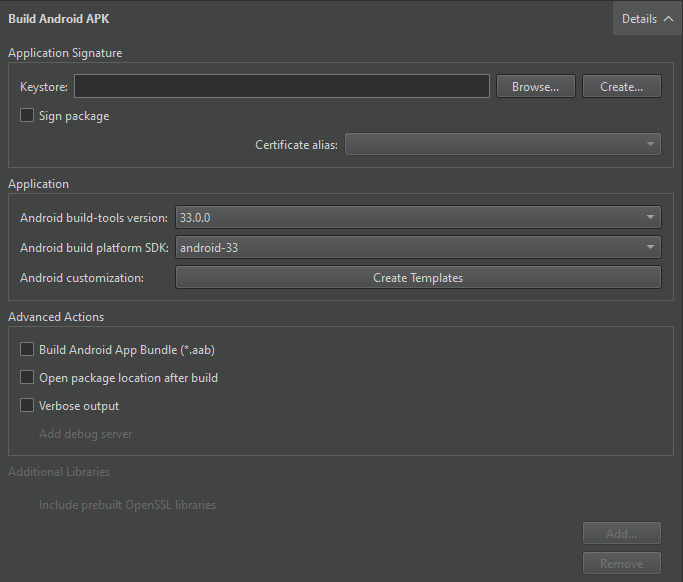
You only need an Android manifest file to specify Android-specific settings, such as the application icon or a splash screen.
However, you need the manifest file to publish the package in the Play Store.
If you use CMake as the build system, you must specify the Android package source directory, QT_ANDROID_PACKAGE_SOURCE_DIR, in the CMakeList.txt file, as instructed in the mobile device tutorial.
Create a manifest file
To use Qt Creator to create an Android manifest file:
- Go to Projects > Build Settings > Build Android APK, and select Create Templates.
- Check the path in Android package source directory.
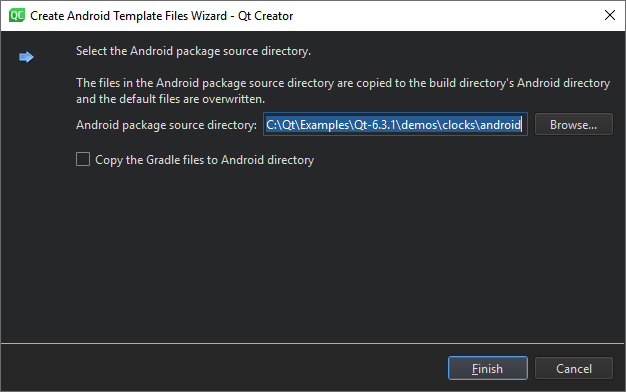
- Select Copy the Gradle files to Android directory if you plan to extend the Java part of your Qt application.
- Select Finish to copy the template files to the
androiddirectory and to open the manifest file in text format for editing.
Set manifest file options
For more information about setting options in Android manifest files, see Qt for Android Manifest File Configuration.
Screen Orientation
In screenOrientation, set options for determining screen orientation, depending on sensor readings or user preferences. The following table lists the options available.
| Orientation | Description |
|---|---|
| Unspecified | The system chooses the orientation. The policy it uses, and therefore the choices made in specific contexts may differ from device to device. |
| Behind | Use the same orientation as the activity that's immediately beneath it in the activity stack. |
| Landscape | Landscape orientation, where the display width is larger than its height. |
| Portrait | Portrait orientation, where the display height is larger than its width. |
| Reverse landscape | Landscape orientation in the opposite direction of normal landscape. |
| Reverse portrait | Portrait orientation in the opposite direction of normal portrait. |
| Sensor landscape | Landscape orientation, but it can be either normal or reverse landscape based on the device sensor. The sensor is used even if the user has locked sensor-based rotation. |
| Sensor portrait | Portrait orientation, but it can be either normal or reverse portrait based on the device sensor. The sensor is used even if the user has locked sensor-based rotation. |
| User landscape | Landscape orientation, but it can be either normal or reverse landscape based on the device sensor and the user's preference. |
| User portrait | Portrait orientation, but it can be either normal or reverse portrait based on the device sensor and the user's preference. |
| Sensor | The orientation is determined by the device orientation sensor. The orientation of the display depends on how the user is holding the device. It changes when the user rotates the device. Some devices, however, will not rotate to all four possible orientations by default. To allow all four orientations, select the full sensor option. The sensor is used even if the user locked sensor-based rotation. |
| Full sensor | The orientation is determined by the device orientation sensor for any of the four orientations. This is similar to the sensor option, except it allows any of the four possible screen orientations, regardless of what the device usually does. For example, some devices won't normally use reverse portrait or reverse landscape, but this option enables them. |
| No sensor | The orientation is determined without reference to a physical orientation sensor. The sensor is ignored, so the display will not rotate based on how the user moves the device. |
| User | The user's current preferred orientation. |
| Full user | If the user has locked sensor-based rotation, this option behaves in the same way as the user option. Otherwise, it behaves the same as the full sensor option and allows any of the four possible screen orientations. |
| Locked | Locks the orientation to its current rotation, whatever that is. |
See also How to: Develop for Android, Developing for Android, and Qt for Android Manifest File Configuration.
Copyright © The Qt Company Ltd. and other contributors. Documentation contributions included herein are the copyrights of their respective owners. The documentation provided herein is licensed under the terms of the GNU Free Documentation License version 1.3 as published by the Free Software Foundation. Qt and respective logos are trademarks of The Qt Company Ltd in Finland and/or other countries worldwide. All other trademarks are property of their respective owners.
