
Beautifier
Format source code with Artistic Style, ClangFormat, or Uncrustify.
Automatically apply indentation and style to source code files when you save them. Use a predefined style or define your own style.
Specifying Beautifier preferences
To specify preferences for beautifying files, go to Preferences > Beautifier > General.
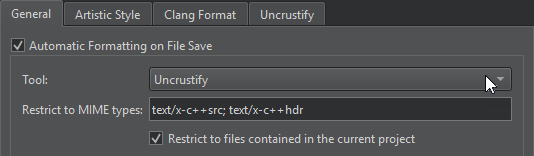
The following table describes the preferences you can set in the General tab.
| Preference | Description |
|---|---|
| Automatic formatting on file save | Automatically beautify files when you save them using the tool you select in the Tool field. To temporarily disable this setting while saving a file, go to File and select Save Without Formatting. |
| Tool | The tool to use for formatting source code files. You can select only one tool at a time. |
| Restrict to MIME types | The MIME types of the files to beautify, separated by semicolons. Leave the field empty to apply the tool on all files. This setting is applied only when automatically beautifying files on save. To restrict the MIME types when selecting the menu item to format the currently open file, specify this option in the tool-specific tab. |
| Restrict to files contained in the current project | Only beautify files that belong to the current project. |
Beautifier tool preferences
To set preferences for the tool you want to use, go to the Artistic Style, ClangFormat, or Uncrustify tab.
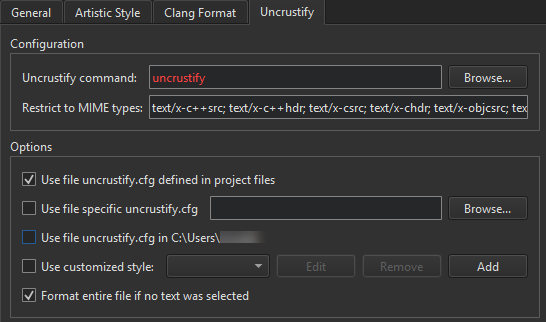
Then, in Configuration:
- Specify the path to the tool executable in Artistic Style command, ClangFormat command, or Uncrustify command.
- In Restrict to MIME types, define the MIME types of the files to beautify. This setting is applied when you select the menu item to format the currently open file.
- In Options, select the configuration file that defines the style to use in the source files. If you select several options, they are applied from top down. The available options depend on the tool.
To set the following options, you must have one of the tools installed.
| Option | Value |
|---|---|
| Use file *.astylerc defined in project files Use file uncrustify.cfg defined in project files | Use the configuration file defined in the project file as the configuration file for the selected tool. |
| Use specific config file Use file specific uncrustify.cfg | The file to use as the configuration file for the selected tool. |
| Use file uncrustify.cfg in <$HOME> Use file .astylerc or acstylerc in <$HOME> | Use the specified file in the user's home directory as the configuration file for the selected tool. |
| Use customized style | Set your own code style. |
| Format entire file if no text was selected | Format the whole file when no text is selected in the editor and you select Format Selected Text. |
Using a predefined ClangFormat style
To use a predefined ClangFormat style, go to ClangFormat and select a style in Use predefined style.
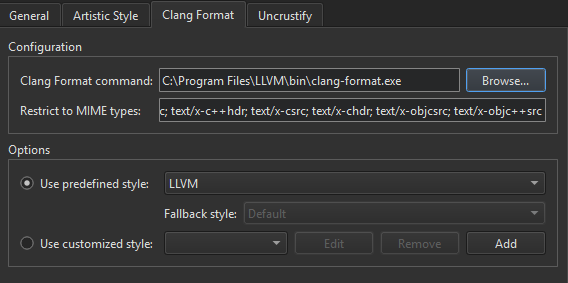
Select File to load the style configuration from the .clang-format or _clang-format file located in the same directory as the source file or in one of its parent directories.
In Fallback style, select a fallback style to use if the style configuration file is not available. Select Default to use the default style. Select None to skip formatting.
Defining a style
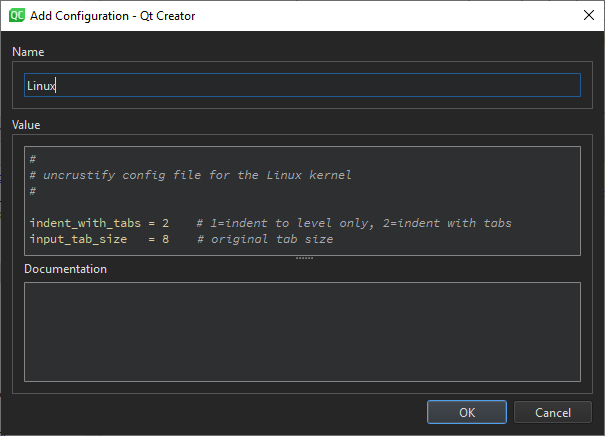
To define your own style, select Use customized style, and then select Add.
Set the code style in the Add Configuration dialog. It offers syntax highlighting, auto-completion, and context-sensitive help.
See also Beautify source code and Enable and disable plugins.
Copyright © The Qt Company Ltd. and other contributors. Documentation contributions included herein are the copyrights of their respective owners. The documentation provided herein is licensed under the terms of the GNU Free Documentation License version 1.3 as published by the Free Software Foundation. Qt and respective logos are trademarks of The Qt Company Ltd in Finland and/or other countries worldwide. All other trademarks are property of their respective owners.
