
Pick colors
To set color properties for some of the components in the Properties view, use the color picker. To open it, click the color field of the Fill color or Border color property, for example.
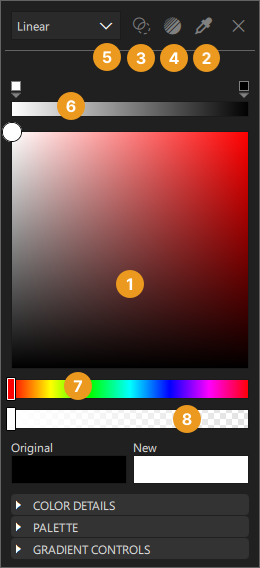
To choose a new color:
- Select a color in the color selector (1).
- Select the Eye Dropper icon (2), and then select any color visible in your screen to use.
The Original field displays the original color of the component, while the New field displays the current color.
To make the color fully transparen, select the Transparent icon (3).
To use preset web gradients, select the Gradient Picker icon (4).
Use the dropdown menu (5) to determine the color fill type you wish to use. You can choose a solid or a gradient color. Available gradient types vary between components. The items listed in light grey are not available for the selected component.
The current color bar (6) shows gradient and gradient stops when a gradient is selected.
Use the hue slider (7) or the alpha slider (8) to further define a new color.
Select the X icon to close the color picker.
Color details
Further define the colors in your project by modifying the properties in the Color Details section of the color picker.
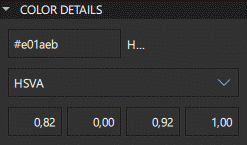
Use the Hex property to enter the Hex value of a new color manually. Define exact values for red, green, and blue using the Hex property to create different shades for the colors used in the project.
The default color value mode is HSVA (hue-saturation-value-alpha). Use the dropdown menu to change the color value mode to RGBA (red-green-blue-alpha) or HSLA (hue-saturation-lightness-alpha). Hue is defined in degrees which refer to different colors of the color wheel. Saturation modifies the intensity of the color. Value determines the brightness of the color. In HSLA Lightness signifies the amount of white or black blended with the color.
Palette
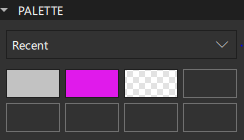
Use the dropdown menu in the Palette section of the color picker to change the Palette type. Recent displays the recent colors used in the project, while Favorites shows the colors you have added to your collection of favorite colors. You can add colors to Favorites by right-clicking the color thumbnail for Original, New, or in Palette > Recent colors and selecting Add to Favorites.
Select one of the Palette color thumbnails to choose it as the new color.
See also How to: Design Qt Quick UIs, Qt Quick UI design, and Designing Qt Quick UIs.
Copyright © The Qt Company Ltd. and other contributors. Documentation contributions included herein are the copyrights of their respective owners. The documentation provided herein is licensed under the terms of the GNU Free Documentation License version 1.3 as published by the Free Software Foundation. Qt and respective logos are trademarks of The Qt Company Ltd in Finland and/or other countries worldwide. All other trademarks are property of their respective owners.
