
Pick gradients
To set gradients, use the the gradient bar (6) of the color picker in the Properties view. To open the color picker, click the color field of the Fill color or Border color property, for example.
To show the gradient bar, select a gradient type in the dropdown menu (5) of the color picker.
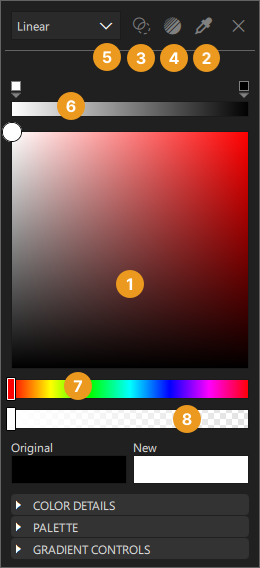
A gradient is defined by two or more colors which are blended seamlessly. The colors are specified as a set of gradient stops, each of which defines a position on the gradient bar from 0.0 to 1.0 and a color. Drag the gradient stops along the gradient bar to set their values. Select the arrow below a gradient stop to see its value as a number.
To add gradient stops, move the cursor over the gradient bar and point at it with the finger-shaped cursor. To remove gradient stops, pull them away from the gradient line.
Set the direction of the gradient by selecting Horizontal or Vertical in the Gradient Controls section of the color picker.
Calculating gradients can be computationally expensive compared to the use of solid color fills or images. Consider using gradients only for static components in a UI.
Set gradient properties
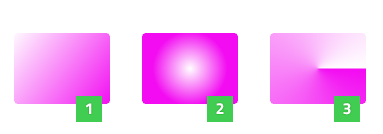
You can select Linear (1), Radial (2), or Conical (3) as the color fill type. After selecting one of the gradient types, you can define the gradient properties for components that support the type in the Gradient Controls section of the color picker.
Linear gradients
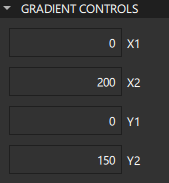
A linear gradient interpolates colors between start and end points. Outside these points, the gradient is either padded, reflected, or repeated depending on the spread type. Set start and end points for horizontal and vertical interpolation in the X1, X2, Y1, and Y2 fields.
Radial gradients
A radial gradient interpolates colors between a focal circle and a center circle. Points outside the cone defined by the two circles will be transparent. Outside the end points, the gradient is either padded, reflected, or repeated depending on the spread type.
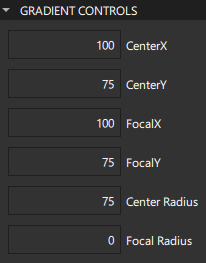
You can set the center and focal radius in the Center radius and Focal radius fields. For simple radial gradients, set Focal radius to 0.
You can set the center and focal points in the CenterX, CenterY, FocalX, and FocalY fields. To specify a simple radial gradient, set the FocalX and FocalY to the value of CenterX and CenterY, respectively.
Conical gradients
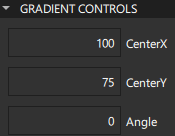
A conical gradient interpolates colors counter-clockwise around a center point. Set the horizontal and vertical center point of the gradient in the CenterX and CenterY fields and the start angle in the Angle field.
Select web gradients
The Gradient Picker enables you to specify WebGradients for components that support QGradient.
To apply a web gradient to a component:
- Select the component in the Navigator or 2D view.
- In the Properties view, select a color property to open the color picker.
- Select the Gradient Picker Dialog icon (4).
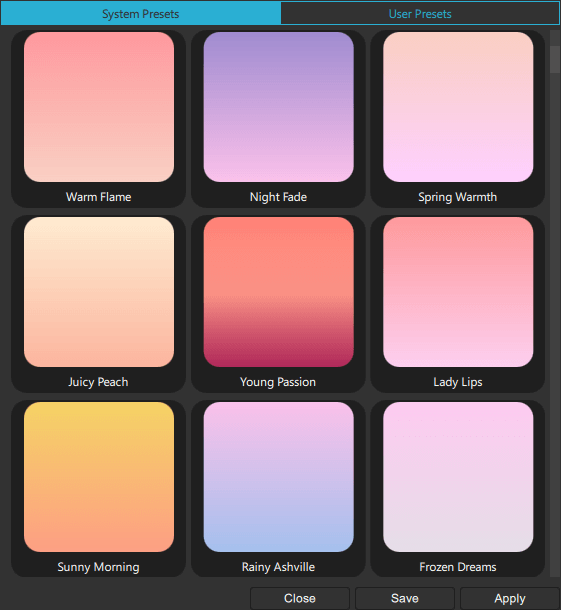
- Select a gradient from the list, and then select Apply.
To save a gradient in the User Presets tab, select Save.
By default, a linear gradient is used, but you can select another supported gradient type in the dropdown menu (5) of the color picker.
See also How to: Design Qt Quick UIs, Qt Quick UI design, and Designing Qt Quick UIs.
Copyright © The Qt Company Ltd. and other contributors. Documentation contributions included herein are the copyrights of their respective owners. The documentation provided herein is licensed under the terms of the GNU Free Documentation License version 1.3 as published by the Free Software Foundation. Qt and respective logos are trademarks of The Qt Company Ltd in Finland and/or other countries worldwide. All other trademarks are property of their respective owners.
