
Working with states
To set states for components and component instances, go to View > Views > States and then select  .
.
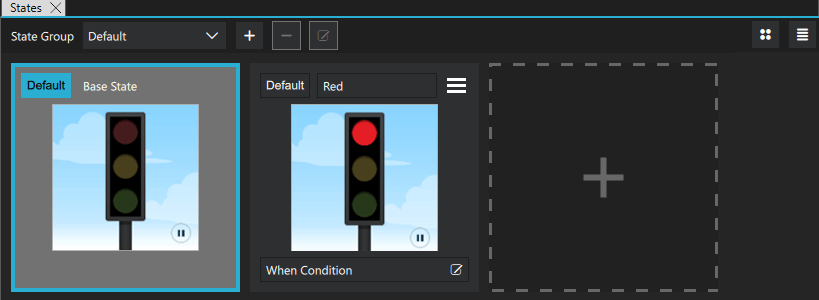
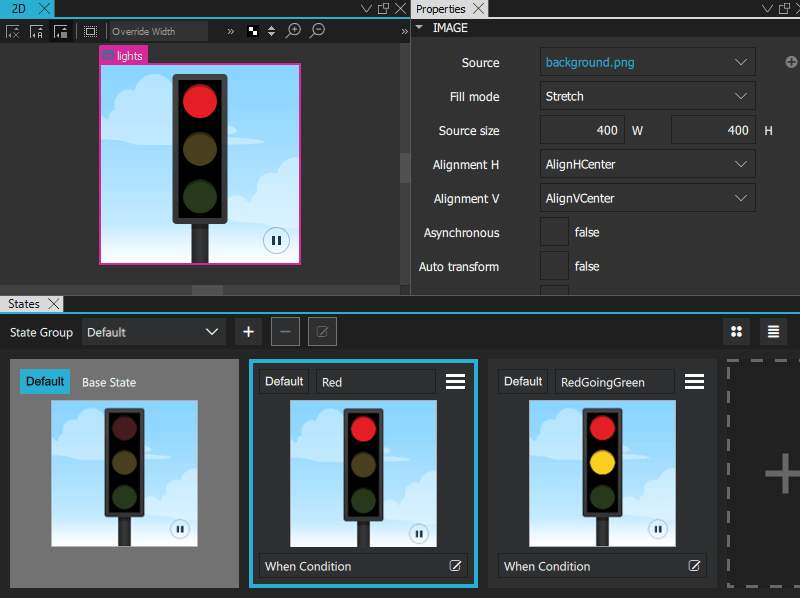
Select the new state to switch to it in the 2D view, and then modify the values of the properties of components or component instances in Properties.
For example, to change the appearance of a button, you can define states in the button component to hide the button image and show another image in its place or to change the button background or text color. When you use instances of the button in other components, you can define states to create different screens by hiding or showing button component instances. The preset Button control in Components > Qt Quick Controls > Controls has predefined normal and down states.
To add motion to a screen, you can change the position of a component instance in the 2D view and then add animation to the change between the states.
The properties that you change in a state are highlighted with blue color. In the the Code view or Edit mode, you can see the changes recorded as changes to the base state.
Note: If you have locked a component in Navigator, and you attempt to remove states where you change the values of its properties, you are prompted to confirm the removal.
For more information about working with states, watch the following video:
See also How to: Design Qt Quick UIs, How to: Work with states, Qt Quick UI design, and Designing Qt Quick UIs.
Copyright © The Qt Company Ltd. and other contributors. Documentation contributions included herein are the copyrights of their respective owners. The documentation provided herein is licensed under the terms of the GNU Free Documentation License version 1.3 as published by the Free Software Foundation. Qt and respective logos are trademarks of The Qt Company Ltd in Finland and/or other countries worldwide. All other trademarks are property of their respective owners.
