
Add MCP servers
You can configure connections to MCP servers to:
- Complete Tasks
- Connect to the server from a web application using cross-origin resource sharing (CORS)
You can use tools for:
- Running command-line tools and other executables
- Version control repositories
- Listing visible files
- Managing breakpoints
- Getting debugger stack traces
- Finding and triggering actions
You can execute commands for:
- Retrieving project dependencies
- Listing issues for a file
- Finding files in projects
- Searching and replacing text in project files and other files
Connect to MCP servers
To add connections to MCP servers:
- Go to Preferences > AI > MCP Servers.
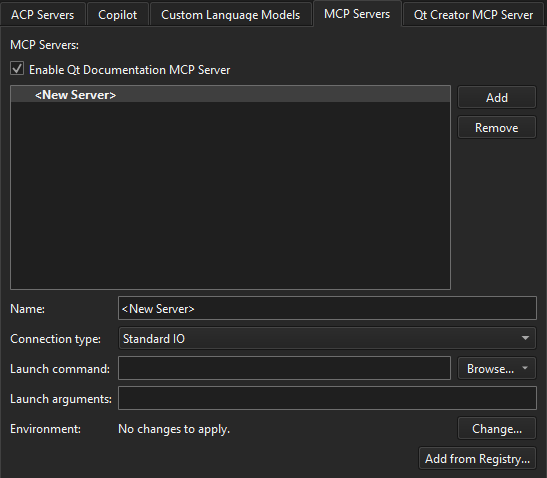
- Select Add.
- Set preferences for the server.
- Select Apply.
The following table summarizes the preferences.
| Setting | Value |
|---|---|
| Connection type | The type of the connection to use for the MCP server. |
| Executable | The executable to launch the MCP server process. Only used for standard IO connections. |
| Arguments | Arguments for the launch command. |
| Environment | Environment changes applied when launching the MCP server process over a standard IO connection. |
Add MCP servers from the registry
To install MCP servers from the registry and create connections to them:
- Go to Preferences > AI > MCP Servers.
- Select Add from Registry.
- Select an MPC server from the list.
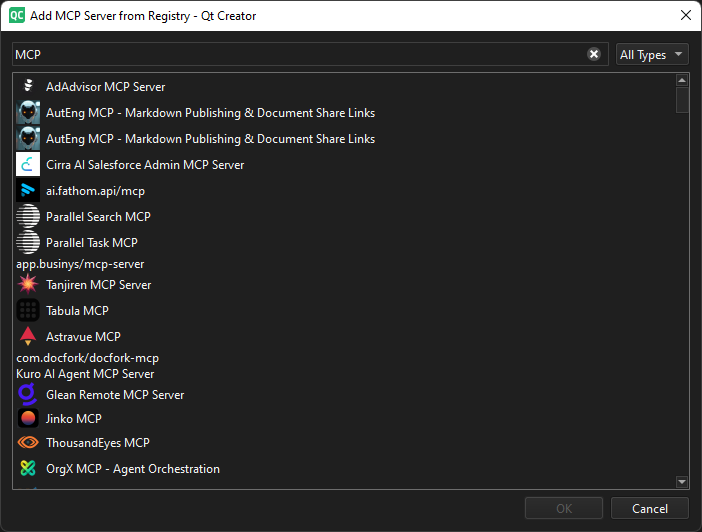
- Select OK.
See also Activate extensions and How to: Use AI.
Copyright © The Qt Company Ltd. and other contributors. Documentation contributions included herein are the copyrights of their respective owners. The documentation provided herein is licensed under the terms of the GNU Free Documentation License version 1.3 as published by the Free Software Foundation. Qt and respective logos are trademarks of The Qt Company Ltd in Finland and/or other countries worldwide. All other trademarks are property of their respective owners.
