
Set up Qt Creator MCP server
Qt Creator supports the model context protocol (MCP) to let AI assistants control it for debugging, building, and managing projects.
To start the MCP server and use an MCP client, install a client and activate the MCP server extension.
View MCP server status
Qt Creator starts the MCP server when you activate the Qt Creator MCP server extension. The server runs on the computer and accepts connections on an automatically set port.
To view the MCP server status and to change the IP address and port number, go to Preferences > AI > Qt Creator MCP Server.
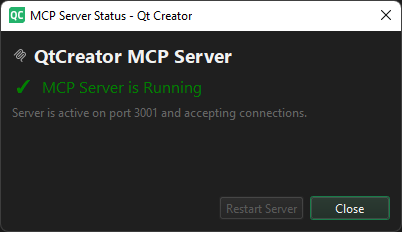
The following table summarizes the preferences.
| Setting | Value |
|---|---|
| Enable MCP Server | Turns the MCP server on and off. |
| Listen on | Sets the server address for the MCP server to listen on. |
| Port | Sets the port for the MCP server to listen on. Automatic automatically selects a free port, but you can also set a fixed port number. |
| Enable cross-origin access | Turns on cross-origin resource sharing (CORS), which you need to connect to the server from a web application. |
Use MCP clients
When you enable the ACP Client extension and use an ACP client in Qt Creator, it uses the MCP server automatically.
To use the MCP server for other products, such as Claude Code, you must configure it. For more information, see the documentation of the product.
Inspect client communication
To inspect the communication between MCP clients and the Qt Creator MCP server, go to Tools > Debug Qt Creator > Inspect MCP Servers.
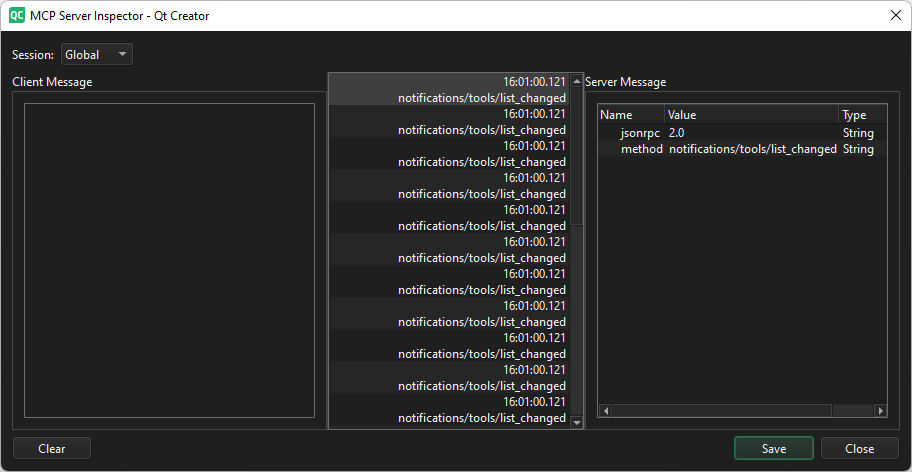
In Session, select a session between an MPC client and server, or Global to show general messages.
In Client Message, select a message to view more information in Server Message.
To remove old entries, select Clear.
To save messages as a file, select Save.
See also Activate extensions and How to: Use AI.
Copyright © The Qt Company Ltd. and other contributors. Documentation contributions included herein are the copyrights of their respective owners. The documentation provided herein is licensed under the terms of the GNU Free Documentation License version 1.3 as published by the Free Software Foundation. Qt and respective logos are trademarks of The Qt Company Ltd in Finland and/or other countries worldwide. All other trademarks are property of their respective owners.
