
Use Vale
Vale is a linter that checks documentation source files for style, grammar, and terminology issues. The Vale Language Server extension integrates Vale into Qt Creator using the language server protocol (LSP).
Note: Install the Vale Language Server extension to use Vale.
Set a Vale configuration file
You need a .vale.ini configuration file to use Vale. For more information, see Vale: .vale.ini.
To set your .vale.ini configuration file path, go to Preferences > Vale > Config path.
Run Vale
After installing the extension and creating the configuration file, open a text file that you want to check with Vale.
Qt Creator prompts you to allow the extension to fetch updates to the Vale language server. To see what will be downloaded, select Show Details.
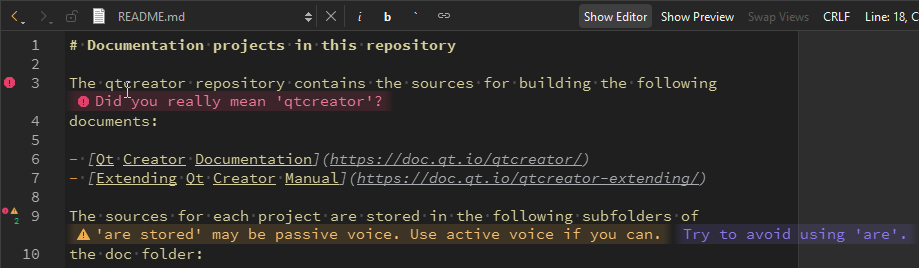
You can see suggestions from Vale as annotations in the editor.
Set Vale preferences
To install the lanaguge server later or use another Vale LS installation:
- Go to Preferences > Vale > Language Server.
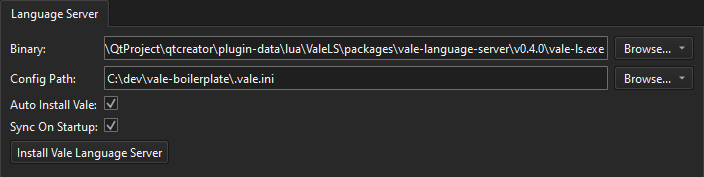
- In Binary, set the path to the Vale language server executable.
- In Config path, set the path to the Vale configuration file.
- Select Auto install Vale to automatically install Vale CLI.
- Select Sync on startup to run
vale syncwhen the server starts. - Select Install Vale Language Server to install the Vale language server.
See also How to: Manage language servers, Install extensions, and Managing language servers.
Copyright © The Qt Company Ltd. and other contributors. Documentation contributions included herein are the copyrights of their respective owners. The documentation provided herein is licensed under the terms of the GNU Free Documentation License version 1.3 as published by the Free Software Foundation. Qt and respective logos are trademarks of The Qt Company Ltd in Finland and/or other countries worldwide. All other trademarks are property of their respective owners.
