
Connect components to signals
A signal and handler mechanism enables components to respond to application events, which are represented by signals. When a signal is emitted, the corresponding signal handler is invoked to respond to the event by using scripts or other operations placed in the handler.
To receive a notification when a particular signal is emitted for a particular component, the component definition should declare a signal handler named on<Signal> where <Signal> is the name of the signal, with the first letter capitalized. The signal handler should contain the JavaScript code to be executed when the signal handler is invoked.
Components have predefined signals that are emitted when users interact with the application. For example, the Mouse Area component has a clicked signal that is emitted whenever the mouse is clicked within the area. Since the signal name is clicked, the signal handler for receiving this signal is named onClicked.
A signal is automatically emitted when the value of a property changes. This type of signal is a property change signal and signal handlers for these signals are written in the form on<Property>Changed, where <Property> is the name of the property, with the first letter capitalized.
For example, the Mouse Area component has a pressed property. To receive a notification whenever this property changes, you would use a signal handler called onPressedChanged.
For more information about signals and signal handlers, see Signal and Handler Event System.
Create a connection
You can use the context menu to connect the selected component to a signal that you connect to an action:
- Select the component you want to connect in the Navigator or 2D view.
- In the context menu, select Connections > Add New Connection, and then select an available signal, action, and action property.
Add connections
You can also add connections in the Connections tab in the Connections view.
To connect components to signals that are available to them:
- Select the component you want to connect in the Navigator or 2D view.
- Go to the Connections tab in the Connections view.
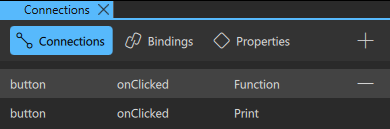
- Select
 (Add) to create a connection in the connection editor.
Connect signals to actions
To connect a signal to an action:
- Select or create a connection to open the connection editor.
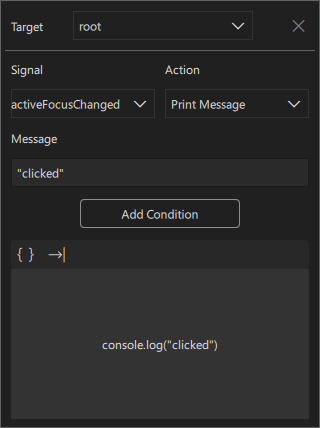
The connection editor.
- In Target, select a component.
- In Signal, select the signal to emit.
- In Action, select the action to apply when the signal is emitted.
The properties of the connection depend on the selected action:
- Call Function sets the function to call.
- Assign sets the source and target properties.
- Change State sets a target state within a state group.
- Set Property sets a component property.
- Print Message sets a text to show.
Add conditions
Use the connection editor to create the JavaScript expressions for actions with conditions. An action connects a component to a signal, whereas conditions fetch property values from other components and compare them to each other. You can then use JavaScript expressions to change the components.
Select Add Condition to add logic to the selected action.
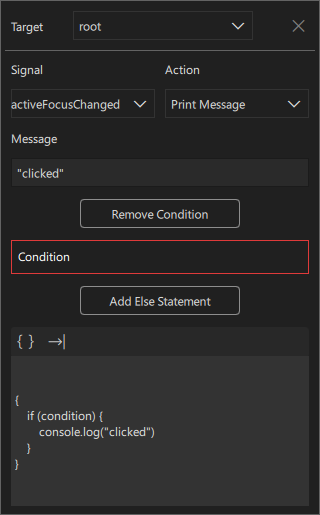
To include an else statement, select Add Else Statement.
To use complex conditional statements:
- Select {} to open Action Editor.
- Enter JavaScript statements.
- Close the dialog to apply the changes.
For more information about the logical operators that you can use to construct conditional expressions, see Summary of logical operators.
Create JavaScript expressions
To create JavaScript expressions for actions in the connection editor:
- Connect component signals to actions.
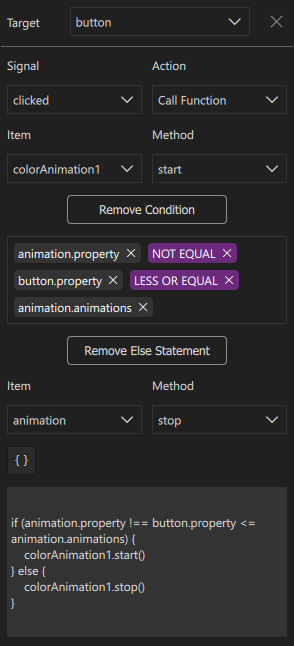
- Select {} to open the Action Editor view and write JavaScript expressions with components and logical expressions.
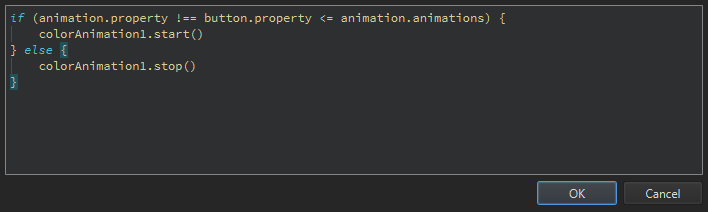
Note: In the connection editor, you can only create single-level if-else expressions. To create nested expressions, select {}.
Jump to the code
To go to the code in the Code view, select  (Jump to the code) in the connection editor.
Remove connections
To delete a connection, select it in Connections and then select  (Remove).
See connections in action
Watch this video for practical examples of the Connection view workflow:
See also How to: Use UI components, Qt Quick UI design, and Designing Qt Quick UIs.
Copyright © The Qt Company Ltd. and other contributors. Documentation contributions included herein are the copyrights of their respective owners. The documentation provided herein is licensed under the terms of the GNU Free Documentation License version 1.3 as published by the Free Software Foundation. Qt and respective logos are trademarks of The Qt Company Ltd in Finland and/or other countries worldwide. All other trademarks are property of their respective owners.
