
Designing Qt Quick UIs
Qt Creator opens QML files (.qml) and UI files (.ui.qml) in a visual editor in the Design mode.
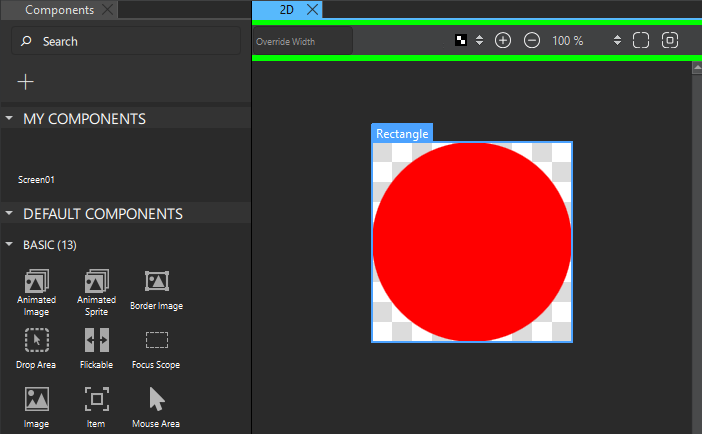
The following table describes the views that are visible by default.
| Number | View | Purpose | Read More |
|---|---|---|---|
 | Navigator | View the current QML file in a tree format. | Navigate component files |
 | Projects | View a list of the files contained within the open project. | Projects |
 | 2D | Design 2D UIs. | Design 2D UIs |
 | Code | View and modify the code generated by the visual editors. You can also edit the code in the Edit mode. | Editing code, How to: Edit code |
 | Properties | Modify the properties of the selected component. | Change properties |
 | Components | Select preset components and your own components to use in your application. | Using UI components, How to: Use UI components |
 | Assets | Select assets such as images and fonts to use in your application. | Add assets |
For more information about Qt Qml, Qt Quick, and QML types, see the Qt reference documentation available online and in the Help mode.
Open design views
To open more views, go to View > Views. Move the views anywhere on the screen and save them as workspaces, as instructed in Use workspaces.
See also How to: Design Qt Quick UIs and Qt Quick UI design.
Copyright © The Qt Company Ltd. and other contributors. Documentation contributions included herein are the copyrights of their respective owners. The documentation provided herein is licensed under the terms of the GNU Free Documentation License version 1.3 as published by the Free Software Foundation. Qt and respective logos are trademarks of The Qt Company Ltd in Finland and/or other countries worldwide. All other trademarks are property of their respective owners.
