
C
Qualcomm quick start guide
Qt offers all the necessary tools to design, develop, build, and deploy your application onto the target.
This guide describes how to use the GUIs of Qt tools to develop Linux applications on a Qualcomm device. It describes the overall process and provides step-by-step instructions for the following tasks:
- Designing a simple UI using Qt Design Studio.
- Creating a project in Qt Creator and utilizing the ready-made Qt Onboard image for the Qualcomm device.
- Building and debugging the project on the target device.
Note: Qt for Device Creation requires a license. If you don't have one, you can request a free trial.
Overview
The following figure illustrates the basic concept of the software development process when you're using Qt tools and Qt Onboard.
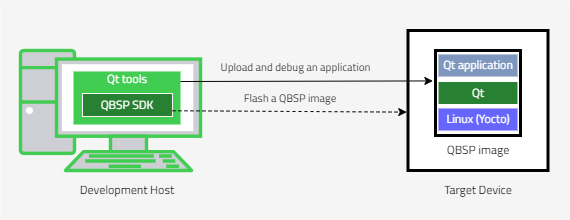
- Development Host is your development computer running Qt tools on Windows, Linux, or macOS.
- Qt tools includes development tools such as Qt Creator and Qt Design Studio, and quality assurance (QA) tools such as Squish.
- QBSP SDK contains a cross-compilation toolchain that is integrated into Qt Creator, and a device image that you can use to boot your device using Qt Onboard.
- Target Device is your development target that runs your embedded Linux application.
- Upload and debug an application (via Ethernet, Wi-Fi, or USB). Use Qt Creator to upload and debug your application on the target device.
- Flash a QBSP image represents ways (such as SD card) to install Linux on the target device.
Applicable Qualcomm target devices
The instructions in this guide apply to the following Qualcomm target devices:
- Qualcomm DragonWing IQ-9075
The Qt versions you can see in the images and examples of this guide are indicative and might not represent the latest available version.
Note: For more details on the supported target devices and development hosts, see Supported Target Devices and Development Hosts.
Installing Qt Onboard
Before you start installation, check Requirements related to development host to make sure your host has all the necessary dependencies installed.
To install Qt Onboard, open the instructions that match your current situation.
I want to install Qt Onboard and I have the Extended Evaluation license
Installing Qt Onboard with the Extended Evaluation license
To develop with the Qt Onboard Extended Evaluation license, install the Qt Onboard Extended Evaluation package for your development target. The package includes the Qt development tools Qt Creator and Qt Design Studio.
Install Qt Onboard Extended Evaluation package as follows:
- Sign in to Qt Customer Portal and download Qt Online Installer. Qt Online Installer is available for the following hosts:
- Linux on Arm
- Linux x86
- macOS
- Windows
- Windows on Arm
Download the Qt Online Installer package that matches your host.
- Open Qt Online Installer.
- Continue to Installation options and select the Extended Evaluation option for your development target.
- Select Next.
- Continue to Ready to Install and select Install.
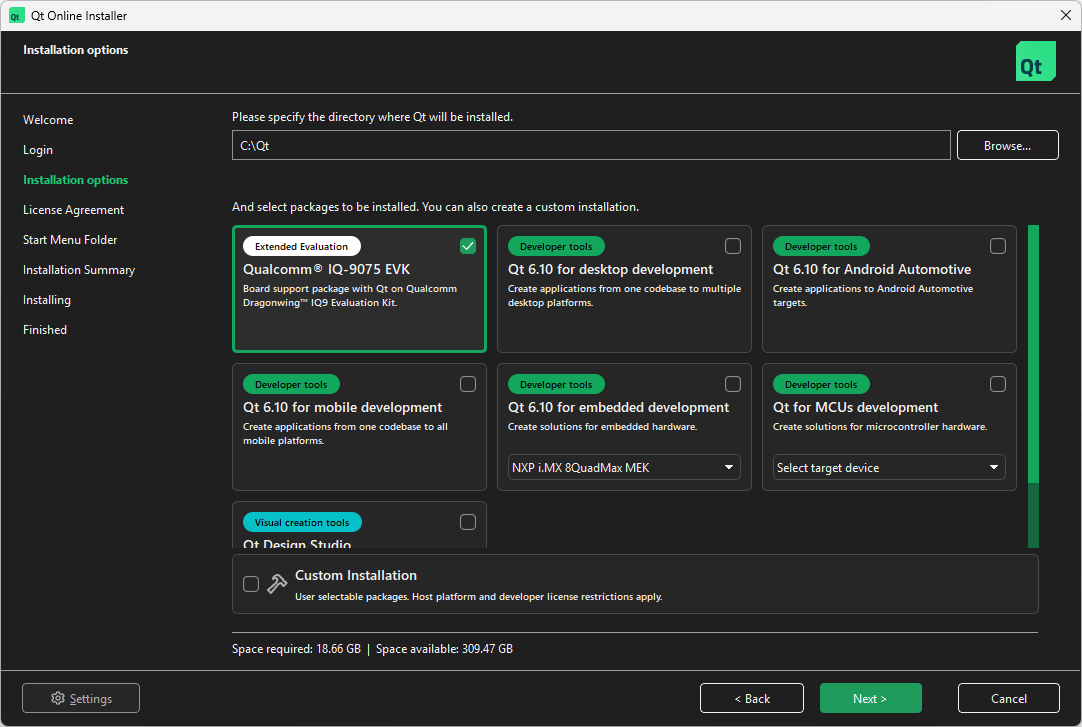
You now have the Qt Onboard Extended Evaluation package installed. Continue to Installing Qt Onboard on the target device.
I'm new to Qt
Installing Qt development tools
To develop with Qt Onboard, install Qt Creator and Qt Design Studio as follows:
- Sign in to Qt Customer Portal and download Qt Online Installer. Qt Online Installer is available for the following hosts:
- Linux on Arm
- Linux x86
- macOS
- Windows
- Windows on Arm
Download the Qt Online Installer package that matches your host.
- Open Qt Online Installer.
- Continue to Installation options and select Custom Installation.
- Select Next.
- In Customize, select the following components:
- Qt Design Studio (LTS or latest release).
- Qt Creator.
- Select Next.
- Continue to Ready to Install and select Install.
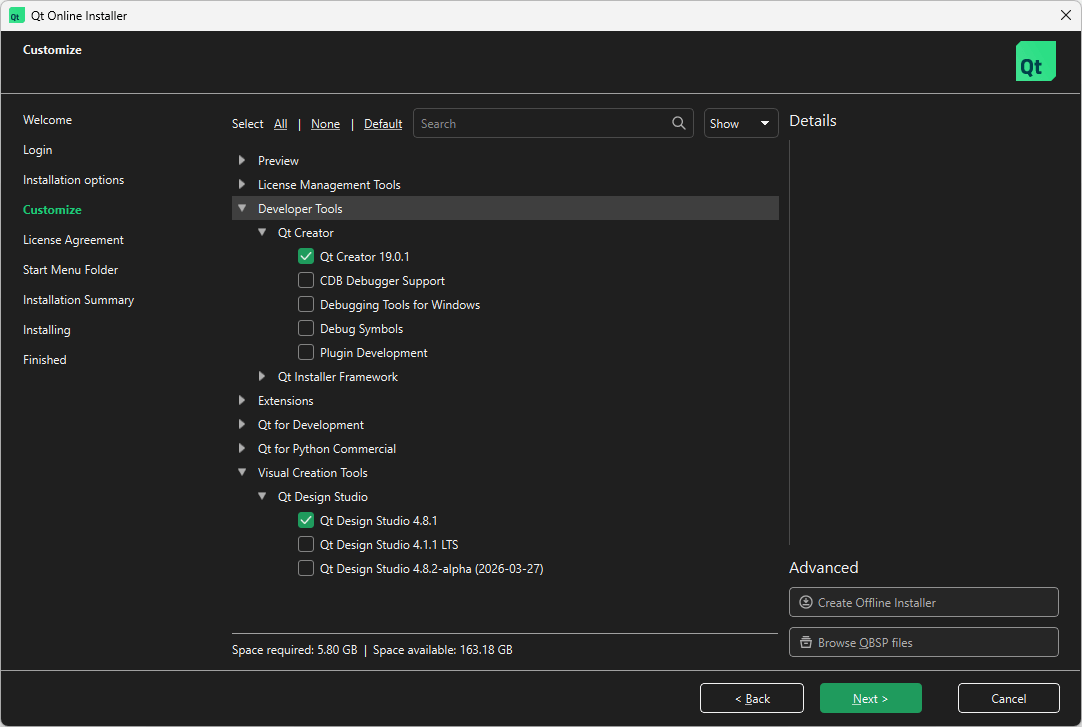
You now have Qt development tools installed. Continue to Installing Qt Onboard target package.
I already have Qt installed
Installing Qt Onboard target package
Install Qt Onboard for Qualcomm DragonWing IQ-9075:
- Open Qt Maintenance Tool.
- Select Add or remove components > Next, and open the Qt for Development > Qt for Embedded Linux category to find Qt Onboard Qualcomm Linux.
- Open the Qt Onboard Qualcomm Linux category and select Qualcomm DragonWing IQ-9075.
- Continue to Ready to Update and select Update.
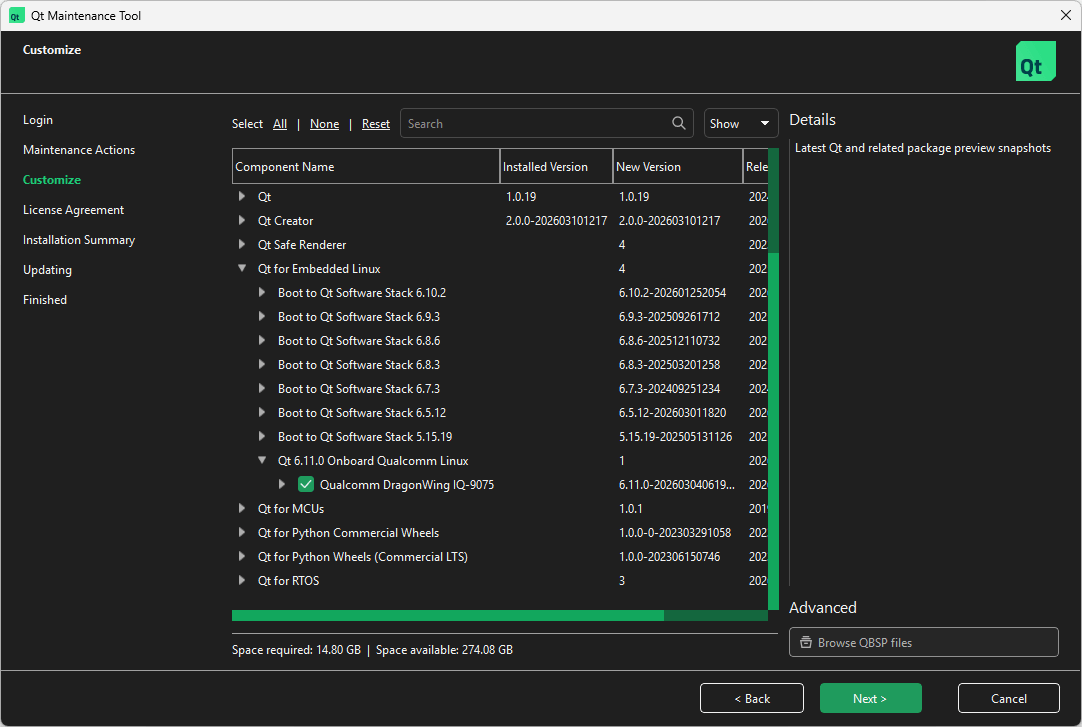
You now have the Qt Onboard target package installed. Continue to Installing Qt Onboard on the target device.
Installing Qt Onboard on the target device
Before you can test your Qt applications on the target device, you must flash the target device with an image containing Qt Onboard.
Note: Qt Flashing Wizard is not applicable to this device.
Flashing Qt Onboard Image on the target device
Note: Before you start flashing, update the universal flash storage (UFS) and flash configuration data table (CDT) on the target device. For more information on how to do this, see Qualcomm flash steps documentation.
Flash the Qt Onboard image to your device as follows:
- Add or update
udevrules as instructed in Update udev rules on your host. - Connect the target device to your host with a suitable USB-C cable.
- Put the target device into Emergency Download (EDL) mode. For more information on how to do this, see Move to EDL mode.
- Download and install a Qualcomm Download (QDL) tool from Qualcomm Software Center.
- Run the following scripts to flash the image to your device:
cd <INSTALL_DIR>/6.11.0/qualcomm/qcs9075-iq-9075-evk/images/qcom-qt-image-qcs9075-iq-9075-evk.rootfs/
<path-to-qdl>/qdl prog_firehose_ddr.elf rawprogram*.xml patch*.xml
For more information on flashing Qualcomm devices, see Github: qualcomm-linux/meta-qcom.
Configure the target device
Deploying examples and applications from Qt Creator typically installs files under the /usr directory. On Qualcomm Linux, this directory is mounted as read‑only by default.
You need to remount the file system with read-write access to enable deployment to proceed successfully. Enable read–write access by running the following command on the device:
mount -o remount,rw /usrConnecting the target device
Create a connection between the target device and Qt Creator to run, debug, and analyze applications on it. The following section describes how to set up a device using Ethernet or Wi-Fi connectivity.
Connecting the target device via Ethernet or Wi-Fi
Connect your target device to network either via Ethernet or Wi-Fi connectivity.
To connect via Wi-Fi, see Qualcomm product documentation.
After your target device is connected and has an IP address, set it up to be used in Qt Creator with the following steps:
- Open Qt Creator.
- Select Edit > Preferences.
- In the Preferences window:
- Select Devices.
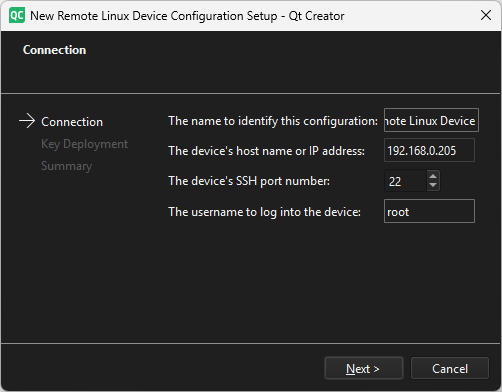
- Select Add > Remote Linux Device > Start Wizard.
- In the New Remote Linux Device Configuration Setup window:
- Enter the name to identify this configuration.
- Enter the device's host name or IP address.
- Enter
rootas user name. - Select Next.
- To enable deployment without a password prompt, deploy an SSH key to the device. The default password for Qualcomm Linux devices is
oelinux123.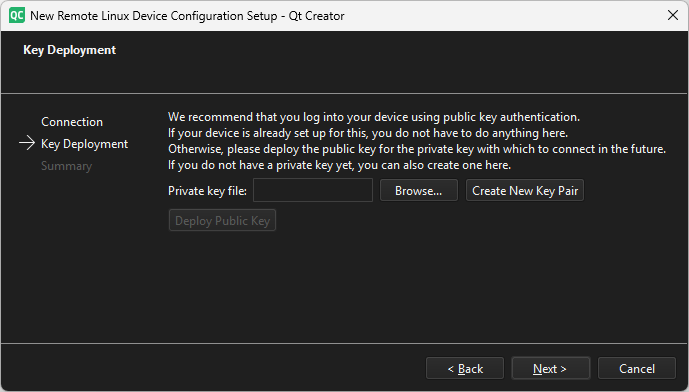
- On the Devices tab, select OK.
Note: Qt Creator uploads the application over the IP network, so your target device has to be in the same network as your development host.
Creating an application UI in Qt Design Studio
Create a cross-platform UI with Qt Design Studio, also for embedded Linux applications, with the following steps:
- Open Qt Design Studio.
- Select Create Project.
- In Presets, select General.
- Name your project. Pay attention to the project path—later on, you open your project from this location with Qt Creator.
- Adjust display resolution and orientation to suit your display.
- Select Enable CMake Generator. With the resulting
CMakeLists.txtfile, you can open your project in Qt Creator. - Make sure your Target Qt Version matches the version of Qt installed on your machine.
- Select Create.
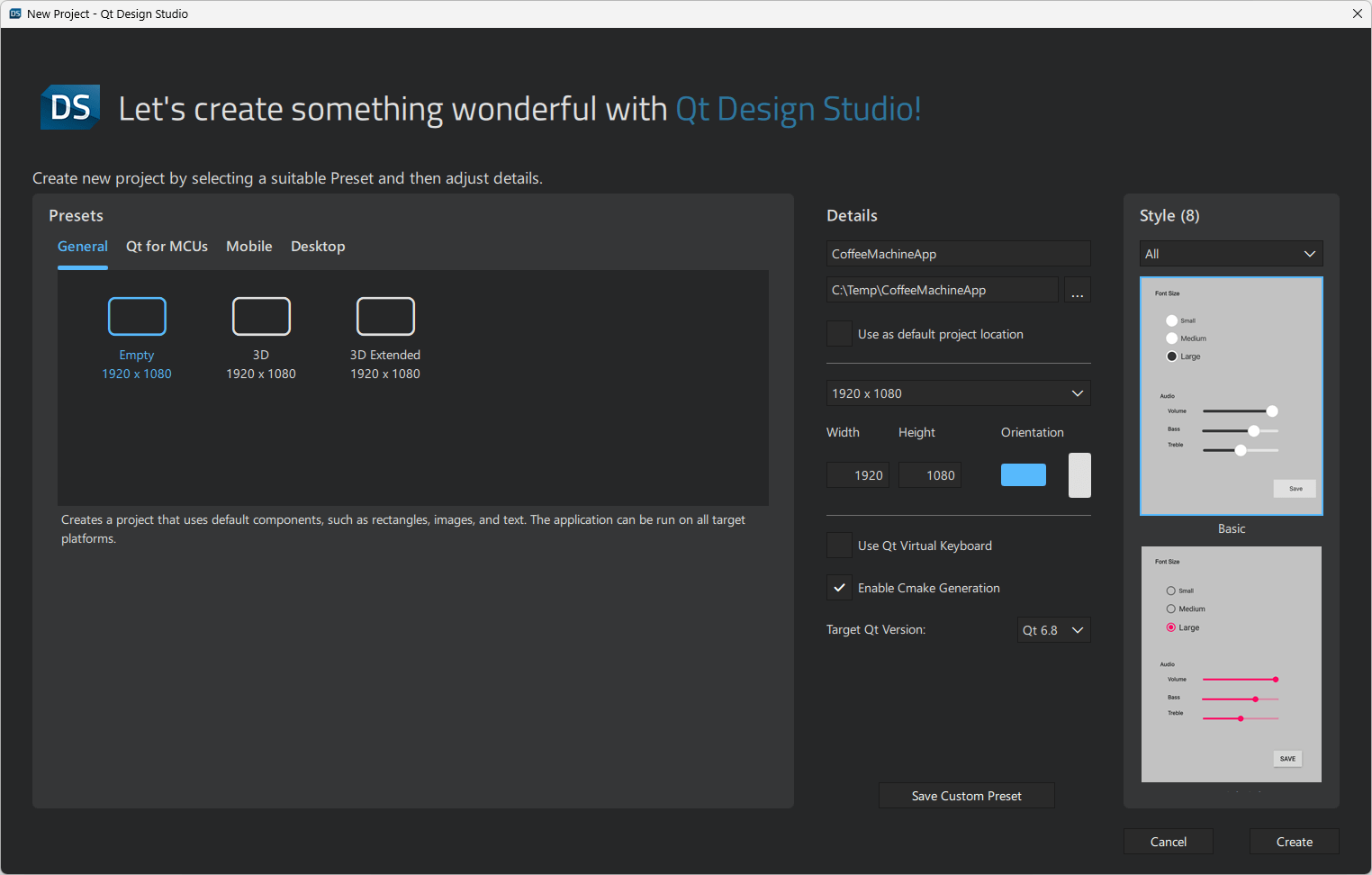
Now you can modify your UI as you wish. Once it's ready, select Save All to make sure that you can open your UI project in Qt Creator.
Configuring and building an application in Qt Creator
To configure and build an application in Qt Creator, follow these steps:
- Open Qt Creator.
- Navigate to the project you created with Qt Design Studio.
- Select CMakeLists.txt to open the project.
- In the Configure Project window:
- Select your Qualcomm kit.
- Select Configure Project.
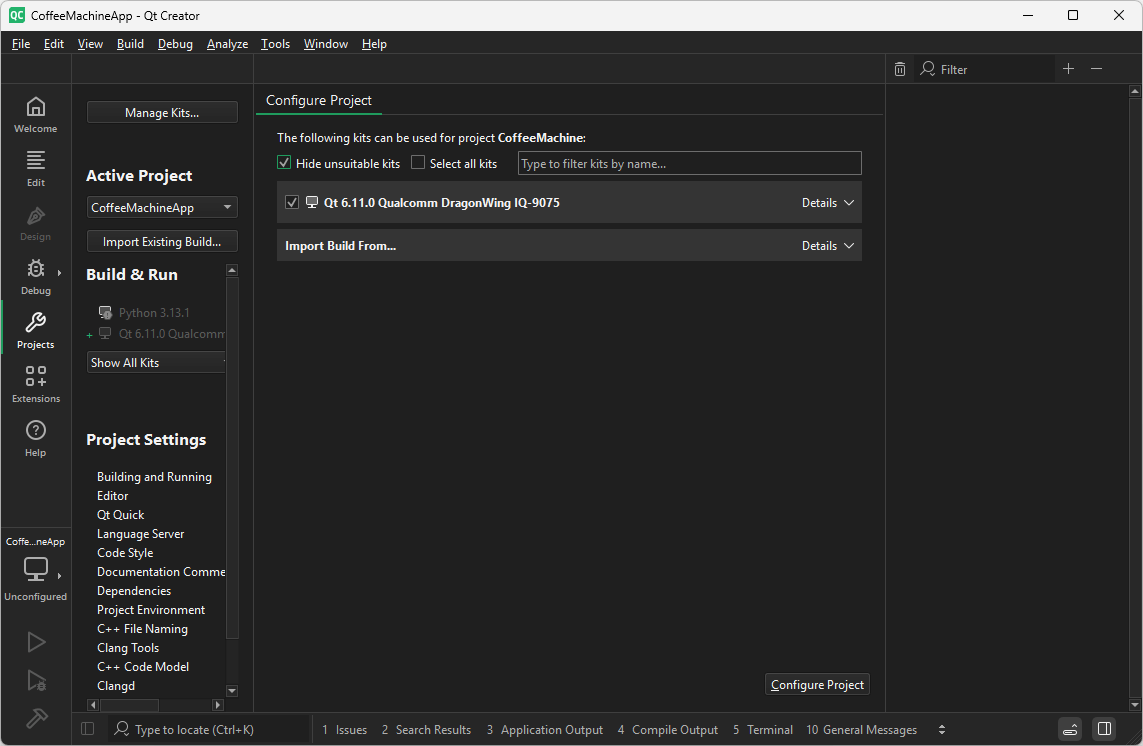
Finally, select Build > Build Project to build the project you configured.
Running an application on the target device
After setting up your device, you can upload and start your application on the Qualcomm device as follows:
- Open Qt Creator.
- Select File > Open File or Project.
- Navigate to the project you configured earlier and select Open.
- In the Projects window, select Run (1).
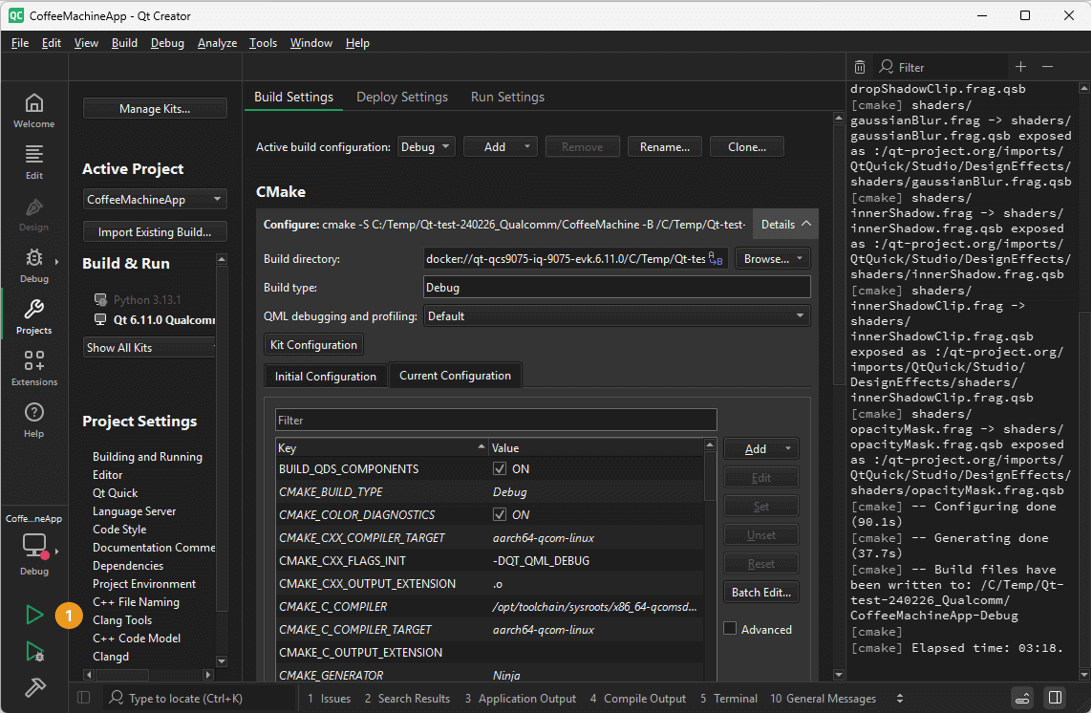
Note: To make changes to your application, you can update it on the device simply by running it again.
For more information on how to deploy Qt projects to the device, see Tutorial: Deploying your first project.
For more information on how to build applications on Docker devices, see Build on Docker devices.
Debugging an application
For more information on using Qt Creator to debug an application, see Debugging.
Customizing Qt Onboard for a Qualcomm device
Qt Onboard for embedded Linux is built using the tools and resources from the Yocto Project. For more information on how to set up a building environment for building Qt Onboard, see Setting up environment for building Qt Onboard.
The following table lists the MACHINE values of the currently available Qualcomm devices:
| Board | MACHINE |
|---|---|
| Qualcomm DragonWing IQ-9075 | qcs9075-iq-9075-evk |
The following steps provide an example on how to build Qt Onboard for a Qualcomm device:
- Initialize the build environment from the manifest repository:
cd <BuildDir> repo init -u https://code.qt.io/yocto/meta-qbsp-qcom repo sync - Configure the build environment for Linux:
EXTRALAYERS="meta-qcom-qim-product-sdk meta-boot2qt/meta-boot2qt meta-qbsp-qcom meta-qt6" MACHINE=qcs9075-iq-9075-evk DISTRO=qcom-wayland source setup-environment - Enable Qt commercial modules by adding the following to
conf/local.conf:echo 'QT_EDITION = "commercial"' >> conf/local.conf echo 'QT_COMMERCIAL_MODULES = "1"' >> conf/local.conf - Start building a QBSP for Qt Onboard:
bitbake meta-qbsp-qcomAfter the build has been completed, you can find the QBSP file at
build-qcs9075-iq-9075-evk/tmp-glibc/deploy/qbsp/meta-qbsp-qcom-x86_64-qcs9075-iq-9075-evk-6.11.0.qbsp
Troubleshooting
If you have any issues with your Qualcomm device, turn to Qualcomm Support Forums for more information.
For more information on troubleshooting Qt Onboard, see Troubleshooting.
Available under certain Qt licenses.
Find out more.
