
Set advanced component properties
In the Advanced and Layer sections of the Properties view, you can manage the more advanced properties of components that are inherited from the Item component and that are mostly used by application developers.
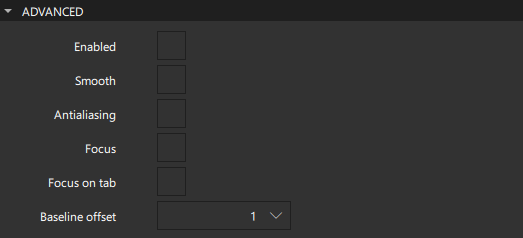
Select Smooth to activate smooth sampling. Smooth sampling is performed using linear interpolation, while non-smooth sampling is performed using the nearest neighbor. Because smooth sampling has minimal impact on performance, it is activated by default.
Antialiasing is used to make curved lines smoother on the screen. Select Antialising to turn on antialiasing.
The value of the Baseline offset specifies the position of the component's baseline in local coordinates. The baseline of a Text component is the imaginary line on which the text sits. Controls containing text usually set their baseline to the baseline of their text. For non-text components, a default baseline offset of 0 is used.
Manage mouse and keyboard events
Select Enabled to allow the component to receive mouse and keyboard events. The children of the component inherit this behavior, unless you explicitly set this value for them.
You can enable the Focus checkbox to specify that the component has active focus and the Focus on tab checkbox to add the component to the tab focus chain. The tab focus chain traverses components by first visiting the parent, and then its children in the order they are defined. Pressing Tab on a component in the tab focus chain moves keyboard focus to the next component in the chain. Pressing back tab (usually, Shift+Tab) moves focus to the previous component.
Use layers
Qt Quick makes use of a dedicated scene graph that is then traversed and rendered via a graphics API such as OpenGL ES, OpenGL, Vulkan, Metal, or Direct 3D. Using a scene graph for graphics rather than the traditional imperative painting systems, means that the scene to be rendered can be retained between frames and the complete set of primitives to render is known before rendering starts. This opens up for a number of optimizations, such as batch rendering to minimize state changes and discarding obscured primitives.
For example, a UI might contain a list of ten items where each item has a background color, an icon and a text. Using traditional drawing techniques, this would result in 30 draw calls and a similar amount of state changes. A scene graph, on the other hand, could reorganize the primitives to render such that all backgrounds are drawn in one call, then all icons, then all the text, reducing the total amount of draw calls to only 3. Batching and state change reduction like this can greatly improve performance on some hardware.
You need a basic understanding of how components are rendered to be able to set layer properties. Rendering is described in Qt Quick Scene Graph Default Renderer.
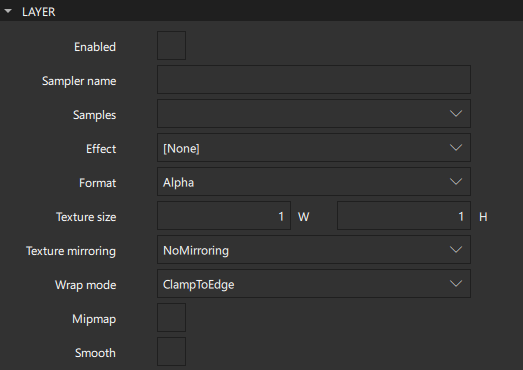
Components are normally rendered directly into the window they belong to. However, by selecting Enabled in the Layer section, you can delegate the component and its entire subtree into an offscreen surface. Only the offscreen surface, a texture, will then be drawn into the window. For more information, see Item Layers.
When layering is enabled, you can use the component directly as a texture, in combination with the component you select in the Effect field. Typically, this component should be a shader effect with a source texture specified.
To enable the component to pass the layer's offscreen surface to the effect correctly, the Sampler name field is set to the source property of the texture.
Note that when a component's layer is enabled, the scene graph will allocate memory in the GPU equal to width x height x 4. In memory constrained configurations, large layers should be used with care. Also, a component using a layer cannot be batched during rendering. This means that a scene with many layered components may have performance problems.
By default, multisampling is enabled for the entire window if the scenegraph renderer is in use and the underlying graphics API supports it. By setting the value in the Samples field, you can request multisampling for a part of the scene. This way, multisampling is applied only to a particular subtree, which can lead to significant performance gain. Even then, enabling multisampling can be potentially expensive regardless of the layer's size, as it incurs a hardware and driver dependent performance and memory cost. If support for multisample renderbuffers and framebuffer blits is not available, the value is silently ignored.
The value of the Format field specifies the internal OpenGL format of the texture. Depending on the OpenGL implementation, it might allow you to save some texture memory. However, use the RGB and Alpha values with caution because the underlying hardware and driver might not support them.
In the Texture mirroring field, specify whether the generated OpenGL texture should be mirrored by flipping it along the x or y axis. Custom mirroring can be useful if the generated texture is directly accessed by custom shaders. If no effect is specified for the layered component, mirroring has no effect on the UI representation of the component.
The component will use linear interpolation for scaling if Smooth is selected. To use a mipmap for downsampling, select Mipmap. Mipmapping may improve the visual quality of downscaled components. For mipmapping of single Image components, select Mipmap in the image properties, instead.
To use a texture with a size different from that of the component, specify the width and height of the texture in the Texture size field.
The Wrap mode defines the OpenGL wrap modes associated with the texture. You can clamp the texture to edges or repeat it horizontally and vertically. Note that some OpenGL ES 2 implementations do not support the Repeat wrap mode with non-power-of-two textures.
See also How to: Design Qt Quick UIs, Qt Quick UI design, and Designing Qt Quick UIs.
Copyright © The Qt Company Ltd. and other contributors. Documentation contributions included herein are the copyrights of their respective owners. The documentation provided herein is licensed under the terms of the GNU Free Documentation License version 1.3 as published by the Free Software Foundation. Qt and respective logos are trademarks of The Qt Company Ltd in Finland and/or other countries worldwide. All other trademarks are property of their respective owners.
