
Set basic component properties
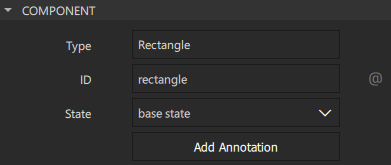
The Properties view displays all the properties of the selected component. The properties are grouped by type. The top part of the view displays properties that are common to all components, such as component type, ID, name, geometry, and visibility.
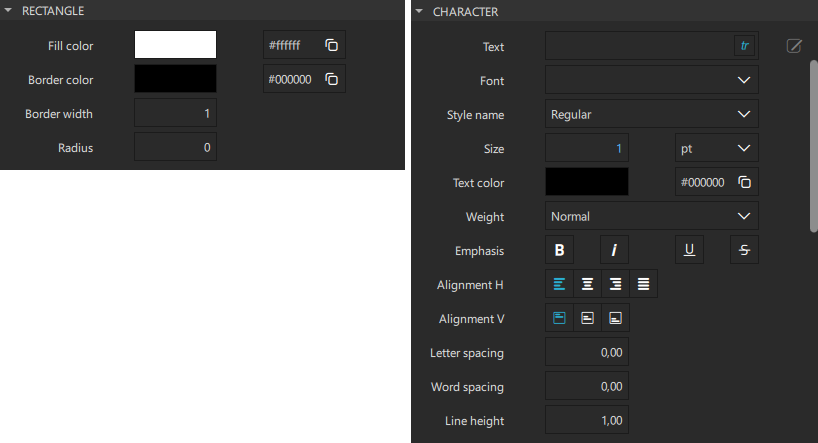
The bottom part of the view displays properties that have been defined for the component type. For example, the following image displays the predefined properties you can set for Rectangle and Text components.
Set basic properties
All components share a set of properties that you can specify in the Properties view.
Change component type
When you create an instance of a preset component, it has all the properties of the preset you used. If you realize later that another preset component with another set of default properties would be more suitable for your purposes, you can change the component type by double-clicking the Type field and entering the name of another preset component in the field.
If you have specified values for properties that are not supported by the new component type, Qt Quick Designer offers to remove them for you. If you'd rather do this yourself, you can select the  (Actions) menu next to the property name, and then select Reset to remove the property values before trying again.
Set component ID
Each component and each instance of a component has an ID that uniquely identifies it and enables other components' properties to be bound to it. You can specify IDs for components in the ID field.
An ID must be unique, it must begin with a lower-case letter or an underscore character, and it can contain only letters, numbers, and underscore characters.
For more technical information about IDs, see The id Attribute.
To add a property alias that you can use from outside of the component, select  . You can use a menu item in the Actions menu to add property aliases for property values of child components.
Set component name for annotations
The value of the Name field specifies the component name used in an annotation. It is a free-form text that descibes the component.
Set 2D geometry
Set the properties in the Geometry - 2D section to determine the position and size of a component.
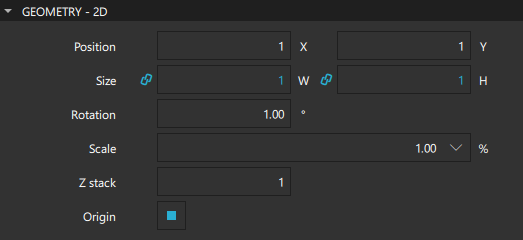
In the Position group, you can set the position of a component on the x and y axis. The position of a component in the UI can be either absolute or relative to other components. For more information, see Make layouts scalable.
In the 2D space, the z position of a component determines its position in relation to its sibling components in the component hierarchy. You can set the z position in the Z stack field.
In the Size group, you can set the width and height of a component. You can also use the resize cursor to resize 2D components in the 2D view. The values in the X and Y fields change accordingly.
The component size and position can also be managed automatically when using layouts.
The width and height of the root component in a component file determine the size of a component. The component size might also be zero (0,0) if its final size is determined by property bindings. For more information, see Preview component size.
Reset component position and size
To return a component to its default position after moving it, right-click in the 2D or Navigator view and select Edit > Reset Position. To return it to its default size, right-click in the 2D or Navigator view and select Edit > Reset Size.
Manage 2D transformations
You can assign any number of transformations, such as rotation and scaling, to a component. Each transformation is applied in order, one at a time.
In the Origin field, select the origin point for scaling and rotation.
Set the scale factor in the Scale field. A value of less than 1.0 makes the component smaller, whereas a value greater than 1.0 makes it larger. A negative value causes the component to be mirrored in the 2D view.
In the Rotation field, specify the rotation of the component in degrees clockwise around the origin point.
Alternatively, you can move, resize, or rotate components by dragging them in the 2D view.
Set component visibility
Set the properties in the Visibility section to show and hide components.
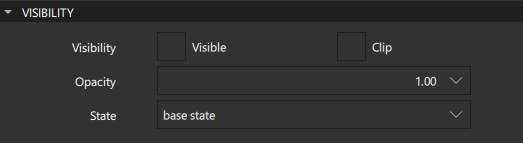
Clear Visible to hide a component and all its child components, unless they have explicitly been set to be visible. This might have surprise effects when using property bindings. In such cases, it may be better to use the Opacity property instead.
If this property is disabled, the component will no longer receive mouse events. However, it will continue to receive key events and will retain the keyboard focus events if Enabled in the Advanced section is selected.
The visibility value is only affected by changes to this property or the parent's visible property. It does not change, for example, if this component moves off-screen, or if the opacity changes to 0.
In the Opacity field, specify the opacity of a component as a number between 0.0 (fully transparent) and 1.0 (fully opaque). The specified opacity is also applied individually to child components, sometimes with surprising effects.
Changing a component's opacity does not affect whether the component receives user input events.
You can animate the opacity value to make a component fade in and out.
If Clip is selected, the component and its children are clipped to the bounding rectangle of the component.
in the State field, select the state to change the value of a property in that state.
See also How to: Design Qt Quick UIs, Qt Quick UI design, and Designing Qt Quick UIs.
Copyright © The Qt Company Ltd. and other contributors. Documentation contributions included herein are the copyrights of their respective owners. The documentation provided herein is licensed under the terms of the GNU Free Documentation License version 1.3 as published by the Free Software Foundation. Qt and respective logos are trademarks of The Qt Company Ltd in Finland and/or other countries worldwide. All other trademarks are property of their respective owners.
