
Change properties
Change the values of component properties in the Properties view.
View changes in properties
The default values of properties are displayed in white color, while the values that you specify explicitly are highlighted with blue color. In addition, property changes in states are highlighted with blue.
This allows you to easily see which values are set in the component file for this component instance and which values are default characteristics of a component.
When editing states, you can easily see which values are explicitly set in the current state and which values are derived from the base state.
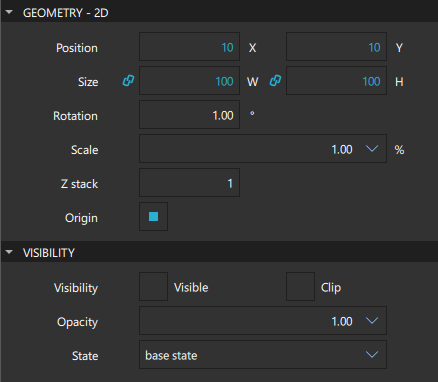
The following images illustrate this. In the base state, the Position and Size values are explicitly set and highlighted.
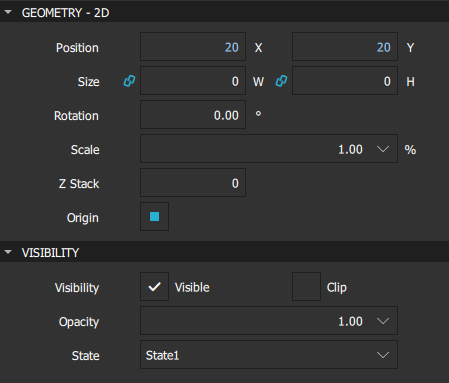
In State1, only Position is explicitly set and highlighted.
Resetting a property sets it back to the default value and removes the value from the component file.
Note: As a result, all boolean values can be visualized in four different ways.
For example, visibility can be visualized as follows:
| TRUE | The component is visible by default. The visibility might be overridden by the visibility set in the base state. |
| TRUE (highlighted) | The component is explicitly set to visible. |
| FALSE | The component is hidden by default. The visibility might be overridden by the visibility set in the base state. |
| FALSE (hightlighted) | The component is explicitly set to hidden. |




Multiselection
To modify the values of common properties of multiple components simultaneously, select the components in the Navigator or 2D view:
- On Windows, select and hold Ctrl and Shift, and then click the components to select them.
- On macOS, select Shift to select a range of components or Cmd to select multiple single components.
You can lock other components in Navigator to make multiselection easier.
Copy and paste formatting
You can copy property values from a component and paste them to one or several other components. The values are applied if the target components have those particular properties.
To copy property values from a component, right-click it in the 2D or Navigator view and select Edit > Copy Formatting.
To apply the values to one or several other components, select them in the Navigator or 2D view, and then right-click and select Edit > Apply Formatting.
Edit properties inline
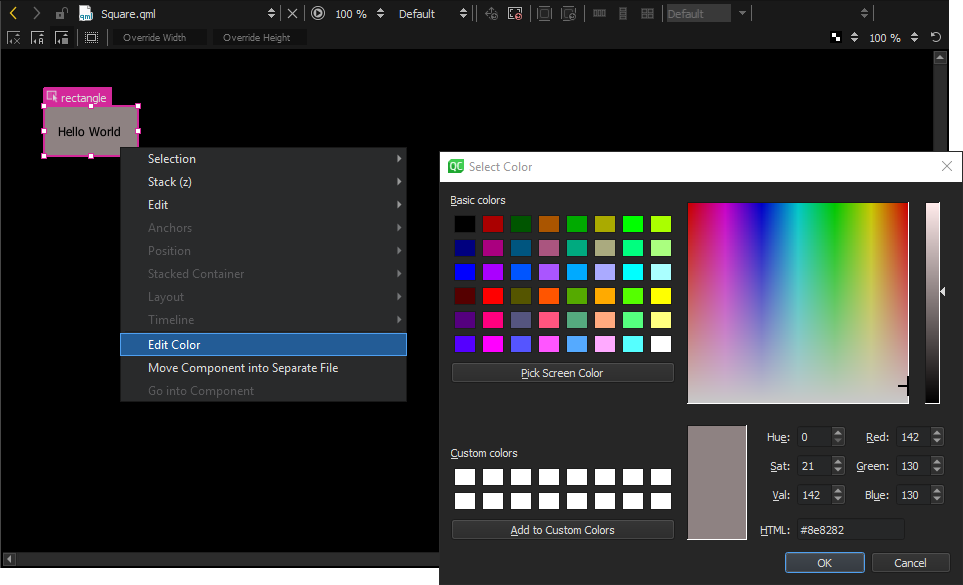
You can double-click components in the 2D view to edit their text, color, or source properties inline. Because you can specify several of these properties for some components, such as Text Edit, you can also right-click components to open the inline editors from the context menu.
Edit properties in multiple views
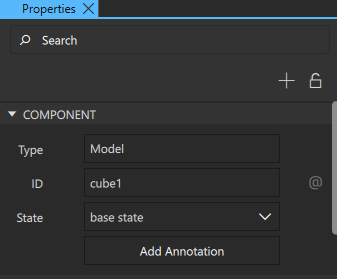
You can open multiple Properties views to edit the properties of multiple nodes simultaneously. You can lock each of the Properties views to prevent the subject node from changing by each selection.
Note: To edit properties in multiple views, activate the Multi Property Editor extension.
To edit the properties of multiple nodes simultaneously:
- In Navigator, select any node and open the Properties view to edit its properties.
- In Properties, to open another Properties view for editing properties of another node:
- Select
 to prevent the subject node from changing.
 - In Navigator, select another node.
- In Properties, select
 to edit its properties in another Properties view.
- Select
- Edit the properties in each of the Properties views as needed.
Get help for properties
- For information about setting common component properties, see Set basic component properties.
- For more information about the properties available for a component, select F1 or see Component types and Make layouts scalable.
See also Activate extensions, How to: Use UI components, Qt Quick UI design, and Designing Qt Quick UIs.
Copyright © The Qt Company Ltd. and other contributors. Documentation contributions included herein are the copyrights of their respective owners. The documentation provided herein is licensed under the terms of the GNU Free Documentation License version 1.3 as published by the Free Software Foundation. Qt and respective logos are trademarks of The Qt Company Ltd in Finland and/or other countries worldwide. All other trademarks are property of their respective owners.
