On this page

Working with states

How to: Work with states

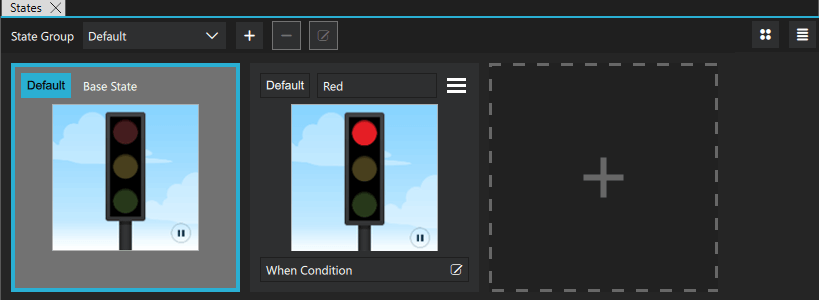
You can define states for components and component instances in the States view by selecting the Plus button.

States view

Select the new state to switch to it in the 2D view, and then modify the values of the properties of components or component instances in Properties.

For example, to change the appearance of a button, you can define states in the button component to hide the button image and show another image in its place or to change the button background or text color. When you use instances of the button in other components, you can define states to create different screens by hiding or showing button component instances. The preset Button control in Components > Qt Quick Controls > Controls has predefined normal and down states.

To add motion to a screen, you can change the position of a component instance in the 2D view and then add animation to the change between the states.

The properties that you change in a state are highlighted with blue color. In the the Code view or Edit mode, you can see the changes recorded as changes to the base state.
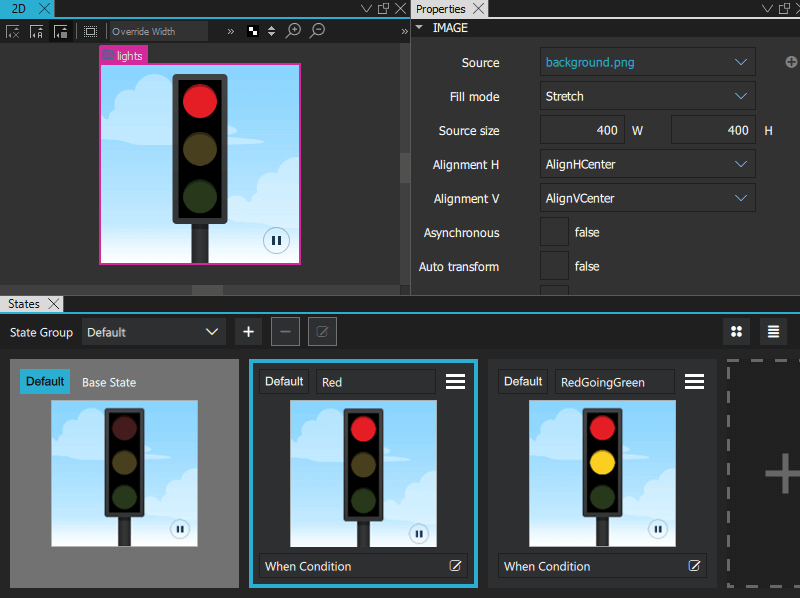
States and Properties views.

Note: If you have locked a component in Navigator, and you attempt to remove states where you change the values of its properties, you are prompted to confirm the removal.

For more information, watch the following video:

Setting the default state

The default state determines the startup state of the application.

To set a state to the default state, select Default.

Using states

To keep the code clean, you should create a base state that contains all the components you will need in the application. You can then create states, in which you hide and show a set of components and modify their properties. This allows you to:

  • Align components on different views with each other.
  • Avoid excessive property changes. If a component is invisible in the base state, you must define all changes to its child components as property changes, which leads to complicated code.
  • Minimize the differences between the base state and the other states to keep the code short and readable and to improve performance.
  • Avoid problems when using transitions and animation when changing states.

To create views for an application by using states:

  1. In the base state, add all components you will need in the application (1). While you work on one view, you can select the Eye button in Navigator to hide components on the canvas that are not part of a view.
  2. In States, select the + symbol to create a new state and give it a name. For example, Normal.
  3. In Properties (2), clear Visibility or set Opacity to 0 for each component that is not needed in this view. If you specify the setting for the parent component, all child components inherit it and are also hidden.
  4. Create additional states for each view and set the visibility or opacity of the components in the view.
  5. To determine which state is applied when the application starts, select Default.

Designing views

State groups

With state groups, you can change the state of certain components independently of other components and their states in the same view.

Each state group has its own property changes and transitions.

By default, there is one default state group.

Extending states

When a state extends another state, it inherits all the changes of that state. The state being extended is treated as the base state in regards to the changes specified by the extending state.

Using extended states can make the user interface and your QML code cleaner.

Below is an example where the only change between State1 and State2 is the brightness of directionalLight.

Here, extended states are not used:

Three states in the States view with no extended state.

Here, State2 is extended from State1:

Three states in the States view with State2 extended from State1.

See also How to: Design Qt Quick UIs, Qt Quick UI design, and Designing Qt Quick UIs.

Copyright © The Qt Company Ltd. and other contributors. Documentation contributions included herein are the copyrights of their respective owners. The documentation provided herein is licensed under the terms of the GNU Free Documentation License version 1.3 as published by the Free Software Foundation. Qt and respective logos are trademarks of The Qt Company Ltd in Finland and/or other countries worldwide. All other trademarks are property of their respective owners.