
Tutorial: Build and run Qt examples
This tutorial illustrates how you can open Qt examples in VS Code. To test that your Qt Online Installer installation is successful, open an existing example application project, and then build and run it.
Before you start
Before you start, you have to:
Open a Qt example
- Go to Welcome, and then select Examples.
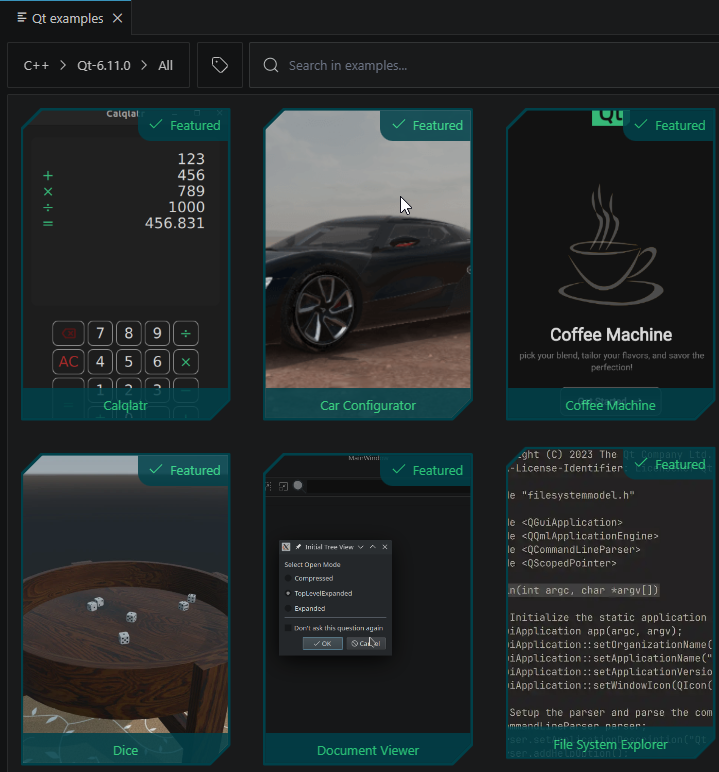
If you cannot see any examples, check that the list of Qt versions is not empty.
- Select an example in the list of examples.
You can also select categories and tags to filter examples.
- Select New project to create a new project based on the example project.
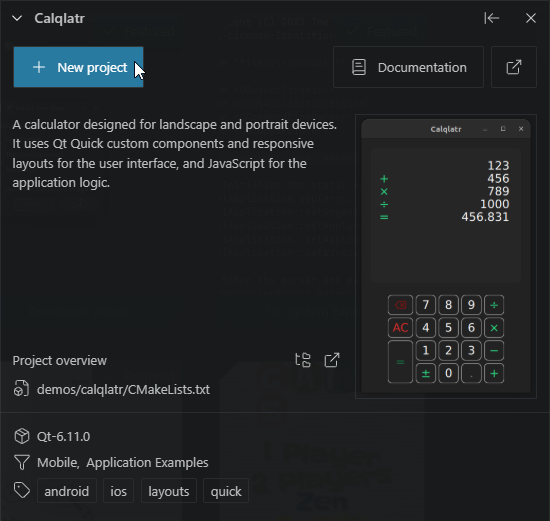
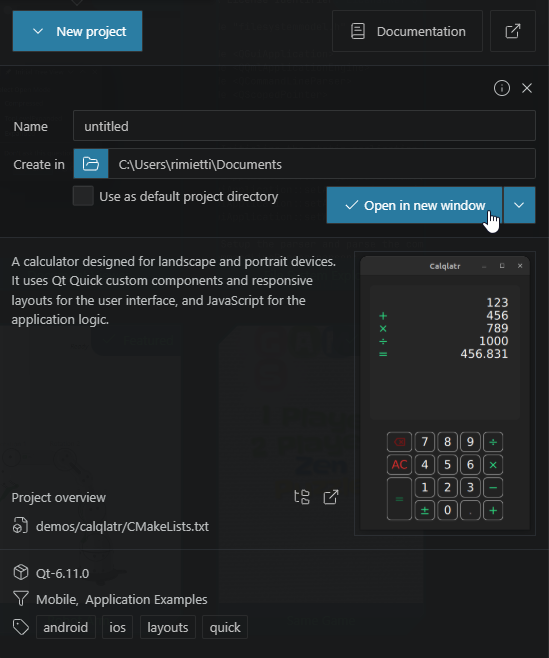
- In Name, enter a name for the project.
- Select Open in new window.
- Select a kit for building and running the project.
- Select
 on the status bar.
 - Select the executable as the launch target to build and run the project.
See also Installation, Register Qt installations, Tutorials, and Create Qt projects.
© 2026 The Qt Company Ltd. Documentation contributions included herein are the copyrights of their respective owners. The documentation provided herein is licensed under the terms of the GNU Free Documentation License version 1.3 as published by the Free Software Foundation. Qt and respective logos are trademarks of The Qt Company Ltd in Finland and/or other countries worldwide. All other trademarks are property of their respective owners.
