
Coordinate Systems and Units in Qt Quick 3D Xr
A Qt Quick 3D Xr application brings together three coordinate systems: the tracking space that the XR runtime reports device poses in, the 3D scene inside the XrView, and the 2D coordinate system of any Qt Quick content the application displays. They use different units and, in the 2D case, a different set of axes. Knowing which one a given value belongs to is necessary to place content where you intend it to appear.
The three coordinate systems
| Coordinate system | Unit | Axes | Origin |
|---|---|---|---|
| XR tracking space | Meter, converted to centimeters before any value reaches QML | +x right, +y up, -z forward | Selected with XrView.referenceSpace |
| 3D scene: any Node inside an XrView | Centimeter | +x right, +y up, -z forward | The parent node |
| 2D content: any Item | Pixel | +x right, +y down | The top-left corner of the parent item |
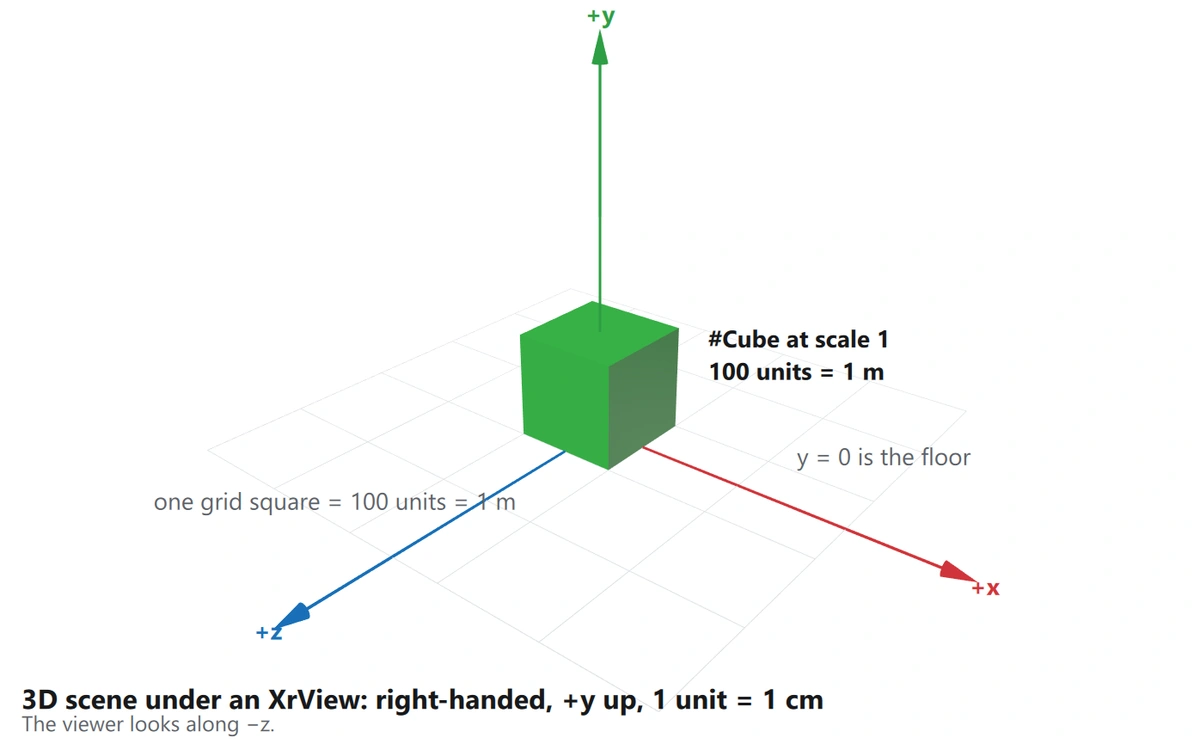
The middle row of the table, drawn as a real scene: the built-in #Cube at scale 1 is 100 units across, which is one meter and one square of the one-meter grid.
That cube is the whole unit rule in one object:
            // One built-in cube at scale 1. The mesh is 100 units across, so
            // this is a 1 m cube, and its center has to sit at y = 50 for the
            // cube to rest on the floor.
            Model {
                source: "#Cube"
                position: Qt.vector3d(0, 50, 0)
                materials: PrincipledMaterial { baseColor: "#41cd52"; roughness: 0.45 }
            }
The tracking space and the 3D scene share the same right-handed axis convention, so a pose never needs to be mirrored or swizzled. Only the unit differs: Qt Quick 3D Xr multiplies every position it receives from the XR runtime by 100 before it reaches the scene. An application therefore never handles meters directly, and never needs to convert a tracked pose itself.
2D content is the exception. Qt Quick's y axis grows downwards, which is why moving a 2D child of a Node down the screen means increasing its y, while moving the Node itself down means decreasing its y. See Qt Quick 3D Scenes with 2D Content for the general rules, and Placing 2D content on a virtual surface below for the XR specifics.
One unit is one centimeter
In a plain Qt Quick 3D scene the unit is arbitrary: nothing outside the scene constrains it, so an application is free to treat a unit as a meter, an inch, or anything else, as long as it is consistent.
In Qt Quick 3D Xr the unit is fixed. Tracked content has to line up with the physical world, and Qt Quick 3D Xr expresses the scene in centimeters:
| Real-world length | Scene value |
|---|---|
| 1 mm | 0.1 |
| 1 cm | 1 |
| 1 m | 100 |
This applies to every distance in the scene, not just to positions: the dimensions of models, the width and height of an XrItem, light ranges, and the clip planes of an XrCamera are all in centimeters.
Some values to calibrate against: a desk is about 75 high, a door about 200 high and 90 wide, and a seated user's eyes are about 120 above the floor, a standing user's about 160.
XrView {
    referenceSpace: XrView.ReferenceSpaceLocalFloor

    Node {
        // One meter in front, at standing eye height.
        position: Qt.vector3d(0, 160, -100)

        Model {
            // #Cube is 100 units across, so this is a 20 cm cube.
            source: "#Cube"
            scale: Qt.vector3d(0.2, 0.2, 0.2)
            materials: PrincipledMaterial { baseColor: "red" }
        }
    }
}
An asset that was authored in meters therefore arrives in the scene 100 times too small. Correct this when importing the asset rather than by scaling nodes in the scene, so that the values you read and write in QML stay in centimeters. Balsam has the --globalScale and --globalScaleValue options for this.
Where the scene origin is
XrView.referenceSpace determines what the point (0, 0, 0) corresponds to in the physical world:
XrView.ReferenceSpaceLocalplaces the scene origin at the user's default view position, which is above the floor. To place content relative to the floor, useReferenceSpaceLocalFloororReferenceSpaceStageinstead.XrView.ReferenceSpaceLocalFloorplaces the scene origin at floor height, directly below the user's default view position.XrView.ReferenceSpaceStageplaces the scene origin at floor height, in the center of the area the user has set up.
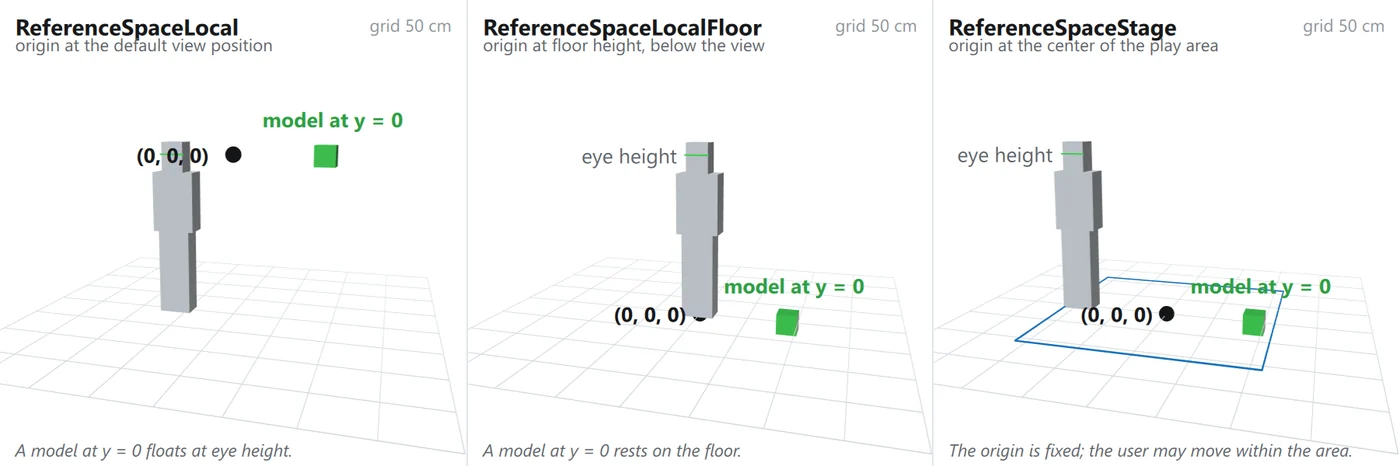
The same model at y: 0 in each of the three reference spaces. The figure is 175 cm tall, and the floor grid is 50 cm.
Pick the reference space first, then position content, because the choice shifts the whole scene vertically. A model placed at y: 0 rests on the floor in ReferenceSpaceLocalFloor and ReferenceSpaceStage, but floats at head height in ReferenceSpaceLocal.
Not every platform honors the request. On visionOS the reference space is always ReferenceSpaceLocalFloor, so an application written for ReferenceSpaceLocal has to check the property at run time and adjust.
XrOrigin marks the scene origin in the scene. To move the user through the virtual scene, move or rotate the XrOrigin. This does not change the user's position in the physical world.
Scaling the XrOrigin scales the user's size in the virtual world: the tracked motion of the user's head and hands is scaled with it. This can be useful in VR, for example to let the user look at a scene from a giant's view. In AR, or whenever scene distances must match physical distances, do not scale the XrOrigin.
Tracked nodes and the XrOrigin
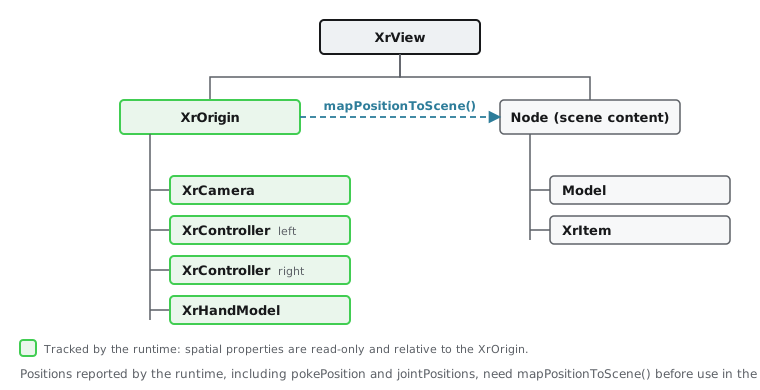
XrCamera, XrController, and XrHandModel are tracked nodes. The XR runtime updates their position and rotation every frame, so treat those properties as read-only.
The tracked nodes must be children of the XrOrigin. The XR runtime reports their poses relative to the reference space, and the XrOrigin represents the reference space in the scene.
The tracking data that these types expose as plain values is also relative to the XrOrigin. This includes pokePosition, jointPositions, and the positions of spatial anchors. These values match scene coordinates only when the XrOrigin is at the scene root with no transform. To compare them with other positions in the scene, map them to scene coordinates first:
XrController {
    controller: XrController.RightController

    // pokePosition is relative to the XrOrigin, so map it before
    // hit-testing the scene with it.
    property vector3d scenePos:
        view.xrOrigin.mapPositionToScene(pokePosition)

    onScenePosChanged: view.processTouch(scenePos, touchId)
}
The Touch Example shows this in context.
XrCamera's clipNear and clipFar are in centimeters like every other distance, so the useful range is roughly 1 to 10000. Unlike a PerspectiveCamera, an XrCamera has no field of view to set: the runtime supplies the projection for each eye.
Placing 2D content on a virtual surface
As in any Qt Quick 3D scene, you can place a plain Item directly under a Node. One pixel of that item is then one scene unit, so in Qt Quick 3D Xr a 500-pixel-wide Rectangle is five meters wide. XrItem avoids this by letting you set the surface size in centimeters. It also registers the surface with its XrView, so processTouch() can send touch events to the content.
XrItem is the bridge between the two unit systems. Its width and height are in centimeters, while its contentItem is an ordinary Item sized in pixels. pixelsPerUnit is the conversion factor between the two, and by default XrItem derives it so that the content fills the surface:
XrItem {
    // A 50 cm by 30 cm surface.
    width: 50
    height: 30
    contentItem: Rectangle {
        width: 500
        height: 300
        color: "white"
    }
}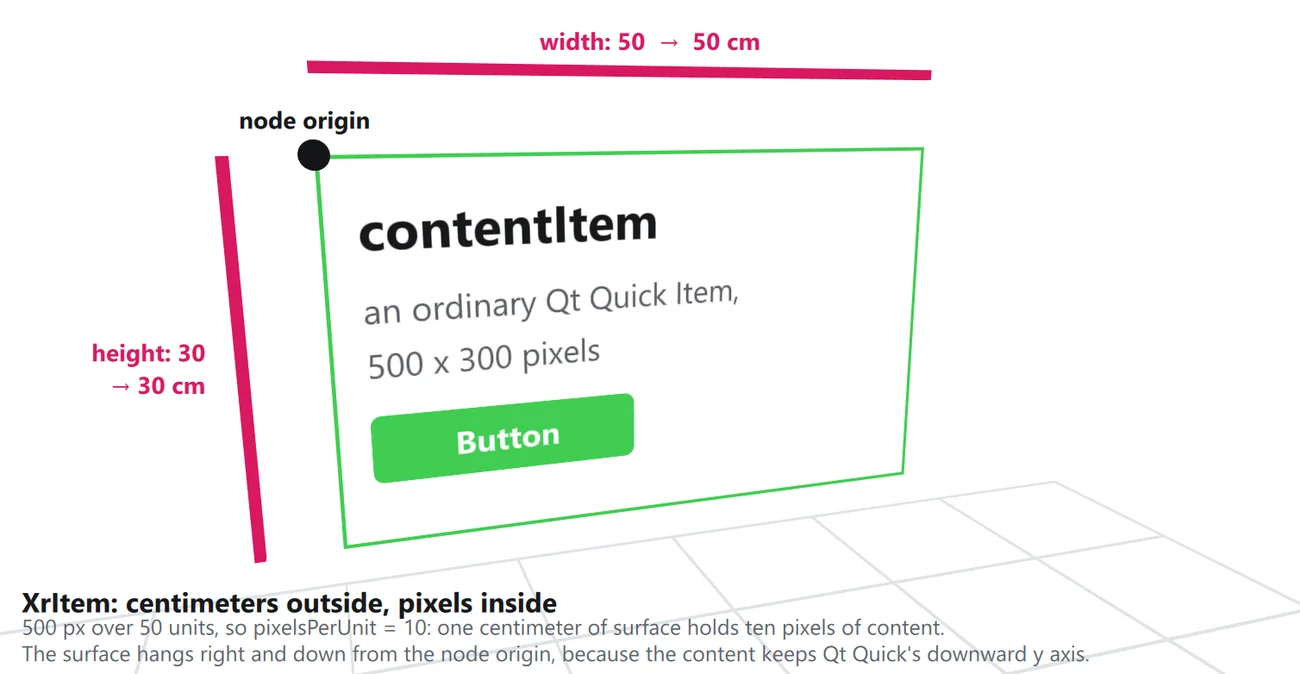
With pixelsPerUnit at 10, one centimeter of surface holds ten pixels of content.
With pixelsPerUnit at 10, XrItem scales the content item to a tenth of its pixel size. XrItem scales the rendered content item and does not render it at a higher resolution, so text on a surface much larger than its content item looks coarse. To keep text sharp, set manualPixelsPerUnit to true, set pixelsPerUnit, and size the content item to match the surface.
An XrItem's surface extends to the right of and below its own origin, following the 2D convention. Offset it to center the surface on the node position:
XrItem {
    width: 50
    height: 30
    x: -width / 2
    y: height / 2
}
Related information
© 2026 The Qt Company Ltd. Documentation contributions included herein are the copyrights of their respective owners. The documentation provided herein is licensed under the terms of the GNU Free Documentation License version 1.3 as published by the Free Software Foundation. Qt and respective logos are trademarks of The Qt Company Ltd. in Finland and/or other countries worldwide. All other trademarks are property of their respective owners.
