
Code coverage for a Qt for MCUs application
In this tutorial, we will illustrate how Coco can be used to measure the code coverage of an application built with the Qt for MCUs Framework. This framework uses Qt Quick Ultralite, which brings a lightweight version of the QML language and Qt Quick APIs to microcontroller units (MCUs) with limited resources.
We will be using a Calculator example based on the parser sample provided in the other Coco tutorials. It has a frontend written in QML and a backend written in C++.
To cover the whole coding cycle, we will first show how to enable the feature in the framework, then we generate the instrumented user application and finally, perform manual tests on the board and analyze their results.
This tutorial assumes that the user has already a process or a script to build an application for Qt for MCUs. The sample here describes a general procedure which needs to be adapted to the user's custom build.
Note: This tutorial requires version 2.12.1 or above of Qt for MCUs.
Setting up the tutorial
Prerequisites
This tutorial has been tested on the STM32H750B-DISCO board using the ARM GCC toolchain. However, it should work with any other board supported by Qt for MCUs. For target-specific details, see Qt for MCUs prerequisites.
This tutorial assumes that you have already installed:
- Qt for MCUs version 2.12.1 or above,
- a supported toolchain for your target board (e.g.
arm-none-eabi-gccfor ARM Cortex-M based boards), - and Coco version 7.5.0 or above with the CocoQML Add-on, which you can download from the Qt Customer Portal.
Location of the Calculator example
The Calculator example can be found in a directory called parser_qtmcu. Its location varies according to the operating system:
%SQUISHCOCO%\parseron Microsoft® Windows,/opt/SquishCoco/samples/parseron Linux™,- and
/Applications/SquishCoco/samples/parseron macOS.
It is recommended that you create a copy of the parser_qtmcu directory and work on this copy to avoid modifying the original example.
Configuring Qt for MCUs for use with Coco
Coco uses the DeviceLink protocol in Qt for MCUs to retrieve the coverage information from the target. This communication link can be ported to each board on which Qt for MCUs is running but is disabled by default (see Porting DeviceLink communication).
Note: It is possible to use other mechanisms as replacement or in parallel by providing custom IO functions for C++ code coverage (see __coveragescanner_set_custom_io). In this case, this step is optional.
Building Qt for MCUs requires a configuration step using cmake. Simply add the switch -DQUL_PLATFORM_DEVICELINK_ENABLED=1 to the configuration command to enable the DeviceLink support.
For example, for the STM32H750 board, we use the following command to configure the framework and rebuild it:
> cmake E:\src\qul -G "Ninja" -DQul_ROOT=E:\src\qul -DCMAKE_INSTALL_PREFIX=E:\build_git\qul_install -DCMAKE_BUILD_TYPE=MinSizeRel -DCMAKE_TOOLCHAIN_FILE=E:\src\qul\lib\cmake\Qul\toolchain\armgcc.cmake -DQUL_TARGET_TOOLCHAIN_DIR=e:\qt\tools\qtmcus\arm_gcc_12_3_1 -DQUL_BUILD_DEMOS=off -DQUL_BUILD_EXAMPLES=off -DQUL_BUILD_FRAMEWORK=on -DQUL_BUILD_TESTS=off -DQUL_BOARD_SDK_DIR=E:\Qt\Tools\QtMCUs\STM\STM32Cube_FW_H7_V1.11.2 -DQUL_GENERATORS=e:\build_git\host_tools/QulGenerators.cmake -DQUL_PLATFORM=STM32H750B-DISCOVERY-baremetal -DQUL_PLATFORM_DEVICELINK_ENABLED=1
-- CMake version 3.30.5
-- The C compiler identification is GNU 12.3.1
-- The CXX compiler identification is GNU 12.3.1
-- The ASM compiler identification is GNU
.....
-- Configuring done (6.2s)
-- Generating done (0.6s)
-- Build files have been written to: E:/build_git/qul
> cmake --build . --target install
[1/571] Running qmlinterfacegenerator on E:/src/qul/include/qul/object.h

[2/571] Running qmlinterfacegenerator on E:/src/qul/include/qul/private/parentobject.h

[3/571] Running qmlinterfacegenerator on E:/src/qul/include/qul/singleton.h

.....
[569/571] Building CXX object src/virtualkeyboard/CMakeFiles/VirtualKeyboardPrebuild.dir/QtQuick/VirtualKeyboard/Prebuild/KeyPanel.cpp.obj

[570/571] Linking CXX static library src\virtualkeyboard\QtQuick\VirtualKeyboard\Prebuild\libQulVirtualKeyboardPrebuild_cortex-m7-hf-fpv5-d16_Windows_armgcc_MinSizeRel.a

[570/571] Install the project...

-- Install configuration: "MinSizeRel"
-- Up-to-date: E:/build_git/qul_install/include/qul/Profiling/QtQuickUltralite/Profiling/
.....
-- Installing: E:/build_git/qul_install/platform/common/platform.cpp
-- Installing: E:/build_git/qul_install/platform/common/platform_config.h.in
-- Installing: E:/build_git/qul_install/platform/common/singlepointtoucheventdispatcher.cpp
Instrumenting QML Source code
To measure the coverage of QML code, it is necessary to instrument the sources using the CocoQML Add-on. This is provided as a separate package in the Qt Customer Portal.
After unzipping the package, simply run cocoqmlscanner with the --qul option in the parser_qtmcu directory:
> <path\to\cocoqml>\bin\cocoqmlscanner --qul qmlprojectThis modifies the *.qml files and generates the instrumentations database cocoqmlscanner_result.csmes in the current directory. Backups of the original files are also created, which can be restored using the --restore switch later on. See cocoqmlscanner documentation for more details about the available options.
The instrumentations added to the QML files require the QulCoverage module. This command also modifies the *.qmlproject file to ensure that the QulCoverage module is included in the build.
Instrumenting C++ Source code
Compiler Wrapper Installation
To instrument the C++ code of the user application, it is necessary to use CoverageScanner compiler wrappers for the toolchain used to build the application.
To generate a compiler wrapper for the Qt for MCUs platform, it is just necessary to:
- copy the original toolchain compiler binaries to a separate folder,
- and override the compiler and linker with a wrapper created from
ar,gccandg++.
If the toolchain used for example is called arm-none-eabi-gcc located under QUL_TARGET_TOOLCHAIN_DIR, then proceed as follows on Microsoft® Windows:
md c:\COCOQUL
xcopy /S /Y %QUL_TARGET_TOOLCHAIN_DIR%\ c:\COCOQUL\
copy %SQUISHCOCO%\coveragescanner.exe c:\COCOQUL\bin\arm-none-eabi-gcc.exe
copy %SQUISHCOCO%\gnupro-gcc.cspro c:\COCOQUL\bin\arm-none-eabi-gcc.cspro
copy %SQUISHCOCO%\coveragescanner.exe c:\COCOQUL\bin\arm-none-eabi-g++.exe
copy %SQUISHCOCO%\gnupro-g++.cspro c:\COCOQUL\bin\arm-none-eabi-g++.cspro
copy %SQUISHCOCO%\coveragescanner.exe c:\COCOQUL\bin\arm-none-eabi-ar.exe
copy %SQUISHCOCO%\ar.cspro c:\COCOQUL\bin\arm-none-eabi-ar.cspro
copy %SQUISHCOCO%\coveragescanner.exe c:\COCOQUL\bin\arm-none-eabi-gcc-ar.exe
copy %SQUISHCOCO%\ar.cspro c:\COCOQUL\bin\arm-none-eabi-gcc-ar.cspro
On Linux, it would be:
COCO_INSTALL_PATH="/opt/SquishCoco/bin"
cp -r "$QUL_TARGET_TOOLCHAIN_DIR/." $COCO_TOOLCHAIN_PATH

cp $COCO_INSTALL_PATH/coveragescanner $COCO_TOOLCHAIN_PATH/bin/arm-none-eabi-gcc
cp $COCO_INSTALL_PATH/../wrapper/.profiles/gnupro-gcc.cspro $COCO_TOOLCHAIN_PATH/bin/arm-none-eabi-gcc.cspro
cp $COCO_INSTALL_PATH/coveragescanner $COCO_TOOLCHAIN_PATH/bin/arm-none-eabi-g++
cp $COCO_INSTALL_PATH/../wrapper/.profiles/gnupro-g++.cspro $COCO_TOOLCHAIN_PATH/bin/arm-none-eabi-g++.cspro
cp $COCO_INSTALL_PATH/coveragescanner $COCO_TOOLCHAIN_PATH/bin/arm-none-eabi-ar
cp $COCO_INSTALL_PATH/ar.cspro $COCO_TOOLCHAIN_PATH/bin/arm-none-eabi-ar.cspro
cp $COCO_INSTALL_PATH/coveragescanner $COCO_TOOLCHAIN_PATH/bin/arm-none-eabi-gcc-ar
cp $COCO_INSTALL_PATH/ar.cspro $COCO_TOOLCHAIN_PATH/bin/arm-none-eabi-gcc-ar.cspro
To test that the wrappers are working, it is possible to use following commands:
- Invoking
coveragescannerwrapper displays the Coco own help message. - Invoking
coveragescannerwrapper with the command line switch-vdisplays the toolchain version.
Here is an example of the output:
$ set PATH=%PATH%;%QUL_TARGET_TOOLCHAIN_DIR%\bin
$ arm-none-eabi-gcc
CoverageScanner (C) The Qt Company
Usage:
--cs-statement-block: code coverage of statement blocks support
--cs-decision: code coverage decision support
--cs-condition: code coverage condition support (default)
......
--cs-function-profiler=all/skip-trivial: enable function profiling.

Version: 7.5.0-RC-7.5.0-2026-02-18-423d51870e Build 423d51870e
Date: 18/2/2026

$ arm-none-eabi-gcc.exe -v
Using built-in specs.
COLLECT_GCC=e:\qt\tools\qtmcus\arm_gcc_12_3_1\bin\arm-none-eabi-gcc.exe
COLLECT_LTO_WRAPPER=e:/qt/tools/qtmcus/arm_gcc_12_3_1/bin/../libexec/gcc/arm-none-eabi/12.3.1/lto-wrapper.exe
Target: arm-none-eabi
Configured with: /data/jenkins/workspace/GNU-toolchain/arm-12/src/gcc/configure --target=arm-none-eabi --prefix=/data/jenkins/workspace/GNU-toolchain/arm-12/build-mingw-arm-none-eabi/install --with-gmp=/data/jenkins/workspace/GNU-toolchain/arm-12/build-mingw-arm-none-eabi/host-tools --with-mpfr=/data/jenkins/workspace/GNU-toolchain/arm-12/build-mingw-arm-none-eabi/host-tools --with-mpc=/data/jenkins/workspace/GNU-toolchain/arm-12/build-mingw-arm-none-eabi/host-tools --with-isl=/data/jenkins/workspace/GNU-toolchain/arm-12/build-mingw-arm-none-eabi/host-tools --disable-shared --disable-nls --disable-threads --disable-tls --enable-checking=release --enable-languages=c,c++,fortran --with-newlib --with-gnu-as --with-gnu-ld --with-sysroot=/data/jenkins/workspace/GNU-toolchain/arm-12/build-mingw-arm-none-eabi/install/arm-none-eabi --with-multilib-list=aprofile,rmprofile --with-libiconv-prefix=/data/jenkins/workspace/GNU-toolchain/arm-12/build-mingw-arm-none-eabi/host-tools --host=i686-w64-mingw32 --with-pkgversion='Arm GNU Toolchain 12.3.Rel1 (Build arm-12.35)' --with-bugurl=https://bugs.linaro.org/
Thread model: single
Supported LTO compression algorithms: zlib
gcc version 12.3.1 20230626 (Arm GNU Toolchain 12.3.Rel1 (Build arm-12.35))
Compiling User's Application
The simplest way to compile a user application is to set the path of the cmake configuration to the compiler wrappers and enable it during the build. This can be performed by setting the variable QUL_TARGET_TOOLCHAIN_DIR during the cmake configuration step. To work completely, the path to the original tool chain need to be added to the PATH variable.
Here is how it looks on our example on Microsoft® Windows:
set PATH=%PATH%;%QUL_TARGET_TOOLCHAIN_DIR%\bin
> cmake path\to\parser_qtmcu -G "Ninja" -DQul_ROOT=E:\build_git\qul_install -DCMAKE_BUILD_TYPE=MinSizeRel -DCMAKE_TOOLCHAIN_FILE=E:\src\qul\lib\cmake\Qul\toolchain\armgcc.cmake -DQUL_TARGET_TOOLCHAIN_DIR=c:\COCOQUL -DQUL_GENERATORS=e:\build_git\host_tools/QulGenerators.cmake -DQUL_PLATFORM=STM32H750B-DISCOVERY-baremetal  -DQUL_BOARD_SDK_DIR=E:\Qt\Tools\QtMCUs\STM\STM32Cube_FW_H7_V1.11.2 -DCMAKE_VERBOSE_MAKEFILE=ON
-- The C compiler identification is GNU 12.3.1
-- The CXX compiler identification is GNU 12.3.1
-- The ASM compiler identification is GNU
.....
-- Added flash target flash_parser_qtmcu
-- Configuring done (8.3s)
-- Generating done (0.1s)
-- Build files have been written to: E:/build_git/app
On Linux, it would be:
> export PATH="$PATH:$QUL_TARGET_TOOLCHAIN_DIR/bin"
> cmake "$PARSER_QTMCU_PATH" -G "Ninja" -DQul_ROOT="$COCO_QUL_INSTALL" -DCMAKE_BUILD_TYPE=MinSizeRel -DCMAKE_TOOLCHAIN_FILE="$QUL_ROOT/lib/cmake/Qul/toolchain/armgcc.cmake" -DQUL_TARGET_TOOLCHAIN_DIR="$COCO_TOOLCHAIN_PATH" -DQUL_GENERATORS="$QUL_ROOT/lib/cmake/Qul/QulGenerators.cmake" -DQUL_PLATFORM="$QUL_PLATFORM" -DQUL_BOARD_SDK_DIR="$QUL_BOARD_SDK_DIR" -DCMAKE_VERBOSE_MAKEFILE=ON
After the configuration, it is possible to build the code with or without Coco using the COVERAGESCANNER_ARGS environment variable. We need to add following parameters for a standard instrumentation:
--cs-on: this enables the instrumentation.--cs-mcu: this enables the handling of the DeviceLink in the user application and it uses the memory allocators from Qt for MCUs internally.--cs-off=*.s: this disables the coverage analysis on assembler files.--cs-exclude-file-abs-wildcard=<build_dir>: this permits to exclude the C++ sources generated from QML. The coverage of these sources are covered by CocoQML (see sec:instrumenting-qtmcu-qul-code). The Qt for MCUs installation directory should also be excluded since these system files are not part of the application under test.
Here is how to compile our example on Microsoft® Windows:
> set COVERAGESCANNER_ARGS=--cs-on --cs-mcu --cs-off=*.s --cs-exclude-file-abs-wildcard=%BUILD_APP%/* --cs-exclude-file-abs-wildcard=%INSTALL_DIR%/*
> cmake --build .   -- -j 1
Change Dir: 'E:/build_git/app'

Run Build Command(s): E:/qt/Tools/Ninja/ninja.exe -v -j 1
.....
lto-wrapper.exe: note: see the '-flto' option documentation for more information

[25/25] C:\WINDOWS\system32\cmd.exe /C "cd /D E:\build_git\app\qmlproject && python E:/build_git/qul_install/lib/cmake/Qul/../../../test_automation/generateTestCrate.py --platform stm32h750b-discovery-baremetal --colorDepth 32 --elfFile E:/build_git/app/MinSizeRel/parser_qtmcu.elf --hexFile E:/build_git/app/MinSizeRel/parser_qtmcu.hex --baudRate 115200 --outFile E:/build_git/app/MinSizeRel/parser_qtmcu-stm32h750b-discovery-baremetal-armgcc-32bpp.testcrate.tar.gz"
On Linux, it would be:
> export COVERAGESCANNER_ARGS='--cs-on --cs-mcu --cs-off=*.s --cs-exclude-file-abs-wildcard=$BUILD_APP/* --cs-exclude-file-abs-wildcard=$INSTALL_DIR/*'
> cmake --build .   -- -j 1
In our case, the application %BUILD_DIR%\\MinSizeRel\parser_qtmcu.elf and its instrumentation database %BUILD_DIR%\\MinSizeRel\parser_qtmcu.elf.csmes are generated.
The application can then be flashed on the target.
Here is an example on Windows:
> tree /A /F MinSizeRel
Folder PATH listing for volume Data
Volume serial number is D487-8315
MINSIZEREL
    libLib_parser_qtmcu8e05.a
    libLib_parser_qtmcu8e05.a.csmes
    parser_qtmcu-noassets.hex
    parser_qtmcu-stm32h750b-discovery-baremetal-armgcc-32bpp.testcrate.tar.gz
    parser_qtmcu.elf
    parser_qtmcu.elf.csmes
    parser_qtmcu.hex
Merging QML and C++ code coverage
Since C++ and QML code are instrumented separately, it is necessary to merge them together to get one single instrumentation database. This can be easily be performed using cmmerge:
> cmmerge -o app.csmes parser_qtmcu.elf.csmes cocoqmlscanner_result.csmesTesting the availability of the DeviceLink
Once flashed, it is possible to test that the DeviceLink is correctly configured using cmcsexeimport:
> cmcsexeimport --qul-discover --verbose
Probing list of devices:
--> DETECTED: COM8 (STMicroelectronics STLink Virtual COM Port): stm32h750b-discovery-baremetal v1.0.0
    COM PORT: COM4 (Standard Serial over Bluetooth link)
    COM PORT: COM5 (Standard Serial over Bluetooth link)
    COM PORT: COM6 (SAMSUNG Mobile USB Modem)
In this example, the serial port COM8 using the driver from STMicroelectronics is recognized. The other serial links are physically available but not usable for the communication with the board.
Importing the Coverage Information via Command Line
It is possible to use cmcsexeimport to retrieve the coverage of a test directly on the target. To achieve it, first detect the communication port and then use the switch --qul-port to fetch and import the counters.
Here is an example which imports the coverage of a test called "First Test" into app.csmes through the communication link COM8:
> cmcsexeimport --qul-port=COM8 -m app.csmes --title="First Test"Interactive Tests using CoverageBrowser
CoverageBrowser can also be used to interactively import the coverage information directly from the board. When starting, it provides a dedicated docking window for Qt for MCUs:
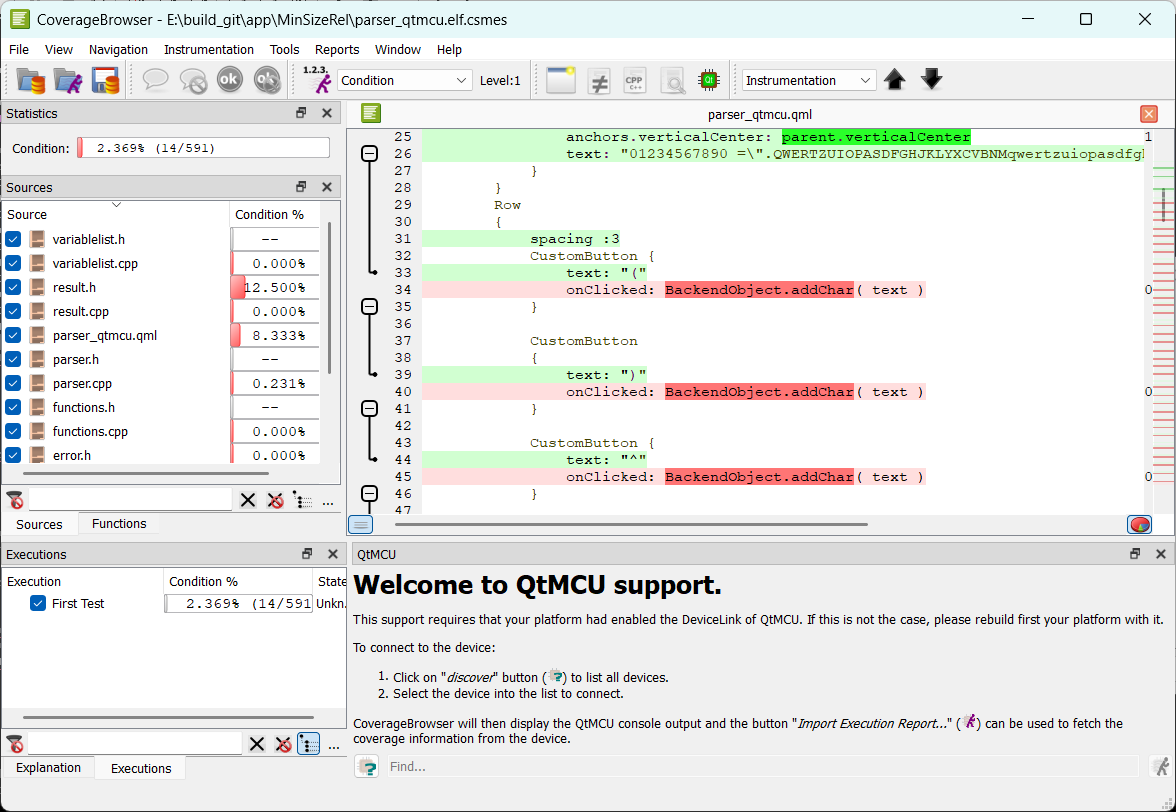
CoverageBrowser with Qt for MCUs support.
The Qt for MCUs window has a Discover Qt for MCUs devices button  which behaves exactly like the
 --qul-discover switch of cmcsexeimport. It lists the available devices and double clicking on one of the devices permits to connect to it.
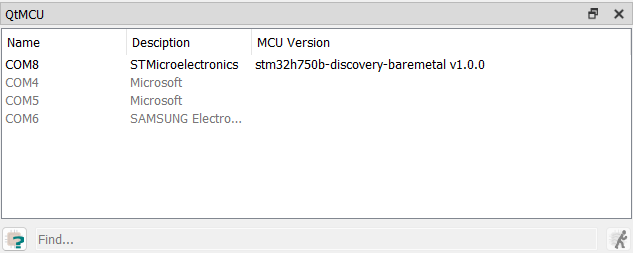
Qt for MCUs Discover Window
Once the board is selected, a console window appears. It displays the output of the function that permits printf-debugging by redirecting the output of the function qul_printf into it. A timestamp and a primitive coloring is provided for the keywords 'error' and 'warning'.
The calculator sample uses this function to display the expression after pressing the Calculate button.
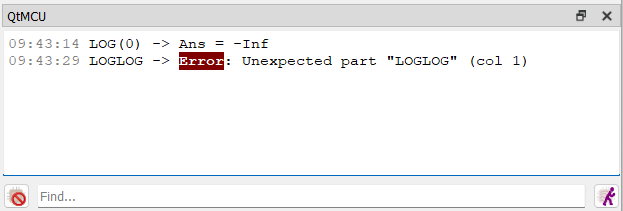
Qt for MCUs Console Output
Clicking on the Import execution report button  permits you to open a dialog which allows you to fetch the coverage data since the last import or a reset of the board.
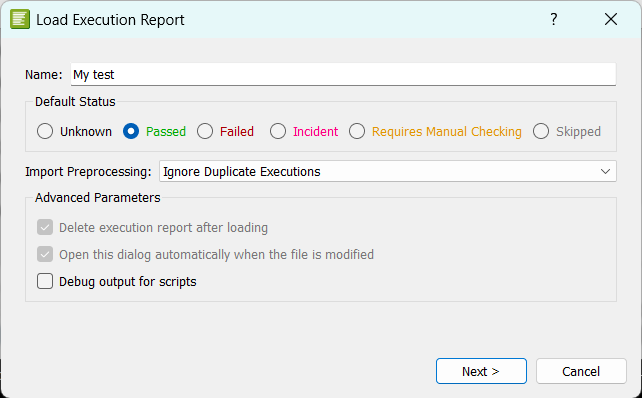
Import dialog of the coverage from a MCU board
Coco v7.6.0 ©2026 The Qt Company Ltd.
Qt and respective logos are trademarks of The Qt Company Ltd. in Finland and/or other countries worldwide. All other trademarks are property
of their respective owners.
