
C
Using Qt Quick Ultralite with Zephyr
Zephyr is an RTOS for embedded systems. It provides a fully preemptible tickless kernel, both cooperative and preemptive threading, semaphores and queues.
Note: This is the recommended workflow for new Qt Quick Ultralite Zephyr applications, where Qt Quick Ultralite is added as a west module. For the workflow where the application is exported as a standalone Zephyr project, see Manual Qt Quick Ultralite integration with Zephyr.
Qt Quick Ultralite offers tools which enable easy integration with a pre-existing Zephyr project. The Qt Quick Ultralite Zephyr module is a west module that runs qmlprojectexporter during the Zephyr CMake configure step, maps the Zephyr board to a Qt Quick Ultralite platform, and adds the generated sources to the build as a Zephyr library. The module is configured through Kconfig and provides the west build-qul-libs command for building the Qt Quick Ultralite target libraries.
Supported architectures, platforms and Zephyr versions
Qt Quick Ultralite supports the following hardware:
| Hardware board | MCU | Architecture | Compiler | Supported Zephyr version |
|---|---|---|---|---|
| NXP IMXRT1060-EVKB | MIMXRT1062DVL6B | ARM Cortex-M7 | Zephyr SDK 1.0.1 (arm-zephyr-eabi GCC) | 4.4.0 |
| NXP IMXRT1064-EVK | MIMXRT1064DVL6A | ARM Cortex-M7 | Zephyr SDK 1.0.1 (arm-zephyr-eabi GCC) | 4.4.0 |
In addition, Qt Quick Ultralite supports Zephyr's host-based simulator board, which runs Zephyr as an application on the development host:
| Board | Host | Architecture | Compiler | Supported Zephyr version |
|---|---|---|---|---|
| native_sim | Linux | x86_64 | GNU Compiler Collection (GCC) | 4.4.0 |
Prerequisites
You need to install the following prerequisites to start working with the Qt Quick Ultralite Zephyr module:
- Qt for MCUs 2.12.3
- Qt Quick Ultralite platform package (see supported platforms)
- Zephyr 4.4.0
- A toolchain for the target:
- Zephyr SDK 1.0.1
- GNU Compiler Collection (GCC) for native_sim
- CMake 3.21.1 or newer
- Ninja 1.10.0 or newer
- Python 3.12 or newer
Workflow
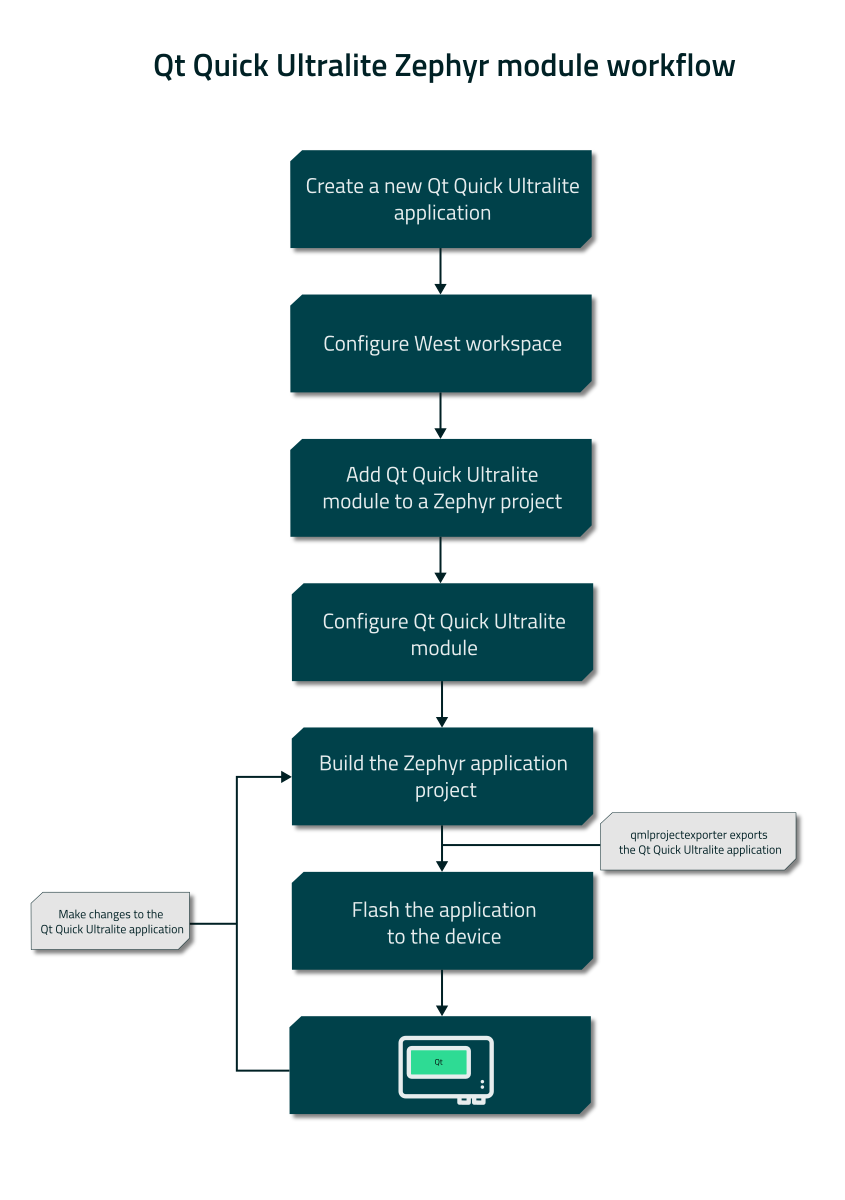
The overall workflow for creating and compiling a Qt Quick Ultralite application is as follows:
Setting up a new application
This section covers setting up the Zephyr application that runs Qt Quick Ultralite. To create the Qt Quick Ultralite application, see Qt Design Studio on MCUs documentation.
Creating a Zephyr application directory
Qt Quick Ultralite runs in a Zephyr thread of its own that the Zephyr application creates. The thread runs the Qt Quick Ultralite event loop through Qul::Application::exec() and is self-contained; the rest of the Zephyr application runs alongside it. The application that creates the thread consists of a CMakeLists.txt file, a prj.conf file, and the application sources.
Create a directory for the west workspace, and the application directory app with its src subdirectory under it:
mkdir myproject
cd myproject
mkdir -p app/src
mkdir myproject
cd myproject
mkdir app\src
Obtaining the Qt Quick Ultralite Zephyr module repository
The Qt Quick Ultralite Zephyr module is distributed as a git bundle file included in the Qt Quick Ultralite installation:
<QT_INSTALL>/QtMCUs/2.12.3/platform/boards/zephyr/qtultralight-zephyr-module.bundle
Use the bundle to create a local copy of the module repository, then make that copy available from a git server that your west workspace can reach:
git clone --origin bundle <path/to/qtultralight-zephyr-module.bundle> qtultralight-zephyr-module
cd qtultralight-zephyr-module
git branch -m main
git remote add origin <your-git-server-url>/qtultralight.git
git push origin main
Use the same server URL as the url-base value for the qt remote in app/west.yml, which is created in the next step.
Each Qt Quick Ultralite release includes an updated bundle. To move to a new Qt Quick Ultralite version, repeat these steps with the bundle from that release and update the copy on your git server. Then run west update in existing west workspaces to pull the new commit.
Creating app/west.yml
These steps keep the west manifest in the application directory, which makes app the manifest repository as well. A manifest repository that is separate from the application works the same way. For the workspace topologies that west supports, see west workspaces.
Create the west manifest in app/west.yml. Set url-base for the qt remote to the git server URL you pushed the Qt Quick Ultralite Zephyr module repository to in the previous step. Add the Qt Quick Ultralite Zephyr module as a project in it, with import: true so that west also reads the module's own manifest, which declares the build-qul-libs extension command:
manifest:
  remotes:
    - name: zephyrproject-rtos
      url-base: https://github.com/zephyrproject-rtos
    - name: qt
      url-base: https://your.git.server/path

  projects:
    - name: zephyr
      remote: zephyrproject-rtos
      revision: v4.4-branch
      import: true

    - name: qtultralight
      remote: qt
      repo-path: qtultralight.git
      revision: main
      path: qtultralight
      import: true

  self:
    path: app
The repository that the qtultralight project points to is a thin wrapper. It contains only the Zephyr integration: the Kconfig definitions, the Zephyr CMake files, and the west build-qul-libs command. Qt Quick Ultralite itself is not part of it, so west update clones the wrapper alone.
The host tools such as qmlprojectexporter, the platform sources, and the target libraries come from a Qt Quick Ultralite installation that is kept outside the west workspace. The module locates that installation through QUL_ROOT.
Initializing and updating the workspace
west init -l app
west update
Creating app/CMakeLists.txt
Create a simple CMakeLists.txt file in app/ that lists the application sources:
cmake_minimum_required(VERSION 3.20.0)
find_package(Zephyr REQUIRED HINTS $ENV{ZEPHYR_BASE})
project(myapp)

target_sources(app PRIVATE src/qul_main.cpp)
Note: If the QML project uses C++ interfaces or models, add the source files to target_sources as well. Their headers are made available to qmlprojectexporter with CONFIG_QUL_INCLUDE_DIRS.
The generated project also includes the platform port's zephyr-linker-sources.cmake, which adds the Qt Quick Ultralite linker sections to the Zephyr-generated linker script.
Creating app/prj.conf
Create app/prj.conf to enable the module and point it at the qmlproject file:
CONFIG_QUL=y
CONFIG_QUL_QMLPROJECT_FILE="path/to/your/qul_application.qmlproject"
CONFIG_QUL_QMLPROJECT_FILE accepts an absolute path, a path relative to the application directory, or a path starting with ~.
These two options are the minimal configuration. See the Kconfig reference for a full list of Qt Quick Ultralite specific Kconfig values.
Creating app/src/qul_main.cpp
Create the application entry point in app/src/qul_main.cpp. This source file provides the thread that runs Qt Quick Ultralite. The QML root item header is generated from the .qmlproject file at build time and is available on the include path automatically:
#include "MainScreen.h"

#include <qul/application.h>
#include <qul/qul.h>
#include <zephyr/kernel.h>

#define QUL_THREAD_STACK_SIZE 16384
#define QUL_THREAD_PRIORITY   5

static void qul_thread_entry(void *, void *, void *)
{
    Qul::initHardware();
    Qul::initPlatform();

    Qul::Application app;
    static MainScreen item;
    app.setRootItem(&item);
    app.exec();
}

K_THREAD_DEFINE(qul_tid, QUL_THREAD_STACK_SIZE,
                qul_thread_entry, NULL, NULL, NULL,
                QUL_THREAD_PRIORITY, 0, 0);
K_THREAD_DEFINE creates the Zephyr thread at boot. The thread entry point initializes the hardware and the platform before it starts the Qt Quick Ultralite event loop.
Note: MainScreen assumes the main qml file in your Qt Quick Ultralite application is MainScreen.qml. Change the item name to match the main qml filename in your application.
Note: The stack size depends on the complexity of the Qt Quick Ultralite application. The example value here is sufficient for the Qt Quick Ultralite Thermostat Demo.
Note: native_sim calls posix_exit() when the display window is closed, which may crash an application that uses the thread code above. On native_sim, use the native_sim specific application thread instead.
Setting QUL_ROOT
The Qt Quick Ultralite Zephyr module requires a Qt for MCUs installation to work. Set the QUL_ROOT environment variable to the installation directory, so that the module finds the host tools, the platform sources, and the libraries:
export QUL_ROOT=$HOME/Qt/QtMCUs/2.12.3
set QUL_ROOT=C:\Qt\QtMCUs\2.12.3
You can also set QUL_ROOT by passing it to the west build command, after --:
west build -b <board> app -- -DQUL_ROOT=$HOME/Qt/QtMCUs/2.12.3
west build -b <board> app -- -DQUL_ROOT=C:\Qt\QtMCUs\2.12.3
Note: The value that is passed on the command line takes precedence over the QUL_ROOT environment variable.
Configuration
The Qt Quick Ultralite Zephyr module adds Kconfig options that configure how Qt Quick Ultralite is built into the Zephyr application. Set the options in the application's prj.conf, or through the interactive Kconfig interface:
west build -b <board> app -t menuconfig
Where <board> is the Zephyr board target and -b is the short form of --board. The menuconfig target runs the CMake configure step, which needs the board target. Once the build directory exists, west reuses the board from the CMake cache and you can leave out -b <board>.
Note: CONFIG_QUL, CONFIG_QUL_DEFAULT_CONF and CONFIG_QUL_DEVICELINK must be set in prj.conf. The module reads them before Kconfig runs, so setting them only through menuconfig does not take effect.
The Qt Quick Ultralite options are under Modules > qtultralight. Changes are saved to build/zephyr/.config and take effect on the next west build. For the complete list of options, see the Kconfig reference.
The Qt Quick Ultralite application itself is configured in its .qmlproject file and in the platform's BoardDefaults_*.qmlprojectconfig file, see QmlProject manual and Defining default variables for the platform. The module locates the Qt Quick Ultralite installation and the platform sources through CMake variables and environment variables, see CMake variable reference and Environment variable reference.
Building
By default, Qt Quick Ultralite uses the prebuilt libraries from the installation. To build the libraries yourself, see Building the Qt Quick Ultralite libraries.
Build the application by running west build with the target board:
west build -b <board> app
Where <board> is the Zephyr board target. For the board target to use, see the board-specific page listed in Supported architectures, platforms and Zephyr versions.
The module maps the board target to a Qt Quick Ultralite platform through the QUL_ZEPHYR_BOARDS variable. Each platform port lists the board targets that it supports in its zephyr-boards.cmake file, and the module selects the port whose list contains the board target verbatim.
Rebuilding after changes
When you change the QML files or the .qmlproject file of the Qt Quick Ultralite application, you only need to rebuild the Zephyr project. qmlprojectexporter automatically re-exports the Qt Quick Ultralite application if any changes are detected.
Note: Changes to QML files are picked up automatically. If you change BinaryFiles, font files, translation files, or image resources without changing any QML file, run west build -t rebuild_cache to re-run the CMake configure step and regenerate the application sources.
Flashing
For hardware boards, flash the built application with west:
west flash
Building the Qt Quick Ultralite libraries
By default, Qt Quick Ultralite uses the prebuilt libraries from the installation, which are built in the MinSizeRel or Release configuration. To build your own libraries, run west build-qul-libs. The following example builds them in the Debug configuration:
west build-qul-libs --board <board> --build-type Debug
Where <board> is the Zephyr board target, the same value as for west build.
Note: Pass --build-type when the application selects CONFIG_QUL_BUILD_TYPE_PLATFORM_DEFAULT, which specifies no build type, or when the Zephyr .config does not exist yet.
The command builds the Qt Quick Ultralite platform and core libraries and installs them into <build-dir>/qul_install. It does not build the application. After the libraries are installed, the command reconfigures the Zephyr build directory so that the next west build picks up the new libraries.
The command supports the following options:
| Option | Description |
|---|---|
--board, -b | The Zephyr board to build the libraries for. Falls back to the BOARD environment variable when omitted. |
--build-dir, -d | The Zephyr build directory that the libraries are built into and installed under. Defaults to build relative to the west workspace root. |
--build-type | The CMake build type: Debug, Release, RelWithDebInfo, or MinSizeRel. Read from CONFIG_QUL_BUILD_TYPE in the Zephyr .config when that option selects an explicit build type. The command stops with an error when neither names one.Use this option to override the library build type. It applies to the library build only. The build type is part of the library file names, so libraries of several build types can live side by side in the same installation. The application build looks for the build type that |
--jobs, -j | The number of parallel build jobs. Defaults to the host CPU count. |
--qul-root | The path to the Qt Quick Ultralite installation that contains the platform sources, toolchain files, and host tools. |
--platform-boards-dir | The directory that contains the Qt Quick Ultralite platform board sources, for example <path/to/qul>/platform/boards. Falls back to the QUL_PLATFORM_BOARDS_DIR environment variable, and then to <qul-root>/platform/boards. |
The build directory is expected to be configured for the same board as the library build. If --board does not match the board recorded in the build directory, the command stops with an error.
Note: The command reads the Kconfig options from <build-dir>/zephyr/.config, which does not exist until the Zephyr build has been configured once. On a fresh workspace, run west build first, then west build-qul-libs, and then west build again. Without that file, the CONFIG_QUL_* options take their default values, regardless of the application's prj.conf.
DeviceLink
DeviceLink exchanges touch, performance, and log data between the device and a host. Enable it in the application's prj.conf:
CONFIG_QUL_DEVICELINK=y
The module then applies the platform port's DeviceLink devicetree overlay and Kconfig fragment, and selects the matching platform metadata. DeviceLink is a compile-time feature, so run west build-qul-libs after changing the option.
Note: DeviceLink is not supported on native_sim platform port.
For more information, see Porting DeviceLink communication.
Kconfig reference
The following options are available when CONFIG_QUL is enabled. Set them in the application's prj.conf or through west build app -t menuconfig.
| Option | Type | Default | Description |
|---|---|---|---|
CONFIG_QUL | bool | n | Enables the Qt Quick Ultralite module. When disabled, the module is excluded from the build and qmlprojectexporter is not run. Must be set in prj.conf. |
CONFIG_QUL_DEFAULT_CONF | bool | y | Appends the platform's qul_module.conf to EXTRA_CONF_FILE before Kconfig runs, which provides the board's required Qt Quick Ultralite settings. Disable it to use your own configuration. Must be set in prj.conf. |
CONFIG_QUL_QMLPROJECT_FILE | string | empty | The path to the .qmlproject file that qmlprojectexporter uses to generate the Qt Quick Ultralite application sources. |
CONFIG_QUL_BOARD_DEFAULTS | string | empty | The path to the board-specific BoardDefaults_*.qmlprojectconfig file. Resolved from the platform and the color depth when left empty, which requires that a single file matches or that one of the matching files is marked as the default variant. An explicit value takes precedence. |
CONFIG_QUL_PLATFORM_METADATA | string | empty | The path to the platform *-metadata.json file. Resolved from the platform and the host when left empty, under the same conditions as CONFIG_QUL_BOARD_DEFAULTS. When CONFIG_QUL_DEVICELINK is enabled, the matching *-metadata-devicelink.json variant is used. |
CONFIG_QUL_SELECTOR | string | empty | A comma-separated list of QML file selectors, passed to qmlprojectexporter as --selector. Omitted when empty. |
CONFIG_QUL_BUILD_TYPE | choice | From platform metadata | The build type of the Qt Quick Ultralite libraries. Selected with CONFIG_QUL_BUILD_TYPE_PLATFORM_DEFAULT, CONFIG_QUL_BUILD_TYPE_DEBUG, CONFIG_QUL_BUILD_TYPE_RELEASE, CONFIG_QUL_BUILD_TYPE_RELWITHDEBINFO, or CONFIG_QUL_BUILD_TYPE_MINSIZEREL.
|
CONFIG_QUL_COLOR_DEPTH | choice | Auto | The framebuffer color depth in bits per pixel. Auto derives the depth from the selected BoardDefaults_<N>bpp.qmlprojectconfig file. Selected with CONFIG_QUL_COLOR_DEPTH_AUTO, CONFIG_QUL_COLOR_DEPTH_8, CONFIG_QUL_COLOR_DEPTH_16, CONFIG_QUL_COLOR_DEPTH_24, or CONFIG_QUL_COLOR_DEPTH_32. A depth other than Auto must be available for the target platform. |
CONFIG_QUL_CONTROLS_STYLE | string | empty | The Qt Quick Ultralite Controls style, passed to qmlprojectexporter as --controls-style. Omitted when empty. |
CONFIG_QUL_INCLUDE_DIRS | string | empty | A comma-separated list of include directories, passed to qmlprojectexporter as --include-dirs. Use it to point at the headers of the C++ interfaces declared with InterfaceFiles. Omitted when empty. |
CONFIG_QUL_DEBUG_RTTI | choice | None | The amount of debug runtime type information included in the application, passed to qmlprojectexporter as --debug-rtti-information. Selected with CONFIG_QUL_DEBUG_RTTI_NONE, CONFIG_QUL_DEBUG_RTTI_ROOTONLY, or CONFIG_QUL_DEBUG_RTTI_ALL. |
CONFIG_QUL_ENABLE_PERFORMANCE_LOGGING | bool | n | Collects runtime performance statistics. See Qt Quick Ultralite performance logging. |
CONFIG_QUL_PERFORMANCE_LOGGING_CONSOLE | bool | n | Prints the performance statistics to the console every two seconds. Requires CONFIG_QUL_ENABLE_PERFORMANCE_LOGGING. |
CONFIG_QUL_PERFORMANCE_LOGGING_HARDWARE | bool | y | Enables platform-specific CPU usage logging on the platforms that support it. Requires CONFIG_QUL_ENABLE_PERFORMANCE_LOGGING. |
CONFIG_QUL_DEVICELINK | bool | n | Enables the DeviceLink protocol, which exchanges touch, performance, and log data with a host. Must be set in prj.conf. See DeviceLink. |
Note: The color depth, performance logging, and DeviceLink options affect the Qt Quick Ultralite libraries. Run west build-qul-libs after changing them.
CMake variable reference
Pass these variables to west build after --, for example west build -b <board> app -- -DQUL_ROOT=<path/to/qul>.
| Variable | Description |
|---|---|
QUL_ROOT | The path to the Qt Quick Ultralite installation, which must contain the host tools such as qmlprojectexporter, the platform sources, and the CMake infrastructure. The target libraries under QUL_ROOT/lib are used when QUL_INSTALL_DIR does not contain a lib subdirectory. |
QUL_PLATFORM_BOARDS_DIR | The directory that contains the Qt Quick Ultralite platform board sources. Resolved from this variable, then the QUL_PLATFORM_BOARDS_DIR environment variable, and finally QUL_ROOT/platform/boards. Set it when the platform sources are not part of the Qt Quick Ultralite installation. |
QUL_INSTALL_DIR | The directory that contains the prebuilt Qt Quick Ultralite target libraries for the board. When it has a lib subdirectory, those libraries are used instead of the ones under QUL_ROOT/lib. Defaults to <build-dir>/qul_install, which is where west build-qul-libs installs its output. |
Environment variable reference
| Variable | Description |
|---|---|
QUL_ROOT | The path to the Qt Quick Ultralite installation. Used by both west build and west build-qul-libs when the corresponding command-line option is not given. |
QUL_PLATFORM_BOARDS_DIR | The directory that contains the Qt Quick Ultralite platform board sources. |
BOARD | The Zephyr board target. Used by west build-qul-libs when --board is not given. |
ZEPHYR_TOOLCHAIN_VARIANT | The Zephyr toolchain to build the libraries with. When unset, west build-qul-libs uses host for native_sim boards and zephyr for all others. |
ZEPHYR_SDK_INSTALL_DIR | Overrides the auto-detected Zephyr SDK path. |
GNUARMEMB_TOOLCHAIN_PATH | The path to the GNU Arm Embedded toolchain. Required when ZEPHYR_TOOLCHAIN_VARIANT is gnuarmemb. |
Porting Qt Quick Ultralite to a Zephyr platform
You can port Qt Quick Ultralite to a Zephyr platform by following the Qt Quick Ultralite Platform Porting Guide. In the reference ports, the following parts have been implemented using Zephyr APIs:
- currentTimestamp() calls k_uptime_get().
- Touch support is done using the Zephyr Input API.
- Qt Quick Ultralite Queues use Zephyr message queues.
- Semaphores are used to suspend and resume Qt Quick Ultralite thread operation.
- qul_malloc(), qul_realloc(), and qul_free() call k_malloc(),
k_realloc(), andk_free(), so the Qt Quick Ultralite dynamic allocations come from the Zephyr kernel heap. Size that heap withCONFIG_HEAP_MEM_POOL_SIZEto cover the allocations that the application makes, such as the UI tree, image buffers, and font data. For the allocator API, see Memory allocation in Qt Quick Ultralite platform abstraction. - Display interrupt is set up and enabled using Zephyr:
void setInterruptPriorities()
{
    IRQ_CONNECT(LCDIF_IRQn, 3, displayIRQHandler, NULL, 0);
    irq_enable(LCDIF_IRQn);
}
- LCD screen pinmux is initialized using Zephyr pin control API
#define LCDIF_DEV DT_NODELABEL(lcdif)

void initializeLcdPinmux()
{
    PINCTRL_DT_DEFINE(LCDIF_DEV);

    pinctrl_apply_state(PINCTRL_DT_DEV_CONFIG_GET(LCDIF_DEV), PINCTRL_STATE_DEFAULT);
}
Note: If you have installed any of the supported reference platform port(s), the reference Zephyr port source code is in <QT_INSTALL>/QtMCUs/2.12.3/platform/boards/zephyr/native_sim-zephyr or <QT_INSTALL>/QtMCUs/2.12.3/platform/boards/nxp/common/zephyr.
Zephyr Kconfig options
A platform port that is used with the module provides the Zephyr Kconfig options that Qt Quick Ultralite requires on the target in its qul_module.conf file. The module appends that file to EXTRA_CONF_FILE before Kconfig runs, which applies the options to the application build.
For the options that the reference ports require, see Required Kconfig options on the board pages.
Available under certain Qt licenses.
Find out more.
