Chapter 3 - Create an empty QMainWindow
You can now think of presenting your data in a UI. A
QMainWindow provides a
convenient structure for GUI applications, such as a menu bar and status bar.
The following image shows the layout that QMainWindow offers out-of-the box:
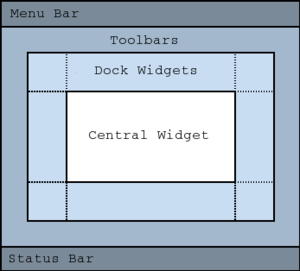
In this case, let your application inherit from QMainWindow, and add the following UI elements:
A “File” menu to open a File dialog.
An “Exit” menu close the window.
A status message on the status bar when the application starts.
In addition, you can define a fixed size for the window or adjust it based on the resolution you currently have. In the following snippet, you will see how window size is defined based on available screen width (80%) and height (70%).
Note
You can achieve a similar structure using other Qt elements like
QMenuBar, class:~PySide6.QtWidgets.QWidget,
and QStatusBar. Refer the QMainWindow layout for
guidance.
 1from PySide6.QtGui import QIcon, QKeySequence
 2from PySide6.QtWidgets import QMainWindow
 3
 4
 5class MainWindow(QMainWindow):
 6    def __init__(self):
 7        super().__init__()
 8        self.setWindowTitle("Eartquakes information")
 9
10        # Menu
11        self.menu = self.menuBar()
12        file_menu = self.menu.addMenu("File")
13
14        # Exit QAction
15        file_menu.addAction(QIcon.fromTheme(QIcon.ThemeIcon.ApplicationExit),
16                            "Exit", QKeySequence.StandardKey.Quit, self.close)
17
18        # Status Bar
19        self.status = self.statusBar()
20        self.status.showMessage("Data loaded and plotted")
21
22        # Window dimensions
23        geometry = self.screen().availableGeometry()
24        self.setFixedSize(geometry.width() * 0.8, geometry.height() * 0.7)
Try running the script to see what output you get with it.