
C
Qt Quick Ultralite styling Example
Demonstrates how to use styles in Qt Quick Ultralite.
Overview
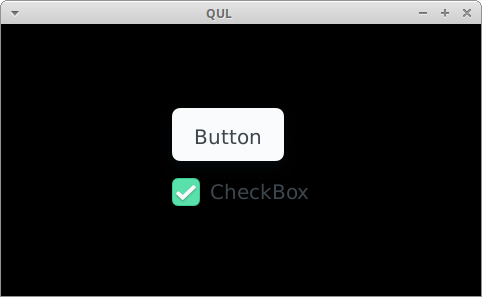
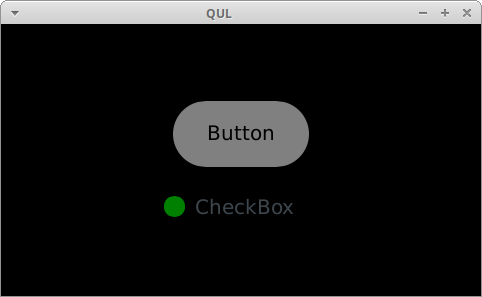
This example shows how to define and use a custom QtQuick.Controls style. The same code is compiled twice, once as styling_default with the default style, and once as styling_custom with the custom style. The switch between styles is done only in the project's CMakeLists.txt.
You can read more about custom styles in Styling Controls.
Project structure
CMake project file
The CMakeLists.txt file defines two targets. The first uses the default styling and is linked to Qul::Controls:
# Default style version
if(QUL_PLATFORM MATCHES "autosar")
    qul_add_library(styling_default)
else()
    qul_add_executable(styling_default)
endif()

qul_add_qml_module(styling_default
    URI StylingApp
    OUTPUT_DIRECTORY ${CMAKE_CURRENT_BINARY_DIR}/default
    QML_FILES styling.qml
    NO_SBOM
)

target_link_libraries(styling_default PRIVATE Qul::Controls)

app_target_setup_os(styling_default)
app_target_default_entrypoint(styling_default styling MODULE StylingApp)
The second uses the styles from the CustomControls directory, and selects them through the QUL_CONTROLS_STYLE target property:
# Custom style version
add_subdirectory(CustomControls)

if(QUL_PLATFORM MATCHES "autosar")
    qul_add_library(styling_custom)
else()
    qul_add_executable(styling_custom)
endif()

qul_add_qml_module(styling_custom
    URI StylingApp
    OUTPUT_DIRECTORY ${CMAKE_CURRENT_BINARY_DIR}/custom
    QML_FILES styling.qml
    NO_SBOM
)

set_target_properties(styling_custom PROPERTIES QUL_CONTROLS_STYLE CustomControls)
target_link_libraries(styling_custom PRIVATE styling_custom_style)

app_target_setup_os(styling_custom)
app_target_default_entrypoint(styling_custom styling MODULE StylingApp)
Both targets build the same styling.qml into a module with the same URI. QUL_CONTROLS_STYLE is applied while the module's QML is compiled, so each target needs its own module; OUTPUT_DIRECTORY keeps the generated files of the two apart.
The CustomControls module itself declares Button.qml and CheckBox.qml:
qul_add_qml_module(styling_custom_style
    URI CustomControls
    QML_FILES
        Button.qml
        CheckBox.qml
)

target_link_libraries(styling_custom_style PUBLIC Qul::ControlsTemplates Qul::Controls)
It links Qul::Controls only because CheckBox.qml derives from the default style; a CheckBox implemented from scratch would not need it.
Default style
This styling.qml file uses QML types from the QtQuick.Controls module. For the styling_default target, definitions are taken from the Qul::Controls library. For the styling_custom target, objects from CustomStyleLib are used.
Custom style
The Button.qml and CheckBox.qml files reimplement Button and CheckBox controls with the custom style.
import QtQuick 2.15
import QtQuick.Controls.StyleDefault 1.0 as Base

Base.CheckBox {
    id: control

    indicator: Rectangle {
        x: control.leftPadding
        y: control.topPadding + (control.availableHeight - height) / 2
        width: control.availableHeight / 2
        height: control.availableHeight / 2
        radius: width / 2
        color: !control.enabled
            ? "gray"
            : (control.checked ? "green" : "red")
    }
}
For example, the CheckBox indicator is different compared to a CheckBox control using a default style. It uses a new circular indicator.
Files:
Available under certain Qt licenses.
Find out more.
