
Matrix Test Runs
Test plans support two types of test runs: Single and Matrix. A single test run targets one fixed configuration. A matrix test run covers multiple configurations at once when the test plan is scheduled, Test Center expands it into individual runs, one for each combination of label values you configure.
This page explains how to create matrix test runs, how they appear in the plan template, and how to automatically assign users to the resulting runs based on their declared capabilities.
Add a matrix test run to a test plan template
Open a test plan template and click + Test Run. This opens Add Test Run page, which has the tests list and the configuration panel.
Choose the run type
The configuration panel shows two options: Single and Matrix.
- Single — one test run with the selected labels applied to all selected tests. This is the default.
- Matrix — the run is expanded into multiple runs upon scheduling, one per label combination computed from the categories you configure.
Select Matrix to continue configuring a matrix run.
Select labels and configure categories
Use the Labels dropdown to select or create the label values that define the matrix dimensions. Labels follow the key=value format, for example OS=Linux or Browser=Chrome.
After selecting labels, the panel groups them by key into categories and displays a selector for each one:
OS (2): Linux Windows [-] 2 [+]The number shown between the buttons is the count how many distinct values from that category will be covered across the expanded runs. By default the count equals the total number of values in the category, meaning every value gets its own run. Use the - and + buttons to decrease or increase it.
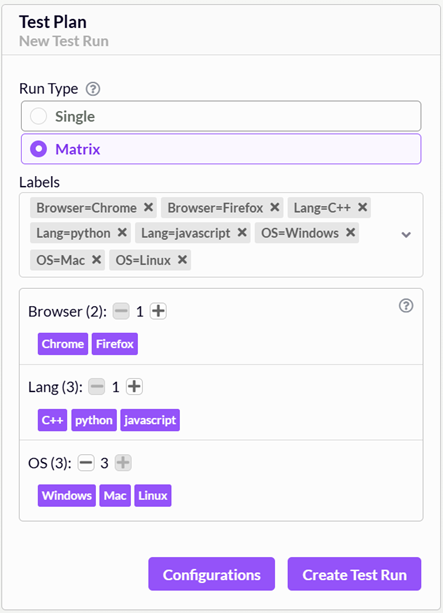
Category selector showing label groups with adjustable counts
How the matrix is expanded
When the test plan is scheduled, Test Center computes all combinations across categories using the configured counts. For example:
| Category | Values | Count |
|---|---|---|
| OS | Linux, Windows | 2 |
| Browser | Chrome, Firefox | 2 |
This produces four individual runs:
- OS=Linux, Browser=Chrome
- OS=Linux, Browser=Firefox
- OS=Windows, Browser=Chrome
- OS=Windows, Browser=Firefox
A category whose count equals its total number of values is fully expanded: every value participates in its own combination. When the count is set lower, the category is partially expanded: at least that many distinct values from the category appear across the expanded runs, but not necessarily all of them.
Without automatic user assignment
Test Center expands the matrix into individual runs based on the combination logic above and leaves all resulting runs unassigned.
With automatic user assignment
Test Center runs an optimisation that simultaneously determines which combinations to create and which user to assign to each. The goal is to minimise the maximum number of runs given to any single user so that workloads stay balanced.
For partially-expanded categories the solver may cover more values than the configured count. This happens when assigning a capable user to a run requires a combination that introduces an additional value from that category. Maximising user assignment takes priority over the minimum-coverage requirement.
Select tests and create the run
Select one or more tests from the test list. If you select multiple test suites, Test Center creates one matrix test run per suite.
Click Create Test Run to save the matrix run to the test plan template.
Matrix test runs in the plan template
In the Planned Test Runs table, each matrix test run is displayed across two rows:
- The first row shows the test suites, tests, and a type indicator. The Labels and Assigned To columns are empty for matrix runs because assignment and label combinations are determined at scheduling time.
- The second row contains a sub-table with three columns: Category, Labels, and Count. This summarizes the configuration defined when the run was created.

Matrix run sub-table in the Planned Test Runs view
To edit a matrix test run, click its row to open the configuration page.
Set up user capabilities
User capabilities describe which label values a user can handle. Test Center uses these to automatically assign users to the correct expanded runs when a manual matrix test plan is scheduled.
To manage capabilities, open the User Capabilities page from the dropdown menu in the Test Center header.

User Capabilities page
The page lists all users who have at least one capability assigned. The Label Capability column shows each user's current labels.
Add or edit a user's capabilities
Click the + button in the table header to open the Account Capabilities dialog for a new entry. To edit an existing entry, click the edit button on that row.
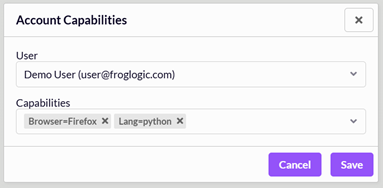
Account Capabilities dialog
- User — select the user to assign capabilities to. This field is read-only when editing an existing entry.
- Capabilities — select one or more label values from the dropdown, or add a new custom
key=valueentry.
Click Add (or Save when editing) to confirm. To remove all capabilities for a user, click the delete button on that row and confirm.
Schedule with automatic user assignment
When scheduling a test plan that contains manual matrix runs, Test Center can assign users to the expanded individual runs automatically based on their capabilities.
Open the Execute Test Plan dialog from the plan template detail view and enable the Auto Assign Manual Matrix Runs toggle.
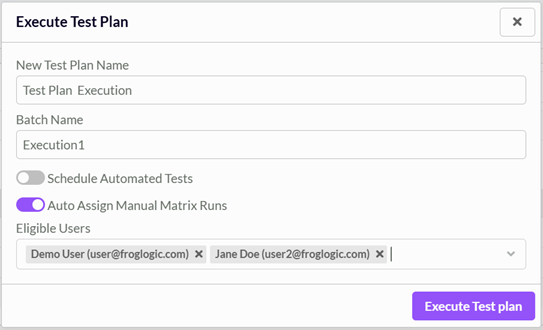
Auto Assign Manual Matrix Runs toggle in the scheduling dialog
When enabled, Test Center matches each expanded run's label combination against the capabilities of available users and assigns the best-fitting user to each run. The solver minimises the maximum number of runs assigned to any single user, distributing work as evenly as possible across eligible users. Runs for which no capable user is found are left unassigned.
Eligible users
After enabling Auto Assign Manual Matrix Runs, an Eligible Users field appears. Select one or more users here to restrict assignment to only those users. Users not in the list are excluded from assignment even if they have matching capabilities. Leave the field empty to allow assignment from all users with matching capabilities.
Tips
- Label values used in matrix runs do not need to exist in Test Center before you create the run. You can type any
key=valuestring in the Labels field and in the Capabilities field. - Matching between capabilities and run labels is case-sensitive, so
OS=linuxandOS=Linuxare treated as different values. - A user must have capabilities that cover all label values of a run's combination to be eligible for assignment. Runs with no eligible user are left unassigned.
- When Eligible Users is set, only those users are eligible for assignment. Among them, the user with the fewest already-assigned runs is preferred.
© 2024 The Qt Company Ltd.
Documentation contributions included herein are the copyrights of
their respective owners.
The documentation provided herein is licensed under the terms of the GNU Free Documentation License version 1.3 as published by the Free Software Foundation.
Qt and respective logos are trademarks of The Qt Company Ltd. in Finland and/or other countries worldwide. All other trademarks are property
of their respective owners.
