
Setting up the AI assistant
Before you start
To use the AI assistant in Qt Design Studio, you need an API key to Gemini, OpenAI, or Claude.
Configuring the AI assistant
To configure the AI assistant:
- In the AI Assistant view, select
 .
. - Enter the API key for your AI provider.
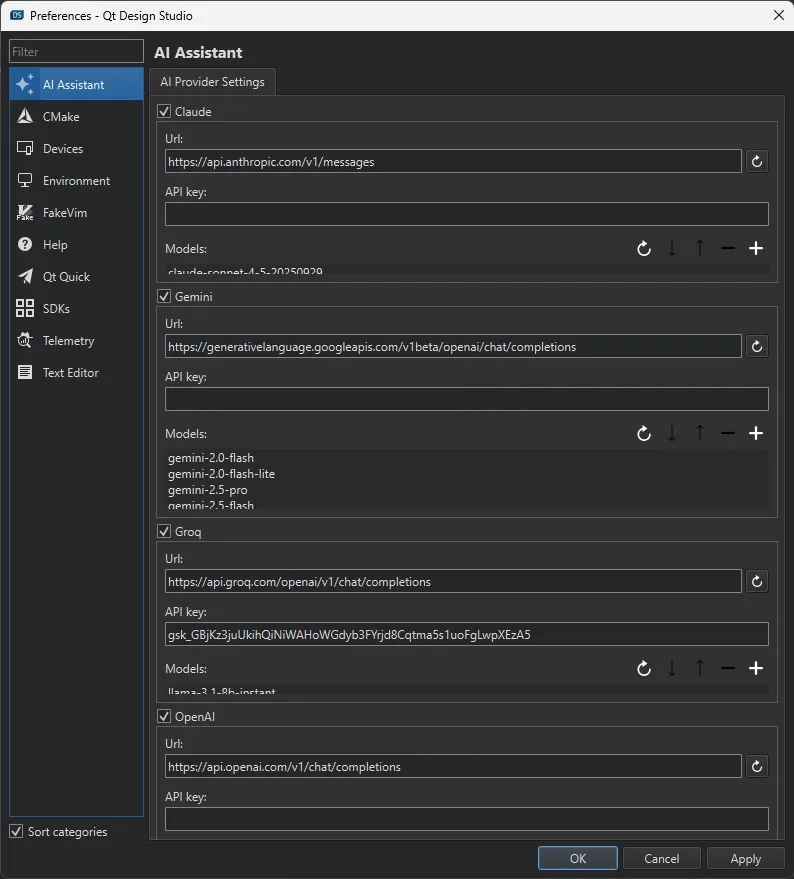
Models available under a provider appear in the model selector in the AI Assistant view only when an API key has been entered for that provider. Providers without an API key are not shown in the model selector.
You can also:
- Disable a provider by clearing the checkbox next to its name. Disabled providers and their models are removed from the model selector in the AI Assistant view.
- Reset the provider URL by selecting
 next to the Url field.
Configuring MCP servers
During configuration, you can also go to the MCP Server Settings tab to configure, enable, and disable MCP servers. For details on how to do it, see Connecting an external MCP server.
Adding, removing, and reordering models
In the AI assistant settings dialog:
- To add another model, select
 and enter the model ID for the model you want to add. See AI models.
 - To remove a model, select the model and then select
 .
. - To move a model up or down, select it and use
 and
and  .
. - To reset the model list to default, select .
See also AI assistant, AI models, MCP servers, Using the AI assistant, and Using the Figma Desktop MCP Server with Qt Design Studio.
Available under certain Qt licenses.
Find out more.
