
MCP servers
The AI assistant supports Model Context Protocol (MCP) servers. MCP servers expose tools that the AI assistant can use when generating or modifying content in your project.
The AI assistant has one built-in QML MCP server. You can also connect external MCP servers, see Connecting an external MCP server.
Built-in QML MCP server
Qt Design Studio includes a built-in QML MCP server that is enabled by default. It gives the AI assistant direct access to the QML files in your project through the following tools:
| Tool | Description |
|---|---|
read_qml | Reads the contents of a QML file. |
create_qml | Creates a new QML file in the project. |
modify_qml | Modifies an existing QML file. |
delete_qml | Deletes a QML file from the project. |
move_qml | Moves a QML file to a different location in the project. |
Configuration
The built-in QML MCP server is pre-configured with the following settings:
| Setting | Value | Description |
|---|---|---|
| Transport | Std I/O | The communication method used by the server. |
| Command | qml_mcp_server/qml_mcp_server.exe (Windows) or qml_mcp_server/qml_mcp_server (Linux and macOS) | The executable that starts the QML MCP server. |
| Arguments | ${PROJECT_PATH} | The path to your current project. Scopes all file operations to the project directory. |
Security
The built-in QML MCP server is designed with strict boundaries:
- It only reads and writes files inside your current project directory. It never accesses files outside of it.
- It exposes only the defined tools listed above. No script execution or arbitrary system access is possible.
- All tool calls made by the AI assistant are visible in the AI Assistant chat history, so you always know what actions were taken.
Warning: Only use the AI assistant on projects you own or fully trust. QML files can contain embedded text that may attempt to influence the AI assistant's behavior, a technique known as prompt injection. For example, a malicious comment in a shared QML file could instruct the AI assistant to delete or overwrite files in your project. While the built-in tools require your confirmation for destructive actions such as delete_qml, you should still be cautious when opening projects from untrusted sources.
Connecting an external MCP server
You can connect external MCP servers to extend what the AI assistant can do beyond the built-in QML tools.
To add an external MCP server:
- In the AI Assistant view, select
 .
. - On the MCP Server Settings tab, select Add MCP server.
- In Server name, enter a name for the server.
- In Transport, select the communication method:
- Std I/O: Qt Design Studio launches the server as a local process and communicates with it over standard input/output.
- HTTP: Qt Design Studio connects to a server running at a given URL.
- Depending on the selected transport, fill in the remaining fields:
- For Std I/O:
- In Command, enter the command used to start the server.
- In Working dir, enter the working directory for the server process.
- To pass arguments to the server command, select
 next to Arguments and enter each argument as a separate string.
- For HTTP:
- In URL, enter the address of the server.
- If the server requires authentication, enter the credentials in Bearer token.
- For Std I/O:
- Select OK.
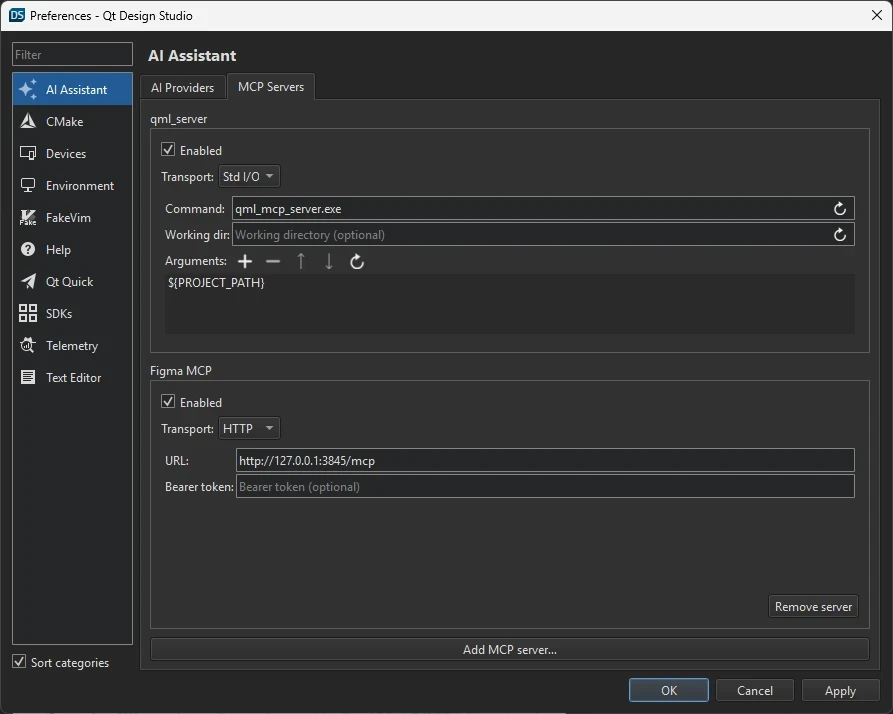
To enable or disable a server, select or clear the checkbox next to its name in the MCP server list.
For more information about connecting an external MCP Server to Qt Design Studio, see Using the Figma Desktop MCP Server with Qt Design Studio.
See also AI assistant, AI models, Setting up the AI assistant, and Using the AI assistant.
Available under certain Qt licenses.
Find out more.
