
AI Assistant
The AI Assistant view can send pre-generated or custom prompts to a Large Language Model (LLM) and view the results received from the LLM. It also can apply code changes provided by the LLM to the editor. To open it, select the Squish AI Assistant toolbar icon ( ).
).
If you can't find the icon or the view, make sure that the AI Assistant Squish IDE extension is installed.
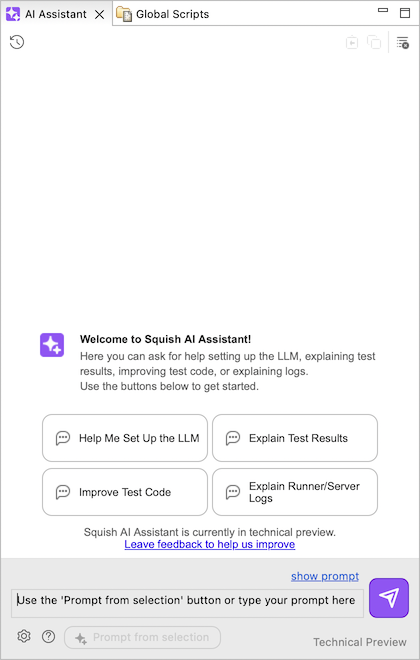
AI Assistant view showing inline help
Initially the view shows a welcome area with interactive buttons you can click to learn more about how to use the AI Assistant view. Selecting one of the Help me Set Up the LLM, Explain Test Results, Improve Test Code, and Explain Runner/Server Logs buttons will expand with information helping you to use the Assistant.
The Start a new Chat Session toolbar button ( ) starts a new chat session.
The Delete toolbar button ( ) after confirming from a dialog, permanently removes the current chat session from the stored history, and starts a new session.
The settings button ( ) navigates to the Squish AI Assistant preference page.
The info button ( ) opens this reference documentation.
Generate prompts based on the selection
The Squish AI Assistant supports generating prompts incorporating information from the currently selected UI elements in the Squish IDE. This works for script code selected in the editor, failed test results in the Test Results view as well as selected output from the Runner/Server Log.
After selecting script code, log output, or a failed result entry, you can use the Prompt from selection button ( ) to generate a prompt. You can also use the context menu entries present in the above mentioned views to generate a prompt related to the selection in that view.
You can inspect the prompt information that will be sent to the LLM by clicking on the show prompt link. It is also possible to modify the prompt here which will turn it into a custom prompt.
Once the prompt has been generated or modified, it can be sent to the LLM. Depending on whether the automatically send prompts when using context menu option from Squish AI Assistant preferences page has been checked, prompts are either sent automatically or require pressing the send button ( ).
).
The response from the LLM will replace the content of the welcome area or the previous response.
Chat Sessions
Each chat message is part of a session. A new session is created by clicking New Chat ().
A session represents a conversation between the user and the LLM. Each prompt request includes the last 10 messages from the session, to give context to the LLM. This number can be configured from the Preferences of Squish AI Assistant.
In order to send a prompt request to the LLM, you can press <RETURN> or click the send button (). Your request and eventually also the reply will be displayed in the area above your typing area.
Apply the LLM response to your tests
The response from the LLM may contain code snippets that the LLM suggests for your test scripts.
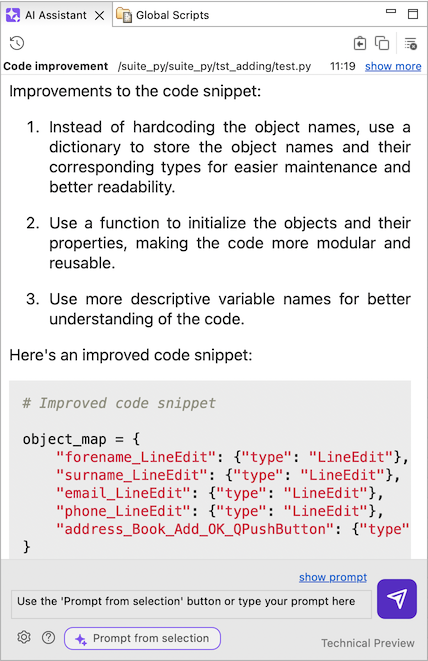
AI Assistant shows a response from the LLM
Each snippet has a Copy button ( ), allowing you to paste the snippet into your script manually.
Each snippet also has an Insert code snippet button ( ), which will apply the code snippet, alongside an indication that it was AI-generated, directly into the currently edited file. This button will replace the selected code in the active text editor, or append the snippet to the end of the file if nothing is selected. The operation can be undone using the Undo command from the toolbar, Edit menu, or the editor's context menu.
Access previous sessions
The AI assistant stores the last 10 chat sessions on disk.
You can navigate to these sessions by clicking the Show history button ( ).
).
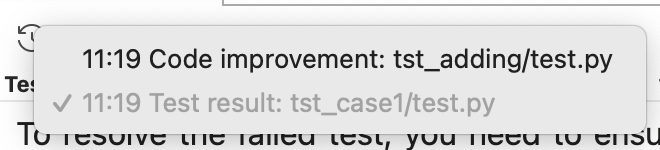
AI assistant history dropdown list
Each entry consists of a short description, indicating which generated prompt has been sent or whether it was a custom prompt. Alongside this the time when it was sent is presented and the currently displayed response is highlighted.
Selecting an entry from this dropdown will restore the chat session to your AI Assistant View, allowing you to continue a previous conversation.
© 2025 The Qt Company Ltd.
Documentation contributions included herein are the copyrights of
their respective owners.
The documentation provided herein is licensed under the terms of the GNU Free Documentation License version 1.3 as published by the Free Software Foundation.
Qt and respective logos are trademarks of The Qt Company Ltd. in Finland and/or other countries worldwide. All other trademarks are property
of their respective owners.
