PySide6.QtPrintSupport
- PySide6.QtPrintSupport.QAbstractPrintDialog
- PySide6.QtPrintSupport.QPageSetupDialog
- PySide6.QtPrintSupport.QPrintDialog
- PySide6.QtPrintSupport.QPrintEngine
- PySide6.QtPrintSupport.QPrintPreviewDialog
- PySide6.QtPrintSupport.QPrintPreviewWidget
- PySide6.QtPrintSupport.QPrinter
- PySide6.QtPrintSupport.QPrinterInfo
Detailed Description
A guide to producing printed output with Qt’s paint system and widgets.
The Qt Print Support module provides extensive cross-platform support for printing. Using the printing systems on each platform, Qt applications can print to attached printers and across networks to remote printers. The printing system also supports PDF file generation, providing the foundation for basic report generation facilities.
Qt Print Support is not available on:
Android
iOS
Classes Supporting Printing
The following classes support the selecting and setting up of printers and printing output.
The QAbstractPrintDialog class provides a base implementation for print dialogs used to configure printers.
The QPrintDialog class provides a dialog for specifying the printer’s configuration.
The QPageSetupDialog class provides a configuration dialog for the page-related options on a printer.
The QPrintPreviewDialog class provides a dialog for previewing and configuring page layouts for printer output.
The QPrinter class is a paint device that paints on a printer.
The QPrintEngine class defines an interface for how QPrinter interacts with a given printing subsystem.
The QPrinterInfo class gives access to information about existing printers.
The QPrintPreviewWidget class provides a widget for previewing page layouts for printer output.
Paint Devices and Printing
Printers are represented by QPrinter, a paint
device that provides functionality specific to printing, such as support for
multiple pages and double-sided output. As a result, printing involves using a
QPainter to paint onto a series of pages in the
same way that you would paint onto a custom widget or image.
Creating a QPrinter
Although QPrinter objects can be constructed
and set up without requiring user input, printing is often performed as a
result of a request by the user; for example, when the user selects the
File|Print… menu item in a GUI application. In such cases, a
newly-constructed QPrinter object is supplied to a
QPrintDialog , allowing the user to specify
the printer to use, paper size, and other printing properties.
printer = QPrinter()
dialog = QPrintDialog(printer, self)
dialog.setWindowTitle("Print Document")
if editor.textCursor().hasSelection():
    dialog.addEnabledOption(QAbstractPrintDialog.PrintDialogOption.PrintSelection)
if dialog.exec() != QDialog.DialogCode.Accepted:
    return
It is also possible to set certain default properties by modifying the
QPrinter before it is supplied to the
print dialog. For example, applications that generate batches of reports for
printing may set up the QPrinter to
write to a local file
by default rather than to a printer.
Painting onto a Page
Once a QPrinter object has been constructed
and set up, a QPainter can be used to perform painting
operations on it. We can construct and set up a painter in the following way:
printer = QPrinter(QPrinter.PrinterMode.HighResolution)
printer.setOutputFileName("print.ps")
painter.begin(printer)
for page in range(0, numberOfPages):
    # Use the painter to draw on the page.
    if page != lastPage:
        printer.newPage()
painter.end()
Since the QPrinter starts with a
blank page, we only need to call the
newPage() function after
drawing each page, except for the last page.
The document is sent to the printer, or written to a local file, when we call end().
Coordinate Systems
QPrinter provides functions that can
be used to obtain information about the dimensions of the paper (the paper
rectangle) and the dimensions of the printable area (the page rectangle). These
are given in logical device coordinates that may differ from the physical
coordinates used by the device itself, indicating that the printer is able to
render text and graphics at a (typically higher) resolution than the user’s
display.
Although we do not need to handle the conversion between logical and physical coordinates ourselves, we still need to apply transformations to painting operations because the pixel measurements used to draw on screen are often too small for the higher resolutions of typical printers.
The paperRect() and
pageRect() functions provide
information about the size of the paper used for printing and the area on it
that can be painted on.
The rectangle returned by pageRect()
usually lies inside the rectangle returned by
paperRect() . You do not need to take the
positions and sizes of these area into account when using a QPainter with a
QPrinter as the underlying paint device; the
origin of the painter’s coordinate system will coincide with the top-left
corner of the page rectangle, and painting operations will be clipped to the
bounds of the drawable part of the page.
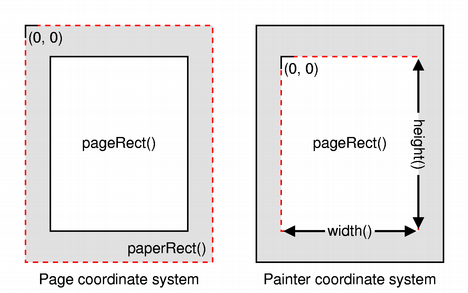
The paint system automatically uses the correct device metrics when painting
text but, if you need to position text using information obtained from font
metrics, you need to ensure that the print device is specified when you
construct QFontMetrics and
QFontMetricsF objects, or ensure that each
QFont used is constructed using the form of the
constructor that accepts a QPaintDevice argument.
Printing Widgets
To print a widget, you can use the render() function.
As mentioned, the printer’s resolution is usually higher than the screen resolution,
so you will have to scale the painter. You may also want to position the widget on
the page. The following code sample shows how this may look.
painter = QPainter()
painter.begin(printer)
pageLayout = printer.pageLayout()
pageRect = pageLayout.paintRectPixels(printer.resolution())
paperRect = pageLayout.fullRectPixels(printer.resolution())
xscale = pageRect.width() / double(myWidget.width())
yscale = pageRect.height() / double(myWidget.height())
scale = min(xscale, yscale)
painter.translate(pageRect.x() + paperRect.width() / 2,
                  pageRect.y() + paperRect.height() / 2)
painter.scale(scale, scale)
painter.translate(-myWidget.width() / 2, -myWidget.height() / 2)
myWidget.render(painter)
This will center the widget on the page and scale it so that it fits the page.
Printing from Complex Widgets
Certain widgets, such as QTextEdit and
QGraphicsView, display rich content that is
typically managed by instances of other classes, such as
QTextDocument and
QGraphicsScene. As a result, it is these content
handling classes that usually provide printing functionality, either via a
function that can be used to perform the complete task, or via a function that
accepts an existing QPainter object. Some widgets
provide convenience functions to expose underlying printing features, avoiding
the need to obtain the content handler just to call a single function.
The following table shows which class and function are responsible for printing from a selection of different widgets. For widgets that do not expose printing functionality directly, the content handling classes containing this functionality can be obtained via a function in the corresponding widget’s API.
Widget
Printing function
Accepts
QGraphicsView
QGraphicsView.render()
QPainter
QSvgWidget
QSvgRenderer.render()
QPainter
QTextEdit
QTextDocument.print()
QTextLayout
QTextLayout.draw()
QPainter
QTextLine
QTextLine.draw()
QPainter
QTextEdit requires a
QPrinter rather than a
QPainter because it uses information about the
configured page dimensions in order to insert page breaks at the most
appropriate places in printed documents.
Using the Module
To include the definitions of modules classes, use the following directive:
import PySide6.QtPrintSupport